
Go to documentation repository

Documentation for Axxon PSIM 2.0. Documentation for other versions of Axxon PSIM is available too.
Previous page Next page

The Video subsystem section is used for the advanced configuration of the video subsystem to enhance the performance of Axxon PSIM.
The settings panel for the Video subsystem section is shown in the figure.
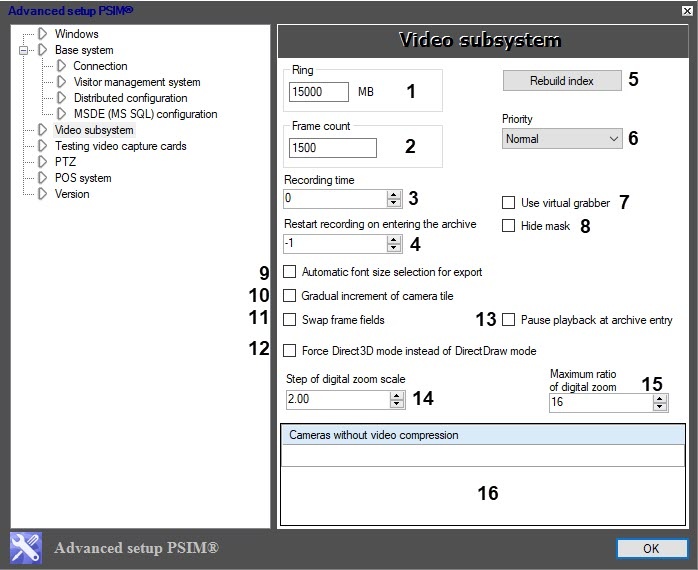
The setting parameters of the Video subsystem section are described in the table.
No | Parameter name | Method of setting the parameter value | Parameter description | Representation | Default value | Value range |
1 | The Ring field | Enter the value in the field | Sets the value of the remaining disc space upon reaching which the old recordings are deleted on loop (see General information on video archiving). If you use two or more discs for the video archive recording, the current disc keeps recording until the FreeMbCritical of free disc space is left (1000 MB by default, see this key in Registry keys reference guide). The free space set by the Ring parameter is used for recording temporary files. This means that when you reach the limit set by the Ring parameter, the maximum size of the temporary file is Ring (the FreeMb registry key). The video that is received from such a temporary file can contain fewer frames than set by the Frame count parameter. Note. The removal of old recordings cas start before the remaining disk space reaches the specified value if the disk space is less than 15000 | MB | 5000 | Depends on the hard disk space |
2 | The Frame count field | Enter the value in the field | Sets the maximum number of frames in one recording file | Frame | 1500 | Ftom 1500 to 10000. We don't recommend changing the default value |
3 | The Recording time field | Enter the value in the field/select the value from the list | Sets the length of the file in seconds, restricting the fragment’s size not by the number of frames, but by the time of its recording | Time in seconds | 0 | Unlimited |
4 | The Restart recording on entering the archive field | Enter the value in the field/select the value from the list | Enables the restart of recording on entering the archive | Integer numbers | -1 | 0—the fragment that is recorded at the moment of entering the archive is forcibly stopped, and the new one starts. As a result, the user who enters the archive sees the freeze frame on the screen corresponding to the moment of entry. >0—the recording is restarted when you enter the archive, while the positioning in the archive is performed with a shift back to the specified value in seconds -1—recording isn't stopped at the moment of entering the archive |
5 | The Rebuild index button | Click the button | Deletes the file that stores recording indexes. After you delete the file using the Rebuild index button, you must restart Axxon PSIM and create a new file with updated recording indexes | NA | NA | NA |
6 | The Priority drop-down list | Select the value from the list | Sets the execution priority of all Axxon PSIM processes | Names of priority processes | Normal |
|
7 | The Use virtual grabber checkbox | Set the checkbox | Provides access to the virtual video capture device settings in Axxon PSIM. Note. You must enable Desktop Experience Feature when using the virtual video capture device on server OS and files of the avi format | Boolean type | Clear | Set—the Virtual and Virtual bench values are available from the Type drop-down list on the settings panel of the Video capture device objects Clear—the Virtual and Virtual bench values aren't available for the Video capture device objects |
8 | The Hide mask checkbox | Set the checkbox | Forbids the display of the video hidden by the mask of the motion detector on the screen. The video area marked by the motion detector mask is hidden by the grey color. This feature works only on the uncompressed video received from the FS or FX local video capture cards | Boolean type | Clear | Set—video hidden by the mask video isn't displayed Clear—video hidden by the mask is displayed |
| 9 | The Automatic font size selection for export checkbox | Set the checkbox | Enables the relative font size for captions (camera number and time) when you export a frame or fragment of the video archive | Boolean type | Clear | Set—when you export a frame, the caption size is scaled depending on the video resolution Clear—when you export a frame, regardless of the video resolution, the caption size remains constant set by the SubtitlesFontSize registry key, see the Registry keys reference guide |
| 10 | The Gradual increment of camera tile checkbox | Set the checkbox | Enables the gradual increase of the surveillance window on the custom layout by double-left-clicking. All surveillance windows on the layout must be of the same size to ensure proper operation of the key | Boolean type | Clear | Set—by double-left-clicking, the surveillance window is expanded gradually: the first double-click expands it two times greater than the initial size, the second double-click expands it three times greater than the initial size, and so on. The surveillance windows adjacent to it are hidden on the layout Clear—by double-left-clicking, the surveillance window is expanded to the entire video surveillance monitor |
11 | The Swap frame fields checkbox | Set the checkbox | Switches Axxon PSIM from basic to the additional driver if there are video artifacts when you use the basic driver | Boolean type | Clear | Set—Axxon PSIM operates with the additional driver Clear—Axxon PSIM operates with the basic driver |
12 | The Force Direct3D mode instead of DirectDraw mode checkbox | Set the checkbox | Enables forcefully the Direct3D mode instead of DirectDraw | Boolean type | Set | Set—the Direct3D mode is used instead of DirectDraw Clear—the Direct3D mode isn't used instead of DirectDraw |
| 13 | The Pause playback at archive entry checkbox | Set the checkbox | The Pause button is clicked when you enter the archive | Boolean type | Clear | Set—the Pause button is clicked when you enter the archive; you can navigate through the archive using arrow keys Clear—the Pause button isn't clicked when you enter the archive |
14 | The Step of digital zoom scale field | Enter the value in the field/select the value from the list | Sets the fractional step of the video digital zoom | Numbers with the fixed point | 2.00 | The maximum value depends on the maximum scale of the digital zoom (see 17). Minimum value is 1.00 |
15 | The Maximum ratio of digital zoom field | Enter the value in the field/select the value from the list | Specifies the maximum value of the video digital zoom | Sequence of numbers | 16 | From 1 to 16 |
16 | The Cameras without video compression table | Enter the value in the field | Sets the number of cameras connected to the video capture cards with program compression. There is no program compression for the specified cameras, that is, the compressor settings in Axxon PSIM are ignored | Camera serial number | NA | Depends on the number of cameras registered in the system |
Note
Setting the non-zero value to the Recording time parameter doesn't disable the Frame count parameter. If you set the values for both parameters, then the file recording is performed with the value that comes first. For example, if you set the value of the Recording time parameter to 10 seconds and 500 frames (default) for the Frame count parameter, and in 10 seconds the fragment size is 80 frames, then the 80-frame file is recorded.
Overview
Content Tools