
Go to documentation repository


On the page:
Universal reader can read both the card number (see Entering an access card number using a control reader) and user data from the card.
You can work with a universal reader via a virtual reader or via a smart card reader that can be connected to any USB reader.
Virtual reader
To work with a virtual reader, select it from the reader drop-down list.
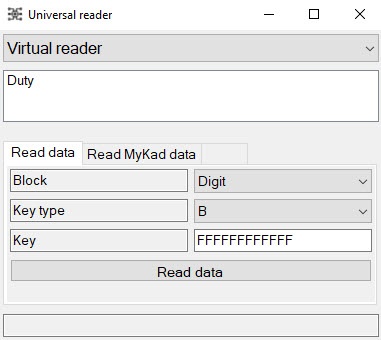
- To read user data, go to the Read data tab.
- From the Block drop-down list, select the format of the protected block of the card memory: Digit or Hex.
- From the Key type drop-down list, select one of two types of access keys to the protected block of the card memory: A or B.
- In the Key field, specify a key that protects access to the protected block of the card memory.
Click the Read data button. The process of reading the data of the access card starts.
To read the data of the MyKad identification card, go to the Read MyKad data tab.
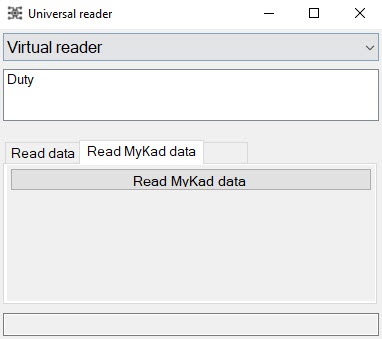
Click the Read MyKad data button. The process of reading the data of the MyKad identification card starts.
Note
The MyKad card is used for identification in Malaysia. The MyKad card can be read using a universal reader. You can enter a card number in the corresponding user fields in the Access Manager. You can also enter the following user data: name, surname, address, photo.
Smart card reader
- To work with a USB reader, select SmartCard reader from the drop-down list.
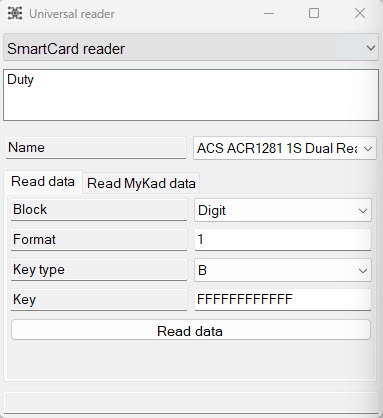
- To read smart card data, remain on the Read data tab that is selected by default.
- From the Name drop-down list, select the device for reading the access card data.
- From the Block drop-down list, select the format of the protected block of the smart card memory.
- In the Format field, enter the format of the smart card.
- From the Key type drop-down list, select one of two types of access keys to the protected block of the smart card memory: A or B.
- In the Key field, specify a key that protects access to the protected block of the smart card memory.
Click the Read data button. The process of reading the data of the smart card starts.
- To read the data of the MyKad identification card, go to the Read MyKad data tab.
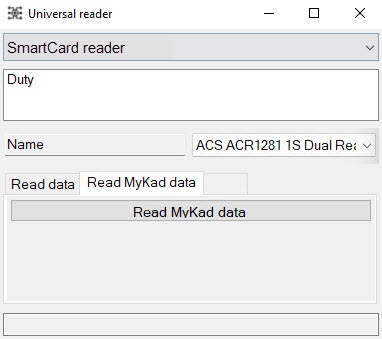
- From the Name drop-down list, select the device for reading the data of the MyKad identification card.
- Click the Read MyKad data button. The process of reading the data of the MyKad identification card starts.
- From the Name drop-down list, select the device for reading the data of the MyKad identification card.
Working with a virtual reader is complete.
Overview
Content Tools