
Go to documentation repository
Previous page Next page
You can configure the Barcode detection module on the settings panel of the Barcode detection object that is created on the basis of the Camera object on the Hardware tab of the System settings window.
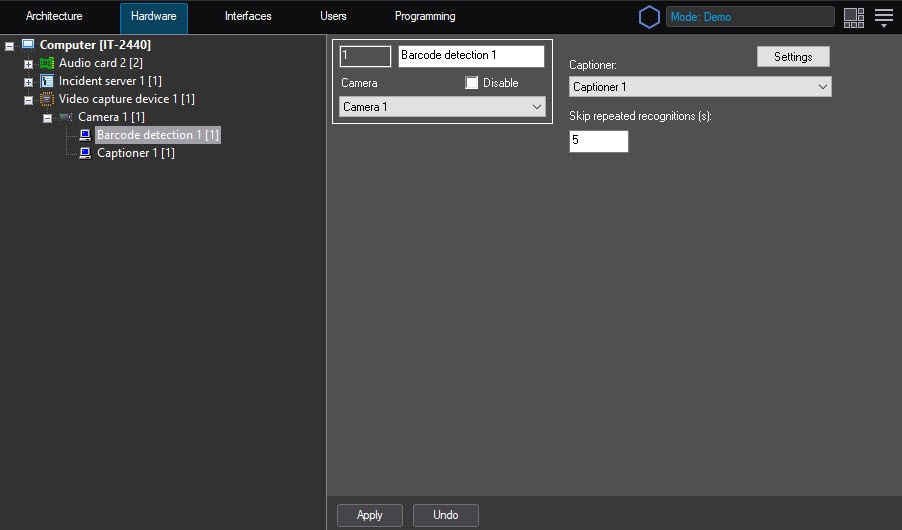
To configure the Barcode detection module, do the following:
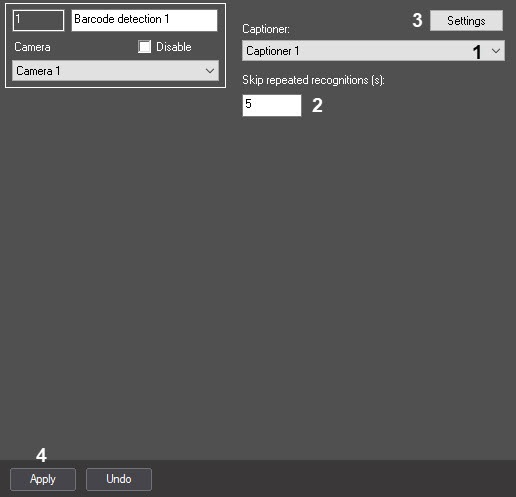
In the Skip repeated recognitions (s) field, enter the time in seconds in which the repeated code is recognized (2).
Note
If there are different barcodes or QR-codes one after another, the recognition is performed instantly. If there are repeated barcodes, the new result is displayed after the time period specified in the settings.
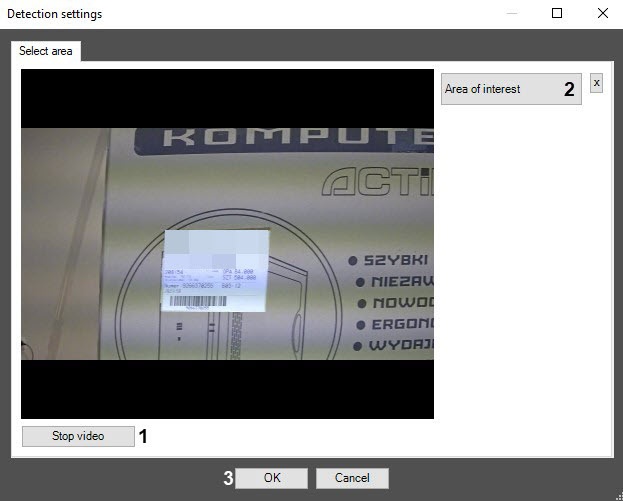
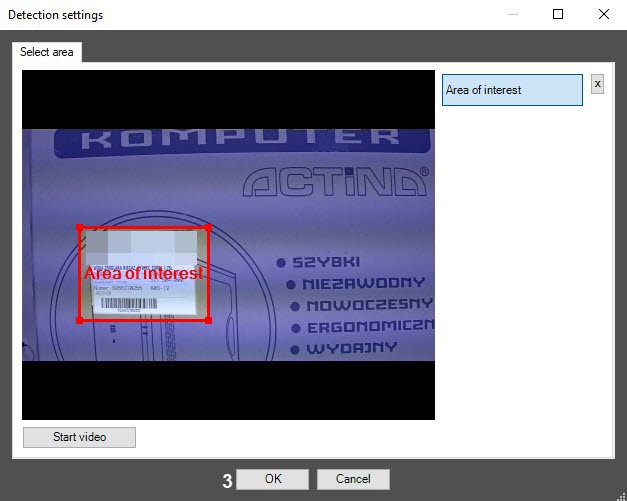
Note
To remove the area, click the  button next to the Area of interest button.
Attention!
Barcodes can be detected when the entire barcode or QR code is within the specified area, including its fragment.
Click the OK button (3) to save the changes and return to the settings panel of the Barcode detection object.
Note
To return to the settings panel of the Barcode detection object without saving the changes, click the Cancel button.
Configuring the Barcode detection module is complete.

