
Go to documentation repository
Previous page Next page
You can configure the Person location tracker module on the settings panel of the Person location tracker object that is created on the basis of the Camera object on the Hardware tab of the System settings window.
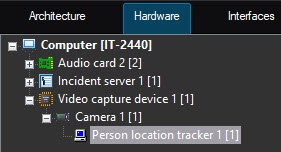
To configure the Person location tracker software module, do the following:
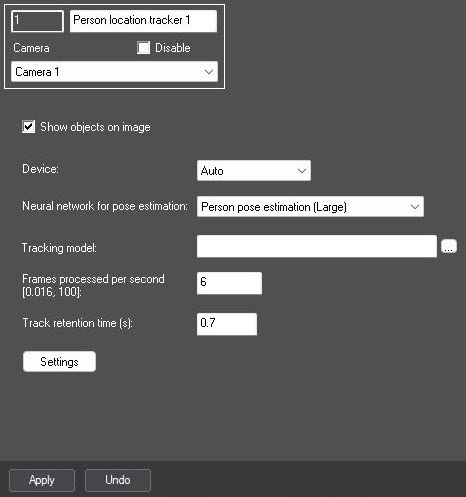
From the Device drop-down list, select the device on which the neural network operates. Auto—device is selected automatically: the NVIDIA GPU gets the highest priority, followed by the Intel GPU, and then the CPU.
Attention!
 button in the Tracking model field and specify its file in the standard Windows Explorer window. If you leave the field blank, the default networks are used. They are selected automatically depending on the selected device.
In the Frames processed per second [0.016, 100] field, set the number of frames per second that the detector processes.
Attention!
For the scenes with static people, the FPS value must be at least 2. For the scenes with moving people—at least 4.
The larger this value, the higher the accuracy of pose detection, but the greater the CPU load. With FPS=1, the accuracy is no less than 70%.
This parameter varies depending on the object's speed of movement. To solve typical tasks, the FPS value from 3 to 20 is sufficient. Examples:
Note
If an object (track) is close to the frame border, then approximately half the time specified in the Track retention time (s) field must elapse from the moment the object disappears from the frame until its track is deleted.
Click the Settings button. As a result, the Detection settings window opens.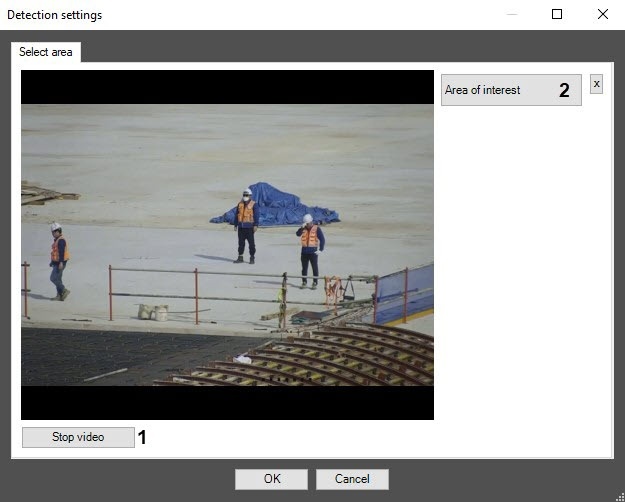
Click the Stop video button (1) to capture a frame.
Click the Area of interest button (2) and specify the area in which the person location tracker operates (3). The specified area is outlined with a red frame.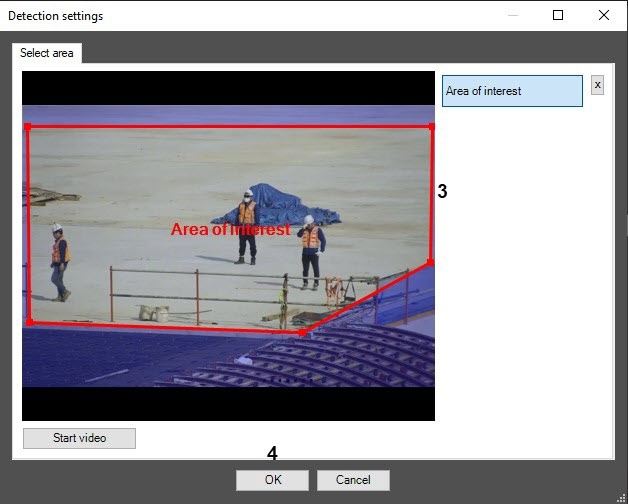
Note
To delete the selected area, click the  button.
Click the Apply button on the settings panel of the Person location tracker object.
Configuring the Person location tracker module is complete.

