
Go to documentation repository
Previous page Next page
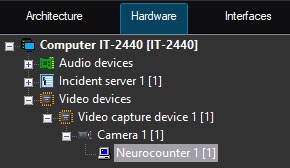
Configuration of the Neurocounter module includes: configuring the detector and selecting the area of interest. You can configure the Neurocounter module on the settings panel of the Neurocounter object created on the basis of the Camera object on the Hardware tab of the System settings dialog window.
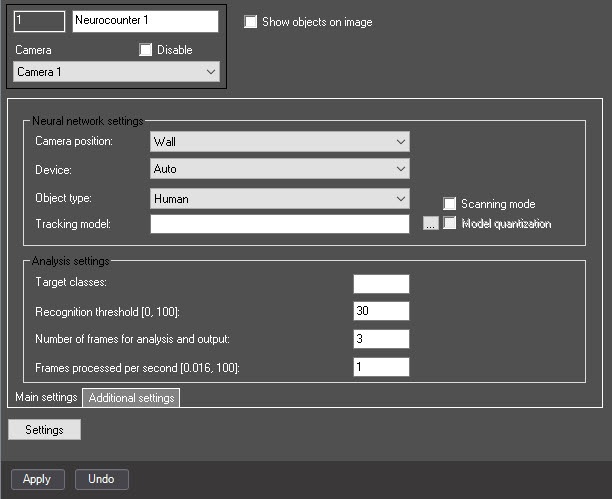
You can configure the neurocounter main settings on the tab of the same name.
Attention!
Note
Neural networks are named taking into account the objects they detect. The names can include the size of the neural network (Nano, Medium, Large), which indicates the amount of consumed resources. The larger the neural network, the higher the accuracy of object recognition.
 button to the right of the Tracking model field, and in the standard Windows Explorer window that opens, specify its file
Attention!
To train a neural network, contact AxxonSoft technical support (see Data collection requirements for neural network training). A neural network trained for a specific scene allows detecting objects of a certain type only (for example, a person, cyclist, motorcyclist, and so on).
Note
AxxonSoft conducted a study in which a neural network model was trained to identify the characteristics of the detected object. The following results of the study were obtained: model quantization can lead to both an increase in the percentage of recognition and a decrease. This is due to the generalization of the mathematical model. The difference in detection percentage ranges within ±1.5%, and the difference in object identification ranges within ±2%.
Model quantization is only applicable for NVIDIA GPUs.
The first launch of the detector with the activated quantization feature can take longer than a standard launch.
If you use the GPU caching, next time the detector with quantization runs without delays.
Note
If you specify a class/classes from the neural network and a class/classes missing from the neural network, the tracks of a class/classes from the neural network are counted and displayed (Object type, Neural network file).
If you specify a class/classes missing from the neural network, tracks aren't counted and displayed.
Note
The neurocounter sensitivity is determined experimentally. The lower the sensitivity, the higher the probability of false alarms. The higher the sensitivity, the lower the probability of false alarms, however, some useful tracks can be skipped. See Example of configuring neurocounter for solving typical tasks.
You can configure the nerocounter additional settings on the tab of the same name.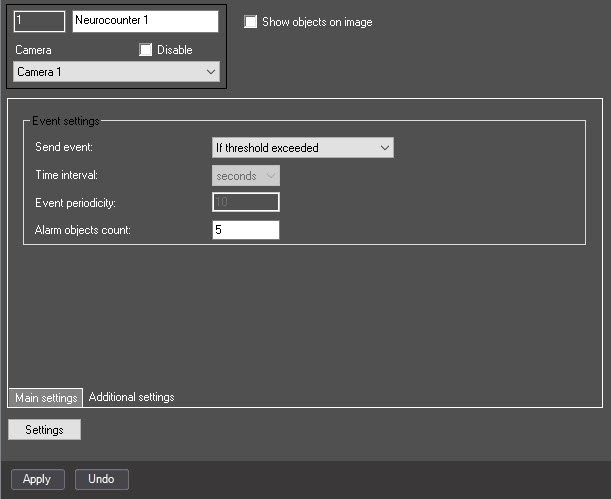
Note
If the entered value exceeds the allowable range, then after you click the Apply button, the maximum value is set automatically.
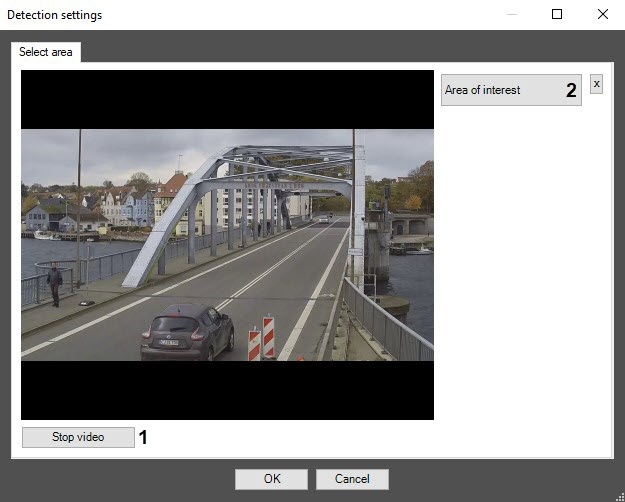
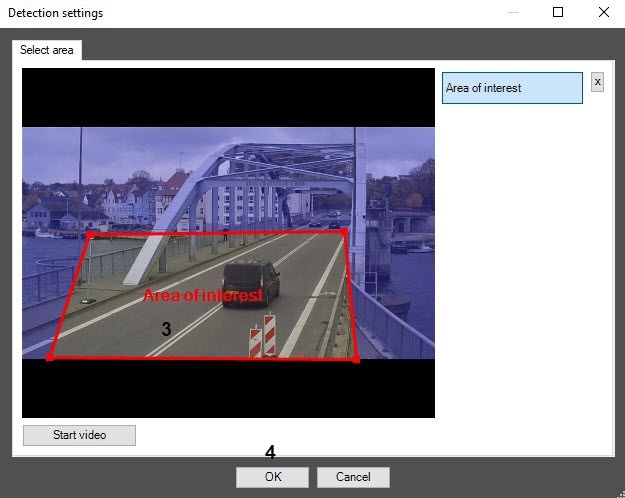
Note
You can add only one area of interest. If you try to add a second area, the first one is deleted.
To delete an area, click the  button to the right of the Area of interest button.
Note
To use the asynchronous hardware decoder and reduce CPU load, set the Use decoder NGP (GPU+CPU) checkbox on the settings panel of the camera (see Enable asynchronous hardware decoder NGP (GPU+CPU)). Then click the Apply button on the settings panel of the detector. Video decoding is now performed using the GPU (for more information, see Asynchronous hardware decoder NGP).
Configuring the Neurocounter module is complete.

