

Documentation for Face Intellect 8.0-8.1. Documentation for other versions of Intellect is available too.
Previous page Next page

The following figure shows the Monitoring of captured and recognized faces window interface:
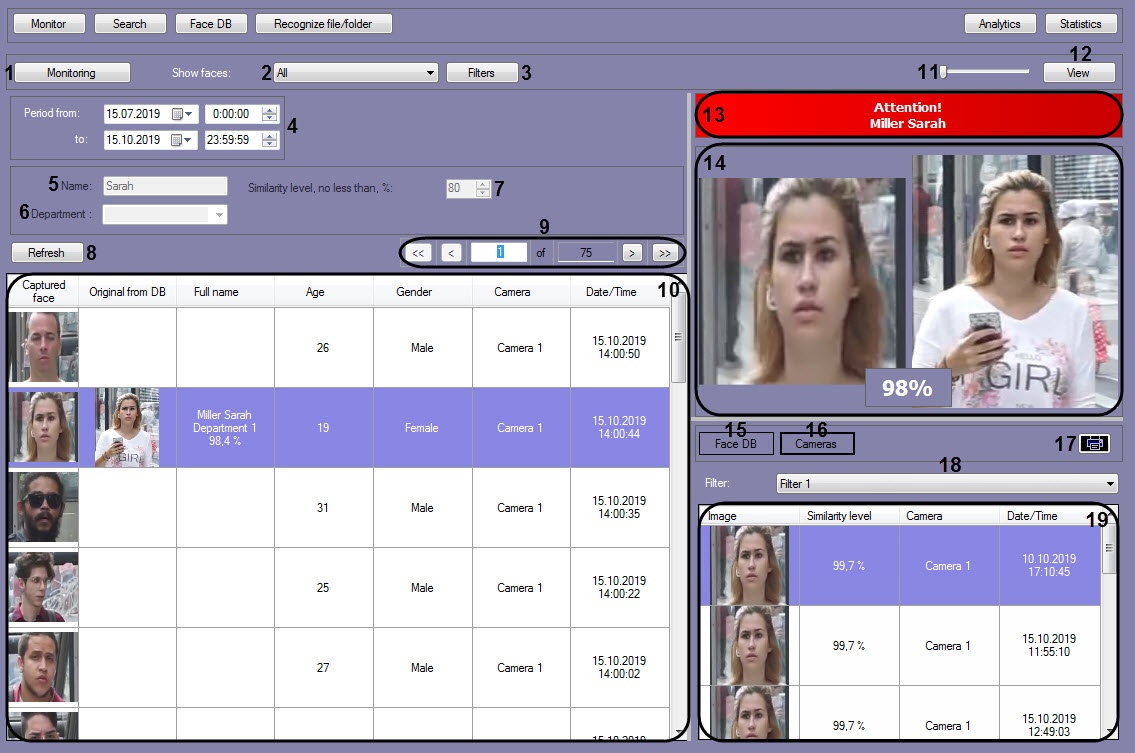
The components of the Monitoring of captured and recognized faces interface are described in the following table.
Number of component | Comments |
|---|---|
1 | The Monitoring button |
| 2 | Show faces drop-down list to select the captured persons display option: All, Only recognized, Only unrecognized |
| 3 | The Filters button for filtering by cameras and additional face characteristics |
4 | Elements for setting the start and end date and time of the time interval for face search |
| 5 | The field for entering the name of a recognized person Note. The field is editable if the Only recognized option is selected in the Show faces drop-down list. |
| 6 | The field for selecting the department of a recognized person Note. The field is editable if the Only recognized option is selected in the Show faces drop-down list. |
| 7 | The field for setting the minimal similarity level Note. The field is editable if the Only recognized option is selected in the Show faces drop-down list. |
8 | The Refresh button for updating the displayed data |
| 9 | Elements for navigation through captured faces |
| 10 | Filtered list of captured faces The following columns are displayed:
|
| 11 | Element for adjustment of line height in the list of captured faces |
| 12 | The View button for configuring the view of the monitoring window |
| 13 | The field for displaying the full name of the recognized person |
| 14 | Photos of the captured face and the reference image, the information on which is stored in the face database |
| 15 | The Face DB button for displaying in the area (19) the information on the selected recognized face |
| 16 | The Cameras button for displaying in the area (19) the ten last captured faces according to the selected search filter (18) |
| 17 | The Print button for exporting the filtered data to a report file |
| 18 | A drop-down list for selecting the search filter (see The Face Search window) |
| 19 | The area for displaying search results with the specified filtering conditions. When the Face DB section is selected using the Face DB button (15), the following columns are displayed:
When the Cameras section is selected using the Cameras button (16), the following columns are displayed:
|