
Go to documentation repository

Documentation for Monitoring PSIM 2.0 (english)
Previous page Next page

The control panel is intended to quickly assess the current status of video surveillance components.

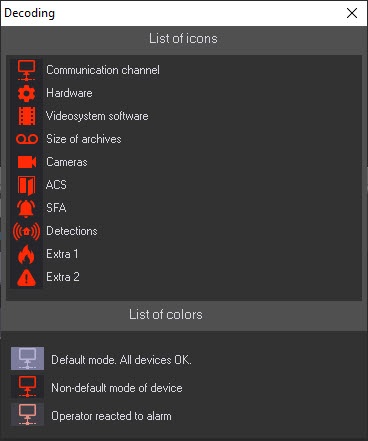
Each object has a corresponding graphic element shown as a rectangle. It contains the object's identification area (at the top) and a configurable number of alarm indication buttons arranged in groups by the source types:
- Communication Channel.
- Hardware.
- Video system software.
- Size of archives.
- Cameras.
- ACS.
- SFA.
- Detections.
- Extra 1.
- Extra 2.
If the Owners panel is enabled (see the section Administrator's Guide: Configuring the Monitoring interface object ), then only the objects that belong to the selected owner are displayed on the control panel.
The number of displayed alarm groups can change from 4 to 10, depending on the Monitoring object settings on the Interfaces tab.
Four alarm groups:

Ten alarm groups:
You can find out the meaning of icons by clicking the  button (Information about symbols). The Decoding window opens.
By default, if the MonitorSSTV database isn't updated for more than 30 minutes, for example, due to the Data Loader malfunction, or if the communication module (license restrictions) stopped working on the Server of Control, then:
- On the Server of Control, all objects are covered with diagonal lines. When you hover the mouse pointer over such an object, the context prompt appears: ATTENTION! Information in DB is outdated! Last update time: <Date and Time of the last upload to the database>. The CUT flashes red (see Current Update Time).

- On the Central Server of Control, only those objects that belong to the Servers of Control with outdated data are covered with diagonal lines. When you hover the mouse pointer over such an object, the similar context prompt appears. However, the CUT remains blue and doesn't flash.
Note
To change the waiting time for updating the MonitorSSTV database, after which the corresponding indication on the Server of Control/CSC is enabled, you must set the required time value in minutes for the LastLoadThreshold parameter of the HKEY_LOCAL_MACHINE\SOFTWARE\Wow6432Node\BitSoft\VHOST\VHostService registry key (for details, see Vertical solutions; for more information about working with the registry, see Working with Windows OS registry).
If there is no connection between the Central Server of Control and the Server of Control, or if there is a problem in data exchanging with the FTP server (for example, an incorrect password), then only those objects that belong to the Servers of Control with this problem are covered with diagonal lines. When you hover the mouse pointer over such an object, the context prompt appears: ATTENTION! No connection with Server of Control or error of data exchange with FTP-erver! The CUT remains blue and doesn't flash.

Overview
Content Tools