
Go to documentation repository

Documentation for Monitoring PSIM 2.0 (english)
Previous page Next page

To create a report, click the Video report  button.
In the settings window that opens:
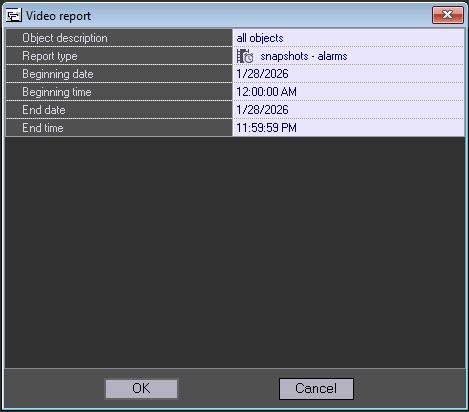
- From the Object description drop-down list, select one of three modes of creating a report:
- Report on all the system objects.

- Report on one system object.
- Report on several system objects.

- Report on all the system objects.
- From the Report type drop-down list, select one of the four available report options:
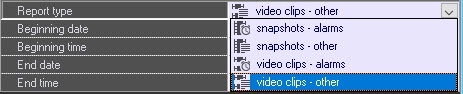
- snapshots – alarms. These are snapshots received after an alarm sensor generates an event on an object (Vibration sensor signal, Lock sensor signal, and so on).
- snapshots – other. These are snapshots received during the arbitrary request to the video archive.
If you select the snapshots – other report type, the Camera drop-down list is displayed, where you can select all cameras or a specific one.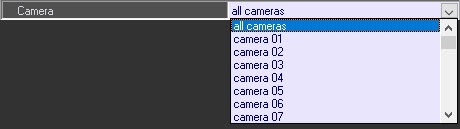
- video clips – alarms. These are video clips received after an alarm sensor generates an event on an object.
- video clips – other. These are video clips received during the arbitrary request to the video archive.
- Set the values of the Beginning date, Beginning time, End date, and End time fields to specify the time range of the video archive on which a report is created.
- Click the OK button.
The search result is displayed in the separate window. 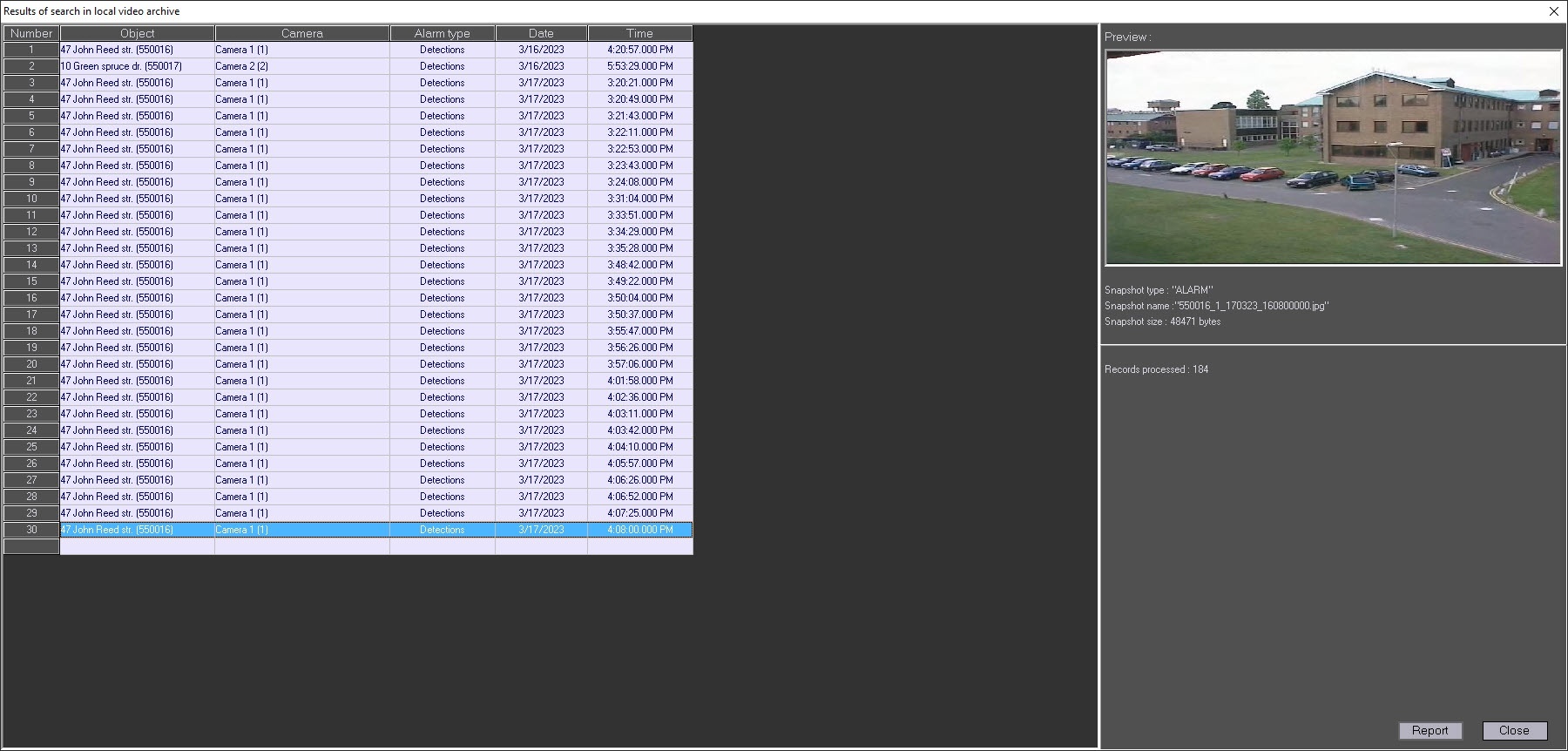
After you select a frame, click the Report button. A report is displayed in the separate window. 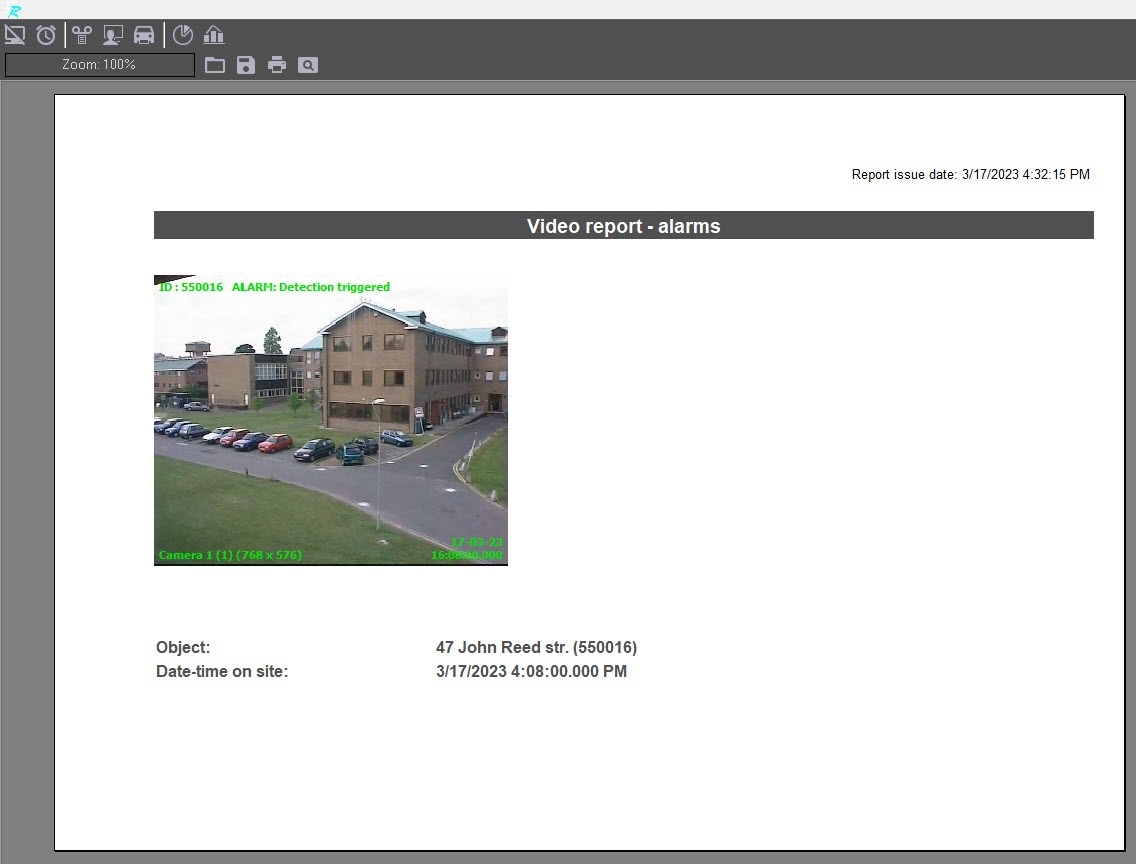
Amid the search results of video clips, you can select any clip and view it via the Axxon Player utility by clicking the View button.
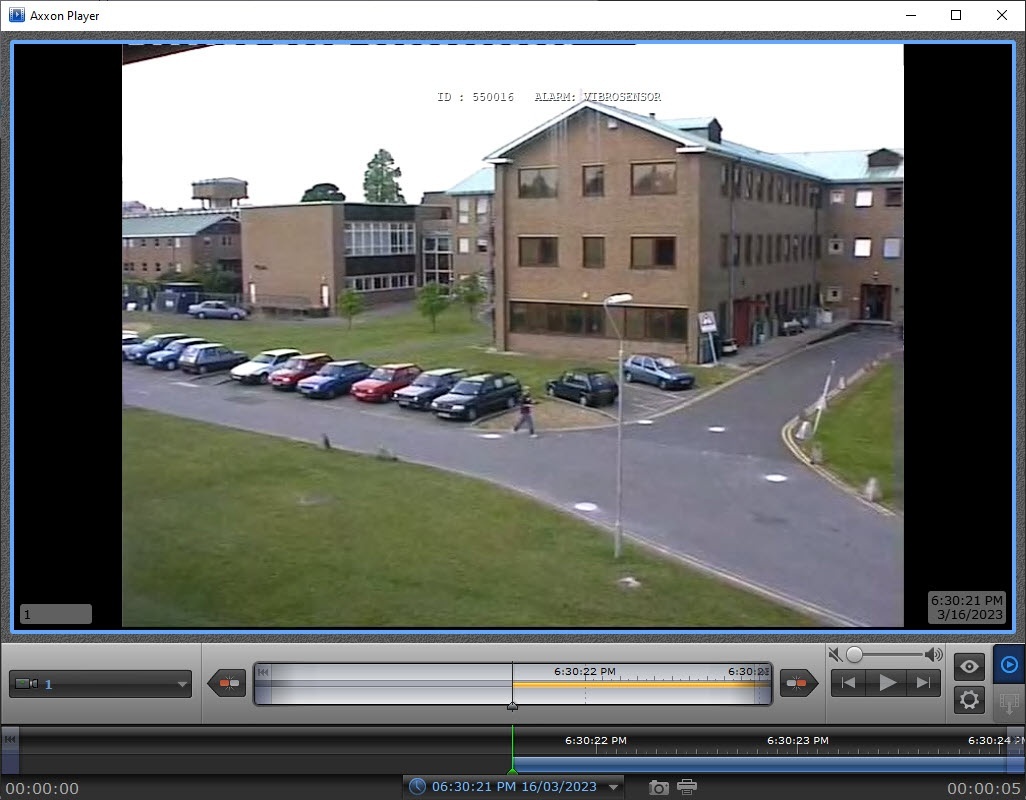
The search of video frames and video clips is performed according to the archive time and not by the time of files downloading to the computer and amid those files that were downloaded earlier using the Search in archive module or those that are received with alarms.
Creating the video report is complete.
Overview
Content Tools