
Go to documentation repository
Documentation for Axxon One 2.0 version. Documentation for Axxon One 3.0 version is also available.

You can use thumbnail search to quickly search for a moment of interest by sequentially dividing the selected time interval into fragments of a certain duration.
To perform the thumbnail search, do the following:
- Set a search interval (see Setting a search interval).
- In the Interval field, specify the duration of fragments into which you want to split the selected time interval in the MM:SS format:
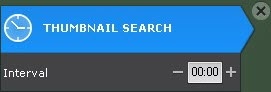
- If you don't specify the duration of fragments (00:00), the search splits the selected time interval into fragments of equal duration.
If the fragment duration is different from 0, the search splits the selected time interval into fragments of the specified duration.
Attention!
- We recommend setting the interval to 10 seconds or more.
- If there are omissions in the archive, they aren't considered during the fragment splitting. The archive with omissions is processed as the continuous data sequence, that is, the parts with the missing data are logically "glued", after which the received continuous sequence is split into equal fragments.
Click the Search
 button. Once started, you can stop the search at any time. To do this, click the Stop button that replaces the search button.
The search results panel displays frames that match equal periods of time. The search control panel shows the number of found fragments.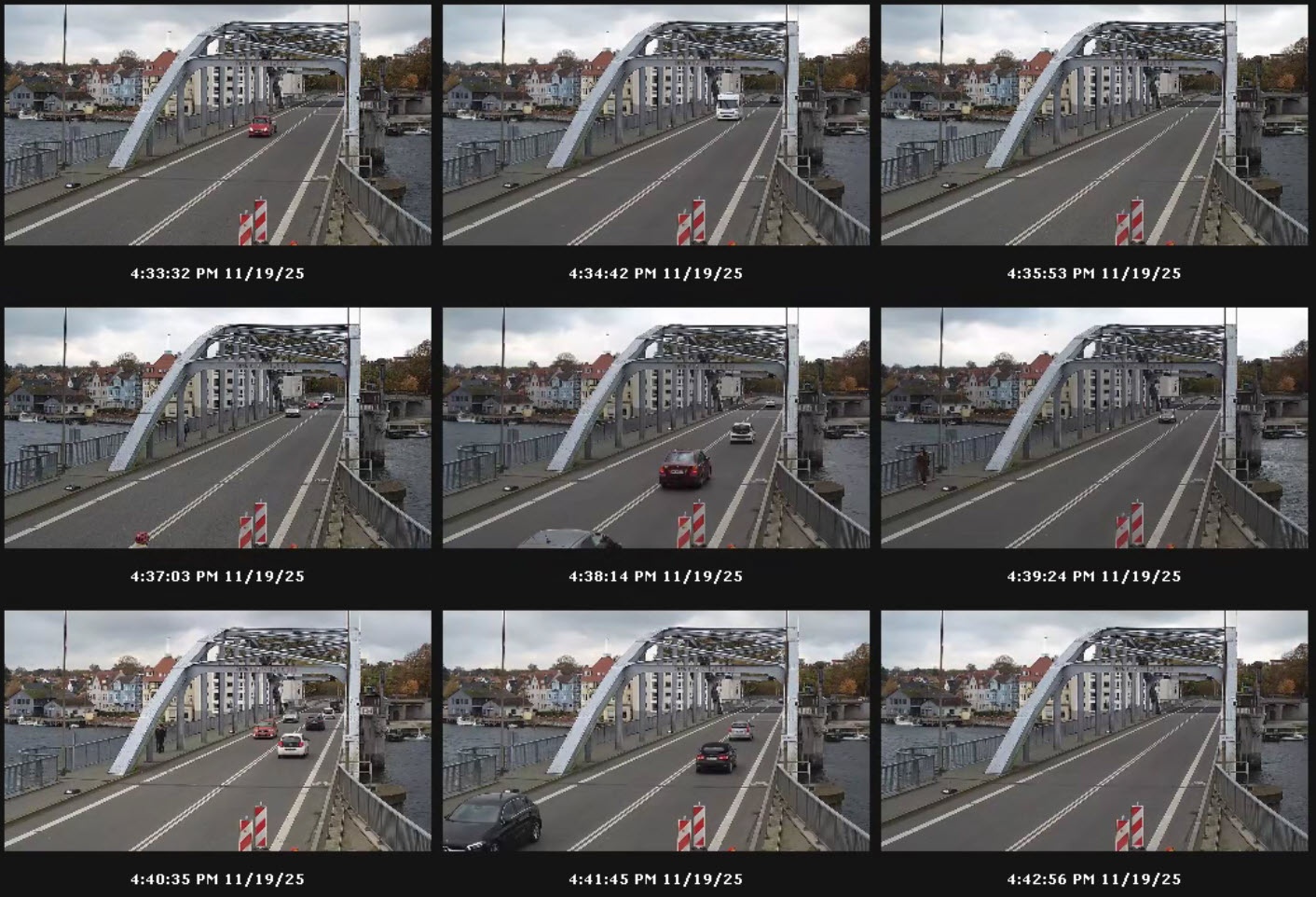
The number of displayed fragments on the results panel depends on the screen resolution and fragment size. You can change the fragment size using the  button.
If you can't find a moment of interest, start the second search iteration: double-click the found moment to search in the time interval from this moment to the next one. Keep searching until the specific moment is found.
Note
For the information on playing back video fragments, see Playback of video fragments.
Overview
Content Tools