
Go to documentation repository
Previous page Next page
Attention!
The Sweethearting report is created automatically based on the data from the Sweethearting at checkout detection module that is a part of the DetectorPack PSIM (see Configuring the Sweethearting at checkout detection module). You must also create and configure the POS terminal and Shop objects in POS PSIM (see The POS terminal object setup).
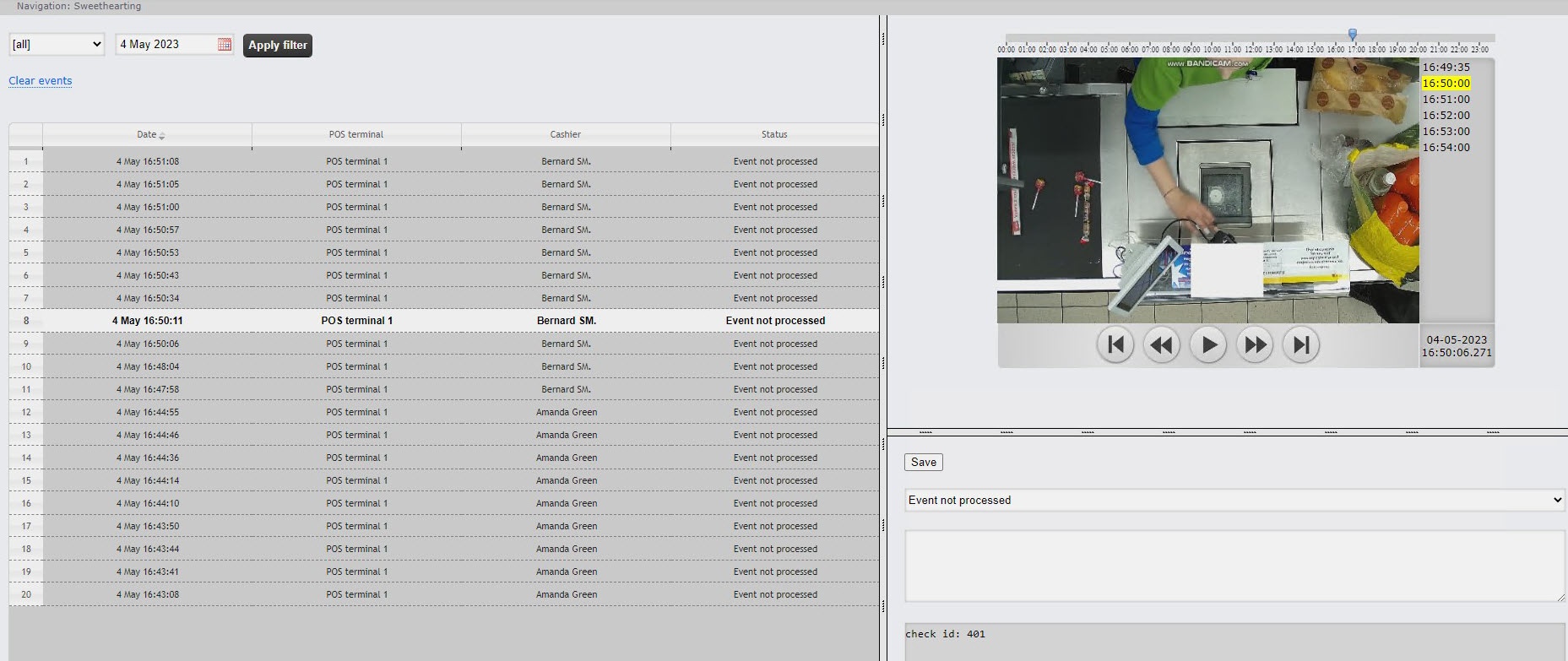
The Sweethearting monitor allows you to view the scanning of goods by cashiers in real time to prevent intentional theft by passing items past the barcode scanner (sweethearting). To view the monitor, you must select the Sweethearting report (see Select the type of general POS report). The interface of the Sweethearting monitor is shown in the figure below.
Attention!
The report includes only those events from the Sweethearting at checkout detection object during which the Add goods event didn't occur (see Set up time periods for event generation and between check of receipts in the Sweethearting report).
The events are automatically loaded into the table on the left, ranging from the newest to the oldest. The following summary information is provided for each event:
Note
You can enable sound notifications about new events (see Disabling sound notification about new events in Sweethearting report).
To display the events for a specific day, do the following:
Use the Calendar tool to set the day for which it is necessary to build the report.
In order to clear the event table, click the Clear events link in the upper-left part of the table.
In order to view the details of an event and a video image, select the event in the list by clicking on the corresponding row in the table. After that, the following elements will become available in the right part of the screen:
The video of the event with the indication of the time when the event was recorded and the possibility of viewing in the archive mode.
Note
Working with the surveillance window in the archive mode is given in detail in Axxon PSIM software package. Operator's Guide.
The Sweethearting report is unavailable for export and can only be viewed in the monitoring mode. You can export the video image from the event processing window, as described in Export and print out.
Note
By default, video is exported to the <C:\Users\<user name>\Documents\Export> folder.

