
Go to documentation repository
Previous page Next page
The Presence at workplace report contains the information about the times when the employee left the selected area during the day and how much time the employee spent in the selected area within the specified time period.
Note
Each employee must have the date of hiring filled in. Employees whose date of hiring is not filled in or is set for a date later than the actual access are not displayed in the report.
The report example with the Standard appearance.
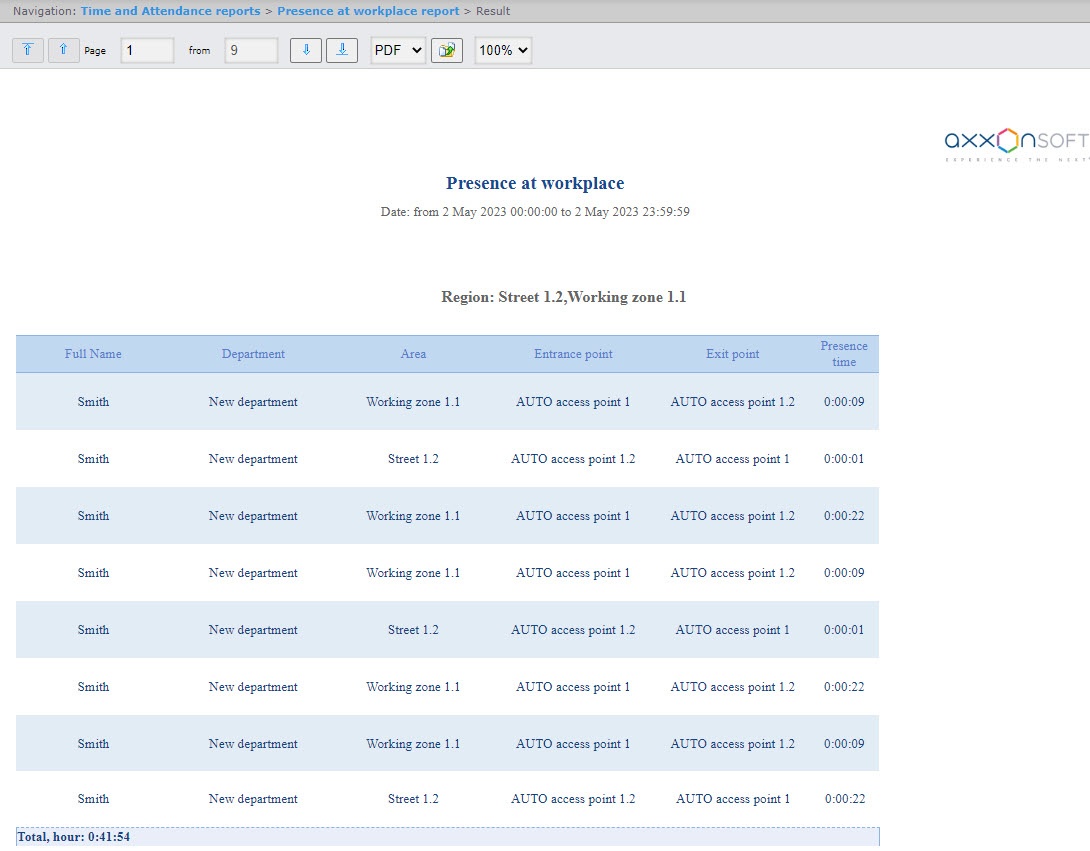
The report example with the Compact appearance.

Note
In order for the photos of employees to be displayed, it is necessary to configure the report (see Setting up the Presence at workplace report and Personal presence-at-workplace report).
Report fields are described in the table.
Field name | Description |
|---|---|
| Full Name | Employee's full name |
| Department | Department where the employee works |
| External ID | Employee's external ID |
| Personnel number | Employee's personnel number |
| Car | Employee's car brand |
| Card number | Employee's access card number |
| Exp. date | Employee's card expiration date |
| Access levels | Employee's access levels |
| Phone | Employee's phone number |
| Position | Employee's position |
| Working schedule | Employee's working schedule |
| Photo | Photo from the camera |
| Company | The name of the parent department, if the employee's department is a subsidiary |
| Company/Department | Company/Department where employee works |
| No. | Line number |
| Area | Area where the employee is located after the access |
Arrived | Date and time of the employee's arrival to an area |
Left | Date and time the employee left an area |
| Entrance point | Name of an entrance point to an area |
| Exit point | Name of an exit point from an area |
| Presence time | The time the employee spent in the selected area |
| The Total, hour line displays the total time the employee spent in the area for the selected time period | |

