
Go to documentation repository
Previous page Next page
Note
You can use templates when you create a report.
To add a new template, click Report templates → New template and fill in the Name and Description fields. The template will use the selected parameters of the current report.
Templates work the same way as templates in the scheduler and can be used interchangeably.
When you create a response using a template, click Report templates at the top of the page and select the required template from the list of saved templates (the required template is highlighted). As a result, the parameters of the current report are updated according to the selected template.
The Employee statuses report is a table that contains the information about the current statuses of employees' cards (expired, disabled, or blocked) and the dates of their expiration.
To create the Employee statuses report:
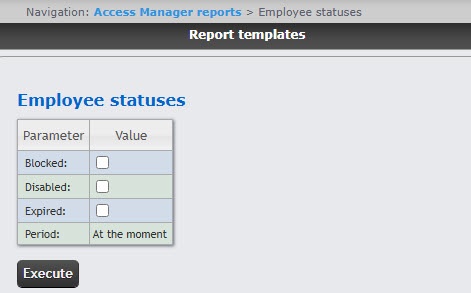
As a result, the report with specified parameters is displayed.
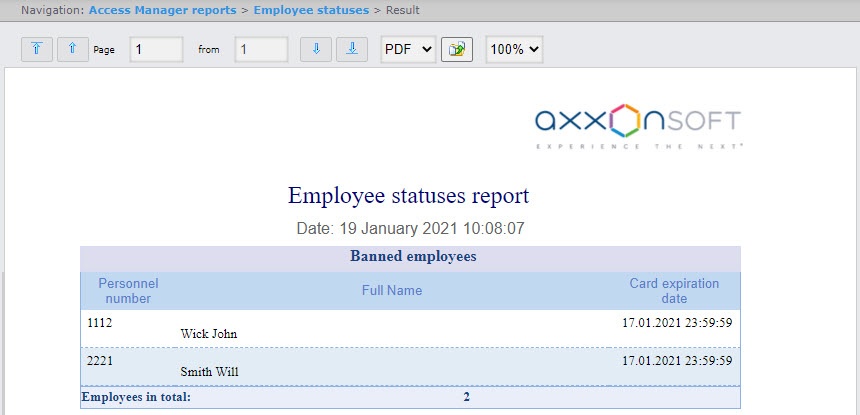
The report fields are described in the table.
| Field name | Description |
|---|---|
| Personnel number | Employee personnel number in the Time and Attendance subsystem of the Access Manager module |
| Full Name | Full name of the selected employee |
| Card expiration date | Expiration date of the employee card |
| The Employees in total line displays total number of employees in the report | |
You can save the report in the following formats:
The Employee statuses report is created.

