Go to documentation repository
Previous page Next page
Note
You can use templates when you create a report.
To add a new template, click Report templates → New template and fill in the Name and Description fields. The template will use the selected parameters of the current report.
Templates work the same way as templates in the scheduler and can be used interchangeably.
When you create a response using a template, click Report templates at the top of the page and select the required template from the list of saved templates (the required template is highlighted). As a result, the parameters of the current report are updated according to the selected template.
The Face counter report (detailed by detectors) allows you to get the data about the number of captured faces (visitors) using the data from the face detectors. The data can be presented as a table or as a graph.
Note
The Face counter report (detailed by detectors) is a part of the Face Detection object. You must first create the corresponding object in Face PSIM (see Configuring the Face Detection module).
To create the Face counter report (detailed by detectors):
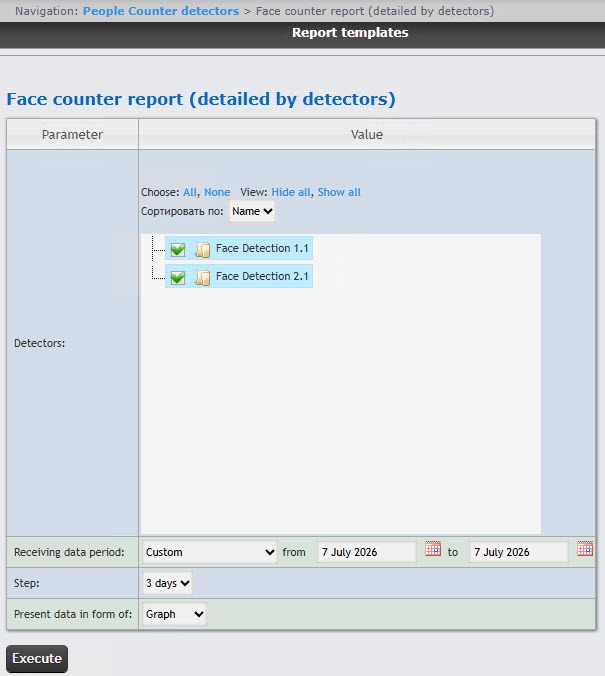
In the Detectors field, set checkboxes next to those Face Detection objects whose information you want to include in the report. Click All to select all found detectors. Click None to deselect. Click Show all to expand the detector structure. Click Hide all to hide the detector structure.
Example of the Face counter report (detailed by detectors) as a table.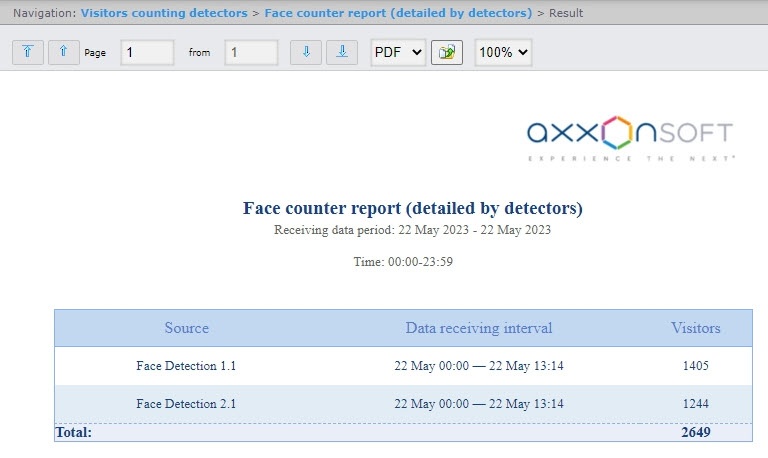
Note
The number of visitors in the report means the number of captured faces, not the number of unique visitors.
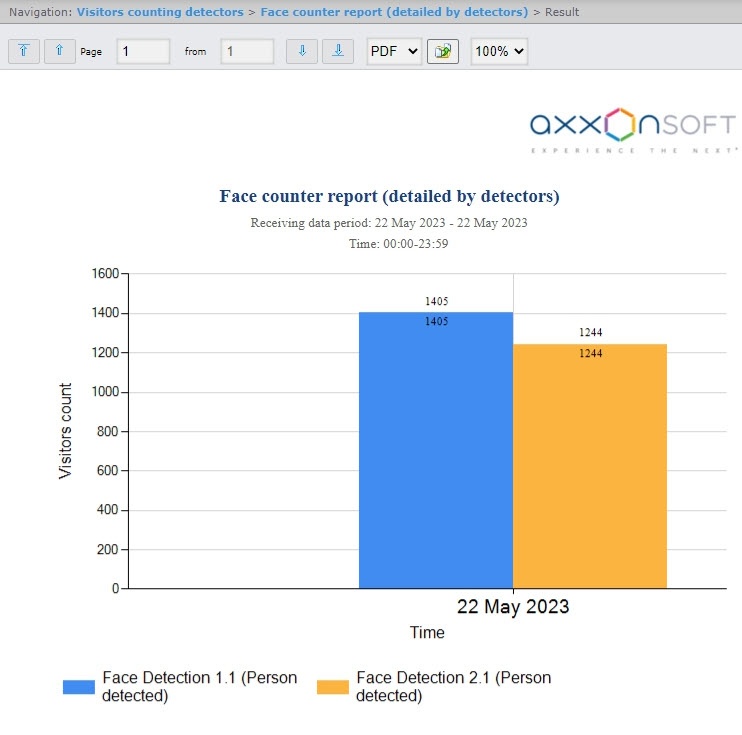
Example of the Face counter report (detailed by detectors) as a graph.