
Go to documentation repository
Previous page Next page
Note
You can use templates when you create a report.
To add a new template, click Report templates → New template and fill in the Name and Description fields. The template will use the selected parameters of the current report.
Templates work the same way as templates in the scheduler and can be used interchangeably.
When you create a response using a template, click Report templates at the top of the page and select the required template from the list of saved templates (the required template is highlighted). As a result, the parameters of the current report are updated according to the selected template.
To create the Graphic report on events:
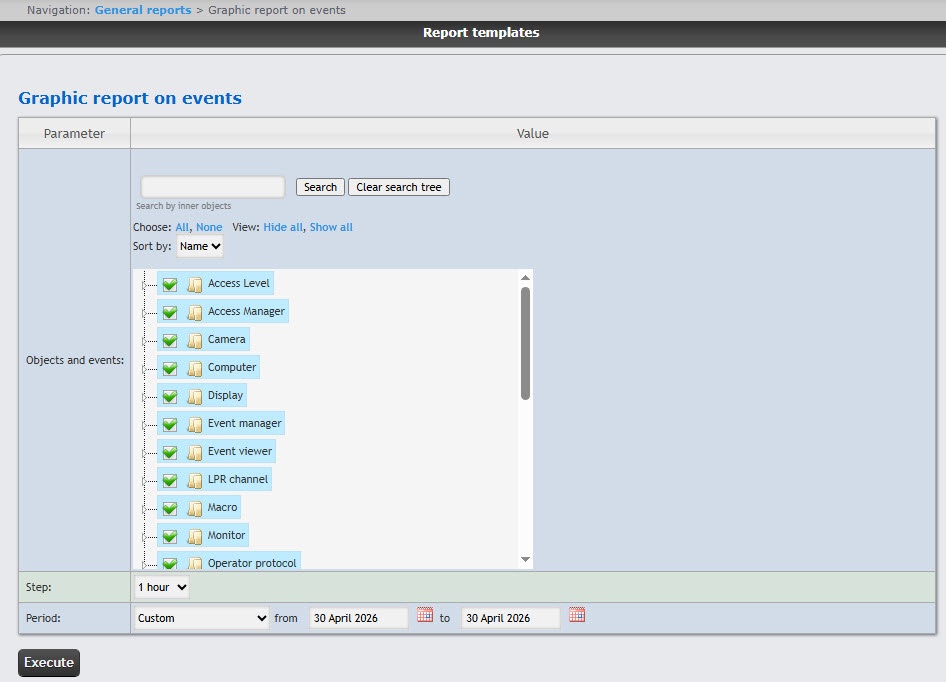
In the Objects and events field, set the checkboxes next to the objects and their events whose information must be displayed in the report. You can select any event by expanding the object type list or by searching for internal objects. To select all found objects and events, click All; to deselect, click None. To expand the object and event structure, click Show all; to collapse, click Hide all.
Example 1. Graphic report on events for the current month with a step of 1 day.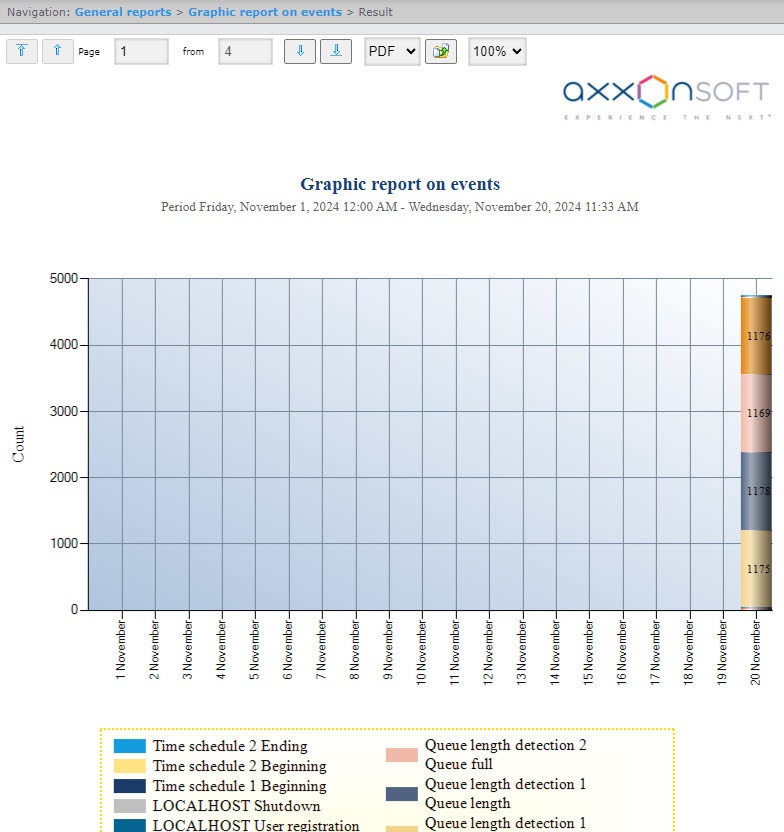
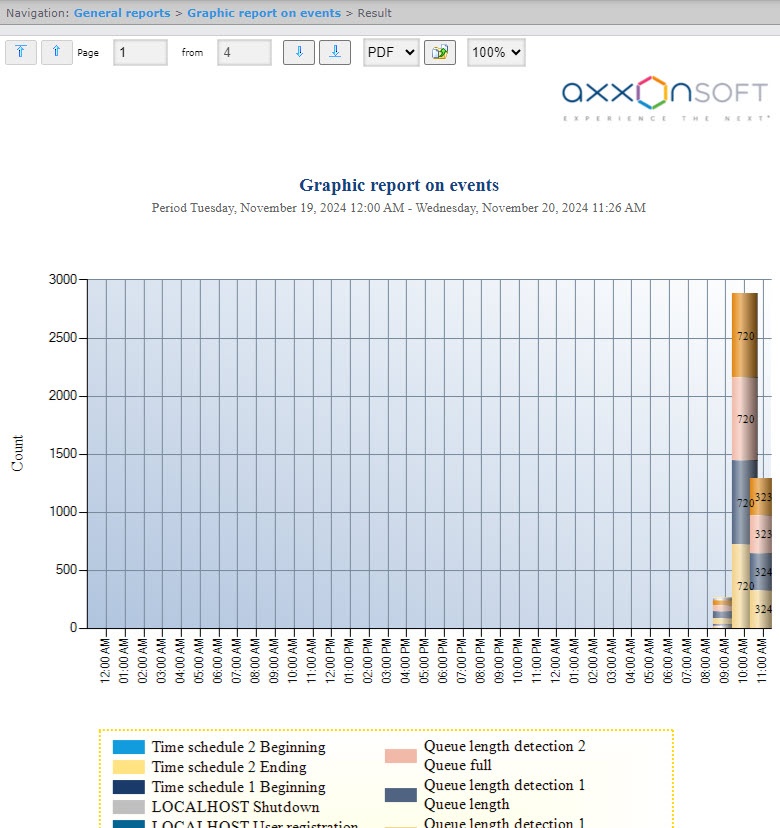
Example 2. Graphic report on events with a custom period and a step of 1 hour.
If you export the report (see Export of reports), the report file also contains the event table, sorted by the event source. This table contains the event name, event date, and number of events for each event source.
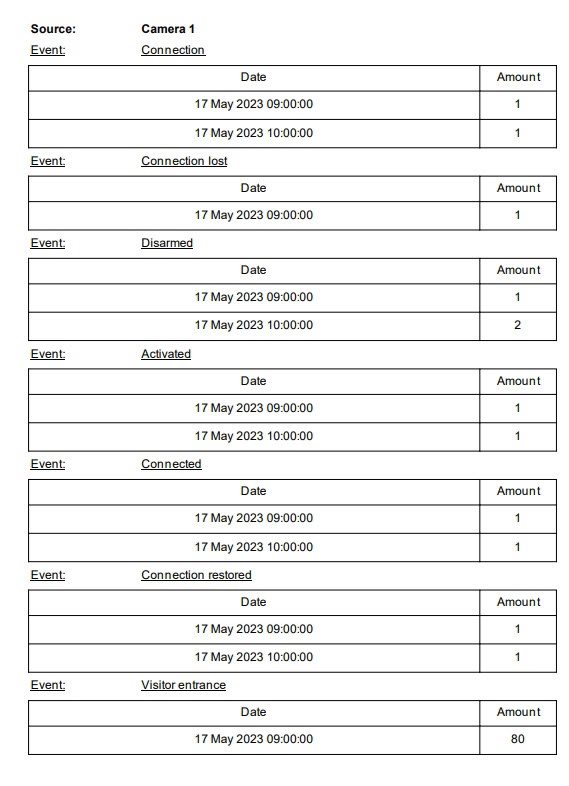
The Graphic report on events is created.

