
Go to documentation repository

Documentation for Axxon PSIM 2.0. Documentation for other versions of Axxon PSIM is available too.
Previous page Next page

On the page:
Configuring the Hikvision DS-1200KI control device before adding to Axxon PSIM
You must configure the Hikvision DS-1200KI PTZ control device in the following way before creating the corresponding object in Axxon PSIM:
- Set the control device address. To do this, select System → Network in the device internal interface, then disable DHCP and set the IP address and the gateway.

Set the Axxon PSIM IP address and server port on the device. To do this, you must open the device web interface by the address set in the previous step and select Platform Access → Third-Party Platform.
Note
By default, the web interface is only available on https, so enter the https prefix before the IP address.
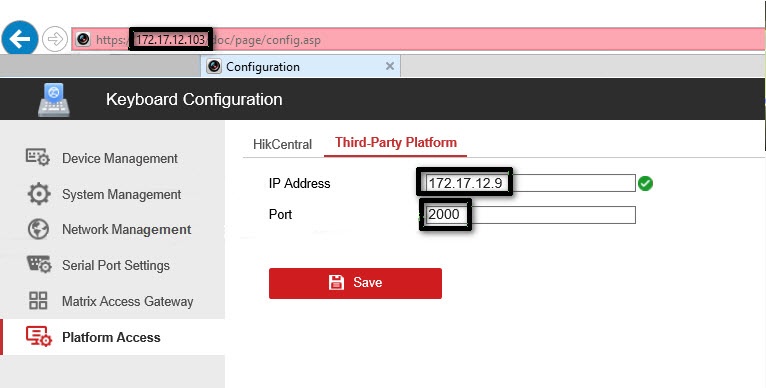
- Select the 8. Private VMS mode in the device internal interface.
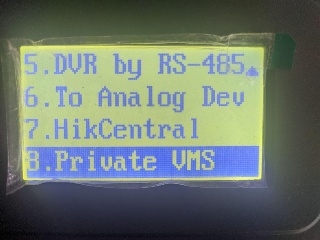
- To switch the PTZ control device into the operating mode, do one of the following actions:
- Select any monitor MON (monitor) [an integer in the range 1—9999], any camera CAM (camera) [an integer in the range 0—999999]; in this mode all keys work, including the WIN (subwindow of video wall) and the MULT (layout size) keys for the monitor and camera.
- Select any camera CAM (camera) [an integer in the range 1—999999 (number 0 is available only when you set the monitor)]; the WIN, MULT and CAM-G keys don't work in this mode.
Select any monitor MON (monitor) [an integer in the range 1—9999] and any group of cameras CAM-G (camera group) [an integer in the range 1—999999]; in this mode, only the MULT, OK keys and the rotations of the joystick axes work.
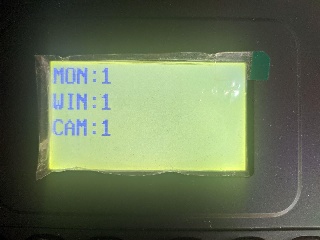
Note
To select these parameters, enter a number from the device keypad, and then press the corresponding key (MON/WIN/CAM/CAM-G).
If the server IP address and/or port aren't available from the PTZ control device, then after you press the MON/WIN/CAM/CAM-G keys, the "Connect failed" message is displayed on the control device screen.
Preconfiguring the Hikvision DS-1200KI PTZ control device is complete.
Configuring the Hikvision DS-1200KI control device in Axxon PSIM
Note
Before you start configuring the control device in Axxon PSIM, make sure that the 1 value is assigned to the DisableInternalJoystick registry key (that is, the default value, see Registry keys reference guide).
To configure the connection of the Hikvision DS-1200KI control device in Axxon PSIM, do the following:
- Create the Control device object on the basis of the Computer object on the Hardware tab of the System settings dialog window (1).
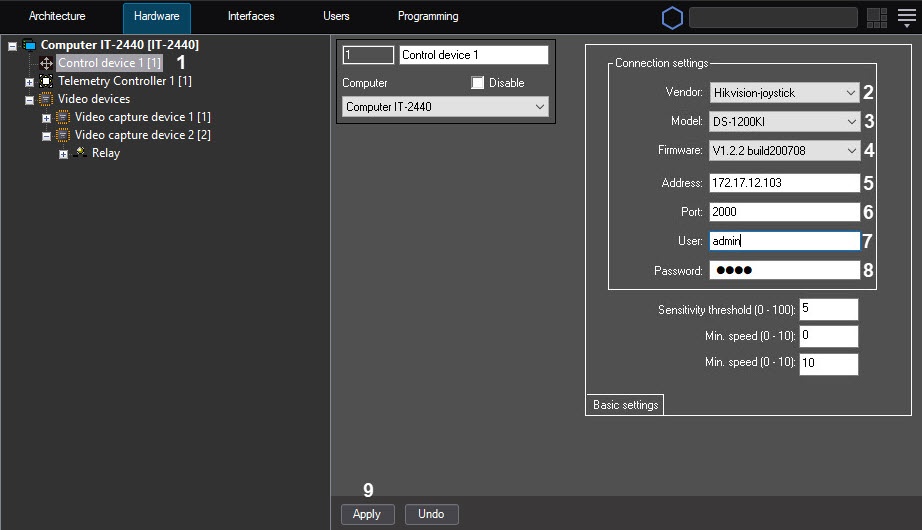
- From the Vendor drop-down list, select Hikvision-joystick (2).
- From the Model drop-down list, select DS-1200KI (3).
- From the Firmware drop-down list, select V1.2.2 build200708 (4).
- In the Address field, enter the IP address of the control device (5).
- In the Port field, enter the port number of the control device (6).
- In the User field, enter the username to access the device (7).
- In the Password field, enter the password to access the device (8).
- Click the Apply button (9).
Configuring the connection of the Hikvision DS-1200KI control device in Axxon PSIM is complete.
Features of the Hikvision DS-1200KI control device operation in Axxon PSIM
When you press the MULT, PRESET, PATROL, or PATTERN keys on the control device, the following actions are performed:
- when you enter a number in the range 1—99 and press MULT for each number, Axxon PSIM receives a message about pressing the corresponding separate key with a number in the range 23—121 (B22—B120);
- when you press PresetRec for the first time, Axxon PSIM receives a message about pressing the 13 (B12) key, and the Record started title appears on the device display;
- when you press PresetRec for the second time, Axxon PSIM receives a message about pressing the 12 (B11) key, and the Record ended title appears on the device display;
- when you enter a number in the range 1—65535 and press PresetRec, Axxon PSIM receives a message about pressing the 22 (B21) key, and the PRESET: title appears on the device display;
- when you enter a number in the range 1—65535 and press Patrol, Axxon PSIM receives a message about pressing the 17 (B16) key, and the PATROL: title appears on the device display;
- when you enter a number in the range 1—65535 and press PatternPlay, Axxon PSIM receives a message about pressing the 18 (B17) key, and the PATTERN: title appears on the device display;
- when you enter a number in the range 65536—999999 and press any of the PresetRec/Patrol/PatternPlay buttons, nothing happens: such numbers aren't processed.
JScript script example
The link contains a file with a script in the JScript language, which allows you to assign actions to the keys of the Hikvision DS-1200KI telemetry control panel in the following way:
Key | Code | Action |
| CAM | 21 | Select a camera |
| MON | Select a monitor | |
| WIN | Used along with the digital buttons to select the surveillance window | |
| PRESET | 22 | Used along with the digital buttons to open a preset |
| IRIS+ | 7 | Increase the iris value |
| IRIS- | 8 | Decrease the iris value |
| PATROL | 17 | |
| PATTERN | 18 | |
| PREV | 15 | Switch to the previous camera |
| NEXT | 16 | Switch to the next camera |
| CAM-G | 20 | Used along with the digital buttons to select a group of cameras |
| ZOOM+ | 1 | Zoom in |
| ZOOM- | 2 | Zoom out |
| WIPER | 6 | Enable the wiper |
| LIGHT | 5 | Enable the backlight |
| FOCUS+ | 3 | Increase the focal length |
| FOCUS- | 4 | Decrease the focal length |
Overview
Content Tools