
Go to documentation repository

Documentation for Monitoring PSIM 2.0 (english)
Previous page Next page

The Search in archive component allows requesting small video clips from an object on the Agent of Control. For that, do the following:
- Search by titles or clips as described in the corresponding sections.
- The search results are displayed as a list of entries. Right-click the required entry. The context menu opens with two items: Video query and Frame query.
- Select the Video query menu item. The dialog form for the request opens. There is another way to open this form: select an entry from the list and click the Video button.
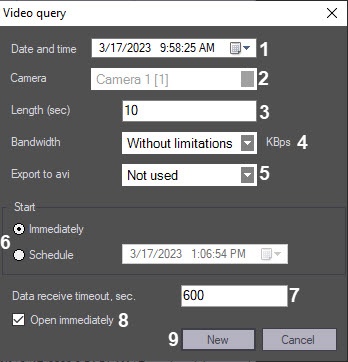
- The Date and time (1) and Camera (2) fields are filled in automatically.
The Length (sec) field (3) allows limiting the size of the received video clip.
Note
If you select the Not used value in the Export to avi parameter (5), then one or more clips are exported containing the specified time interval relative to the date and time. You cannot request only its part within one video clip.
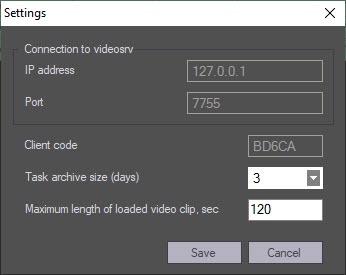
If you try to set the value of the Length (sec) field to over 120, the value of 120 is offered. This is done so that the user creates requests on purpose, as a result of which, the big data file is exported from the video archive on the Agent of Control side. If you want to disable this limitation, click the Settings button in the lower-left area of the Search in archive area. In the window that opens, change the value of the Maximum length of loaded video clip, sec parameter.
- If you want to decrease the network load, use the Bandwidth __ KBps field (4) parameter.
The Export to avi parameter (5) allows selecting the format and codec of the requested video clip:
Not used—the video clip is exported as an archive with the set of directories and files from the VIDEO folder.
Original—the video clip is exported to the AVI file without recoding.
Xvid—the video clip is exported to the AVI file with the Xvid codec.
DivX—the video clip is exported to the AVI file with the DivX codec.
x264—the video clip is exported to the AVI file with the x264 codec.
Attention!
The export to the AVI file with the specified codec is performed on the Agent of Control using the AviExport.run module. You must use the AviExport.run module on the Agent of Control of a version not lower than 4.10.5.3776 and install the required codec. Otherwise, the Frame or video clip is not found (archive export error) error is received.
Note
If a version of the Agent of Control is lower than 11.0.1520, then the Export to avi parameter is automatically set to the Not used value without an ability to change it.
- In the Start area, select the start time of executing a request: Immediately or Schedule (6).
Set the waiting time to start accepting the video clip in the Data receive timeout, sec. field (7).
Attention!
If you request a clip that is longer than one minute, you must increase the value of the Data receive timeout, sec. parameter. This is due to the fact that it takes time to export the large video clip on the Agent of Control side.
If you set the Open immediately checkbox (8), then right after the data is received, the system transfers it to the video archive and displays it. Otherwise, the data is only transferred to the video archive. To view such data, use the Monitoring reports component.
- After you fill in all the fields, click the New button (9).
You are switched to the Loads tab, where the progress of the task execution is displayed. When you accept the video clip, its file size, loaded size, and the transfer rate are displayed. You can pause the download of the video clip at any moment by clicking the Pause button.

Note
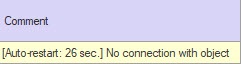
If the data stopped coming during the download, for example, if the connection with an object is lost, the download is restarted after a random time interval from 1 to 60 seconds. In case of failure, attempts are made at intervals of one minute. The information on the time remaining to the restart is displayed in the Comment field. You restart the download manually at any time using the Start button.
- If you set the Open immediately checkbox, then the downloaded video clip is played back:
- on the Server of Control and the Additional workplace using the "Axxon Player" utility, if you select the Not used value in the Export to avi parameter.
- on the Server of Control using the program specified in the AVI-files player parameter (see Configuring reaction to snapshots and videos), if you select a value different from Not used in the Export to avi parameter.
- on the Additional workplace using the program specified in the AVI-files player parameter (see Interface of Additional workplace configuration tool), if you select a value different from Not used in the Export to avi parameter.
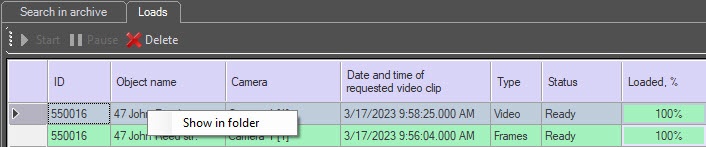
The successfully completed task is marked in green. If you double-click such an entry, the corresponding frame or the video clip is displayed. You can also go to the folder with downloaded video clips. For this, right-click the corresponding task and select the Show in folder item.
The Search in archive module supports the download resume function after its termination. If the connection with the Agent of Control breaks during a download, the task status changes to Network Error after two minutes' time-out, with the information in the Comment field that the data is no longer transferred. Then, after ten seconds, the system starts periodic attempts to complete the download. The period of such attempts equals one minute. After the connection with the Agent of Control is restored, the data is downloaded not from the beginning but from the point where the connection was lost. To implement the mechanism of resuming the download, use temporary files that are stored both on the Agent of Control and on the Server of Control side. By default, the storage period of these files equals three days, after which they are removed. For example, if you create the task to download the video clip and click the Pause button during the download and then continue downloading only after five days, then the data is downloaded from the beginning.
Note
To change the storage period for the temporary files, you must create the StoreVideoFiles string parameter for the HKEY_LOCAL_MACHINE\SOFTWARE\Wow6432Node\BitSoft\VHOST\VHostService registry key and set the required number in days (see Vertical solutions, for more information on working with the registry, see Working with Windows OS registry). Then you must restart the Videosrv.exe module.
You can delete old tasks from the tasks list using the Delete button on the Loads tab. The maximum time of task storage in the database is 100 days.
You can limit the number of displayed tasks on the Loads tab using the Task archive size (days) parameter that is located in the Settings window, which you can open by clicking the button of the same name in the lower left corner of the Search in archive window.
Attention!
If you shut down Axxon PSIM, all tasks with the "Loading" status are paused. To resume the download for these tasks, you must start them manually.
Overview
Content Tools