

Previous page Next page

General information
Each role has its own access settings for users. To configure a domain role, go to System settings → Domain permissions.
Create and configure a role
To create a role:
- Click the Add a new domain role
 button.
 - In the window that opens, in the Role name field, enter the name of the role.
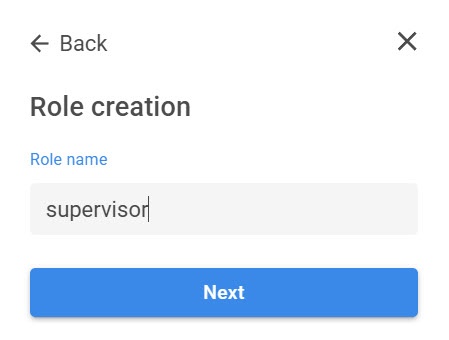
- Click the Next button.
- Set the checkboxes next to the required access permission. If necessary, you can click the Expand All
 button to view all permissions. You can configure the following permissions for a domain role:
Pemission Value Description Archive and export settings Bookmark access Select access to create comments in the archive - Access is unspecified
No access You cannot create comments
Create You can add comments to the archive Create/Protect You can add comments to the archive and create protected records Create/Protect/Edit and Delete You can add comments to the archive, as well as create and edit protected records Access to the default archive Select access to the default archive - Access is unspecified No access You cannot access this archive
Full access Archive is available for any operations
Video export from web client to the cloud Allows you to export video from the web client to AxxonNet. Without this permission, export isn't available Archive setup Allows you to set up the archive: enable, disable, rename, delete, and so on. Without this permission, archive setup isn't available Export Allows you to export. Without this permission, you cannot export video from the web client Show privacy video in archive Allows you to view privacy video in the archive. Without this permission, privacy videos aren't displayed in the archive Privacy settings Unrestricted access - Select if users of this role have unrestricted domain access No Yes Access to the default camera Select access to the default camera - Access is unspecified No access There is no access to the device
Archive only Only archive viewing is available Live in armed mode You can view video only if the camera is armed Live You can view a live video from the camera. Other functions and device configuration aren't available
Live/Archive You can view live video and archived video from the camera. You cannot arm/disarm and configure the camera
Live/Archive/Control All features are available. Device configuration isn't available Full access All features are available, including device configuration Access to the default microphone Select access to the default microphone - Access is unspecified No access Live audio isn't available:
- from the camera;
- in the archive.
Audio recording to an exported file isn't available
Live audio Live audio from the camera is available (you must enable the microphone). Audio in the archive isn't available
Live audio and archive All features are available PTZ priority Select PTZ priority - Access is unspecified Maximum level User can control a PTZ camera with an appropriate priority (see Controlling a PTZ camera) High level Medium level Low level Minimum level No access There is no access to control a PTZ camera
Access to the default video wall - Select the value to access the default video wall
No access Full access Set up user access permissions - Select the value of access permissions
Attention!
When you select the Access permissions to devices value, users of this role are only able to change access permissions to connected devices in the role settings.
No Access permissions to devices Yes View VMS roles Allows you to view VMS roles. Without this permission, you cannot view VMS roles
Note
VMS role is a role previously created in Axxon One.
View cameras Allows you to view cameras in the Camera map tab. Without this permission, cameras aren't displayed on the map
Encrypt containers Allows you to encrypt archives of cloud domains Manage policies Allows you to manage policies. Without this permission, you cannot manage policies in the Domains tab → Users and groups View policies Allows you to view policies. Without this permission, you cannot view policies under the Operator role
System log Allows you to access the system log. Without this permission, you cannot view events in the system log Show error messages Allows you to view error messages. Without this permission, error messages aren't displayed
Attention!
- Critical error messages in the system are displayed regardless of the Show error messages parameter.
Critical errors include:- Geomap connection error.
- Export error.
- Domain disconnection error.
- Insufficient network bandwidth error that is disabled by default. If necessary, you can enable it by adding the SHOW_INSUFFICIENT_BANDWIDTH_WARNING system variable with the TRUE value (see Creating system variable).
Show faces in Live Allows you to mask faces in live video. Without this permission, face masking isn't available
Unprotected export Allows you to export frames and videos without password protection. When you export a file, you are asked to enter a password. After you enter the password, you can view frame or video. If you don't set the Unprotected export checkbox, entering a password is mandatory Confidential bookmarks Allows you to add and view confidential comments Domain settings Domain interface tabs settings Settings of the Web client tab Layout settings Access to alerts Select the access level to alert events - Access to alerts is unspecified No access Users have no access to view alert events
View only Users can only view alert events but cannot assess them Full access Users can view alert events and assess them Access to maps Select the access level to maps
- Access is unspecified No access Users have no access to view maps View only Users can only view maps View/Move/Scale Users can view, scale, and move maps Full access All features are available Change layouts Allows you to change layouts. Without this permission, you cannot change layouts in Axxon One Layout tab Allows you to work with layouts. Without this permission, you cannot manage layouts Min/Max buttons Displays a button to minimize the Axxon One client to the taskbar (see Interface of Axxon One). Without this permission, the minimize button isn't available Add camera to a layout in monitoring mode Allows you to add cameras to a layout. Without this permission, you cannot add cameras to a layout Access to search in archive Provides access to the archive search in the web client. Without this permission, you cannot perform the search in the web client Add/Edit PTZ presets Allows you to configure PTZ presets. Without this permission, you cannot change PTZ presets Unlock the camera Menu button Displays the camera Menu button. Without this permission, the Menu button isn't displayed Show captions Allows you to view captions from the source of events on the video. Without this permission, the caption display isn't available Group panel Allows you to view the group panel. Without this permission, you cannot view the group panel Object panel and camera search panel Allows you to view the object panel and the camera search panel. Without this permission, you cannot view the object panel and the camera search panel Web client Allows you to access the web client. Without this permission, the access to the web client on the Domains tab isn't available Web client login Allows you to log in to the web client. Without this permission, you cannot log in to the web client Settings of the Users and groups tab Share domain Allows you to share a domain with other users. Without this permission, you cannot share a domain with other users Settings of the Files tab View media files Allows you to view media files in the Files tab. Without this permission, you cannot view media files Delete media files Allows you to delete exported media files in the Files tab. Without this permission, you cannot delete media files Settings of the Cameras/NVRs tab View cameras/NVRs Allows you to view cameras and NVRs. Without this permission, you cannot view cameras and NVRs in the Domains tab → Cameras/NVRs Edit сameras/NVRs Allows you to edit cameras and NVRs. Without this permission, you cannot edit cameras and NVRs Delete cameras/NVRs Allows you to deleate cameras and NVRs. Without this permission, you cannot delete cameras and NVRs Device setup Allows you to access the Devices tab in the Axxon One client. Without this permission, you cannot access the Devices tab
Settings of the Camera groups tab Manage camera groups: View Allows you to access the Device groups tab Manage camera groups: Edit Allows you to create and edit device groups. Without this permission, you cannot create and edit device groups Manage camera groups: Delete Allows you to delete device groups. Without this permission, the button to delete device groups is unavailable
Settings of the Web configurator tab Web configurator Allows you to access web configurator. Without this permission, you cannot view web configurator in the Domains tab Detector setup Allows you to set up detectors in the Axxon One client. Without this permission, you cannot set up detectors Programming setup Allows you to manage macros in the Axxon One client. Without this permission, you cannot manage macros Check in lists of license plates/faces Allows you to recognize faces and license plates in real time by comparing them to lists of faces and license plates Settings of the Supervisor tab View supervisor Allows you to access the Supervisor tab. Without this permission, supervisor isn't displayed in the Domains tab
General domain settings Manage child domain nodes Allows you to create subgroups in domains. Without this permission, you cannot create subgroups
Apply license key Allows you to apply a license key Delete Allows you to delete domains. Without this permission, you cannot delete domains Connect to the cloud via the client of the main product Allows you to connect to the Axxon One client via the cloud Rename Allows you to rename domains. Without this permission, you cannot rename domains Configuration settings Allows you to access the Options tab in Axxon One. Without this permission, you cannot set up configuration in the domain Domain management operations Allows you to perform domain management operations: create a new domain, add a server to an existing domain, and remove a server from a domain. Without this permission, you cannot manage a domain List settings Manage lists of license plates Allows you to have access to manage lists of license plates Manage lists of faces Allows you to have access to manage lists of faces Bind lists of license plates to domain or domain groups Allows you to bind the lists of license plates to a domain or domain groups. Without this permission, you cannot bind the lists of license plates to a domain or domain groups View lists of license plates Allows you to access the License plates tab and view lists of license plates
Bind lists of faces to domain or domain groups Allows you to bind the lists of faces to a domain or domain groups. Without this permission, you cannot bind the lists of faces to a domain or domain groups View lists of faces Allows you to access the Faces tab and view lists of faces Backup settings Management of backup schedule Allows you to manage the schedule for creating a domain backup Devices tab Change credentials Allows you to change the login and password for a device (camera, IP server, and so on). Without this permission, you cannot change the login and password for a device Rename Allows you to rename bridge devices and cameras in the Devices tab. Without this permission, you cannot rename devices Configure bridge Allows you to configure bridges: specify settings, policies, and so on. Without this permission, you cannot manage bridges Unbind device from domain Allows you to unbind devices from domain in the Devices tab. Without this permission, you cannot unbind devices Download a file for technical support Displays the Download a file for technical support button in the Devices tab. Without this permission, you cannot download a file for technical support Click the Create
 button to save the changes.
Creation and configuration of a domain role is complete.
Edit a role
To edit a role:
- Select the required role from the list in the Domain permissions tab.
- Change the settings or the name of the role.
- Click the Save
 button.
Role editing is complete.
Disable a role
To disable a role:
- Click the Disable
 button next to the required role.
 - In the window that opens, click the Yes button.
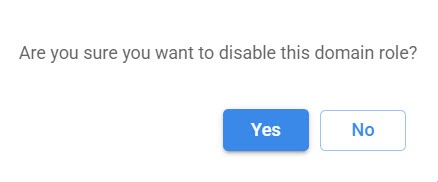
As a result, the role is disabled.
Restore a role
To restore a role:
- Click the Restore
 button next to the required role.
 - In the window that opens, click the Yes button.
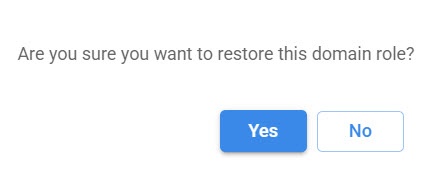
As a result, the role is restored.
Delete a role
Attention!
We recommend assigning new roles to users before you delete a role. Otherwise, all users with this role are deleted in all domains.
To delete a role:
- Click the Disable button next to the required role.
- In the window that opens, click the Yes button.
- Click the Delete
 button.
 - In the window that opens, click the Yes button.
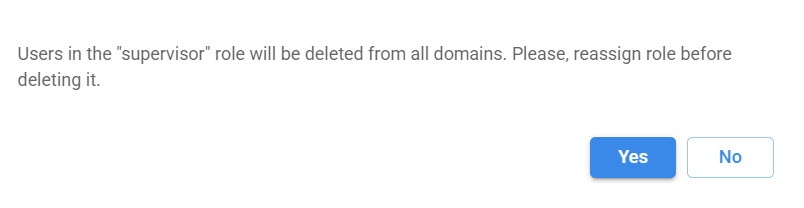
As a result, the selected role is deleted.