
Go to documentation repository

Documentation for Axxon PSIM 2.0. Documentation for other versions of Axxon PSIM is available too.
Previous page Next page

Note
When you use external maps, the binding to geographical coordinates is performed automatically—see Configuring the external Map server.
To configure the binding to the coordinate grid, do the following:
- Start the Map editor utility for the required map layer (for more details about this utility, see Configuring the interactive map for object state indication and controlling the objects section in Administrator's Guide).
- Display the Properties panel to edit object properties on the map (see Editing object properties using the Properties panel).
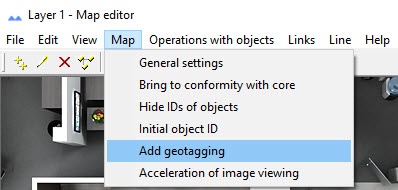
- Select Add geotagging in the Map menu.
- The coordinate axes are arranged on the map (1).
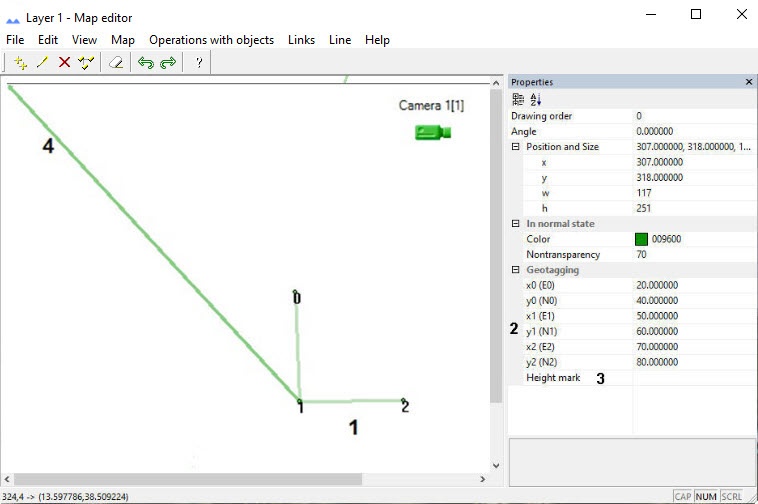
- Place points 1, 2, and 3 in positions corresponding to points with known coordinates (geographical or relative).
- In the x0, y0, x1, y1, x2, y2 fields, specify the coordinates of 0, 1, and 2 points, respectively (2).
The x coordinates correspond to longitude, and the y coordinates correspond to latitude. - If you configure the cooperation with the sintegral_web.run integration module, enter the number of the building floor that you want to bind in the Height mark field (3).
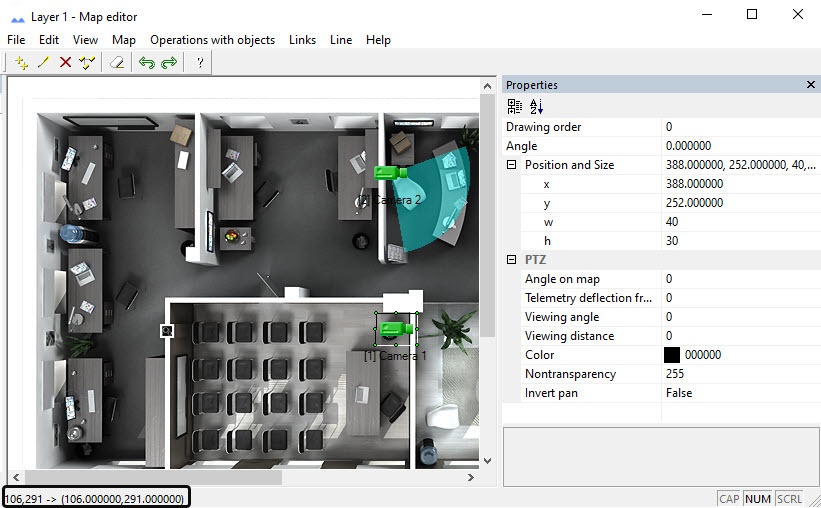
- If geographical coordinates of 0, 1, and 2 points are specified correctly, the axis (4) points to the north. The coordinates of the point to which the mouse cursor is pointed are displayed in the status bar in the lower left corner of the Map Editor window.
- Close the Map editor utility and click the Apply button on the settings panel of the corresponding Layer object.
- As a result, the calculated coordinates of the point in the upper right corner of the map are displayed in the Georeferencing field.
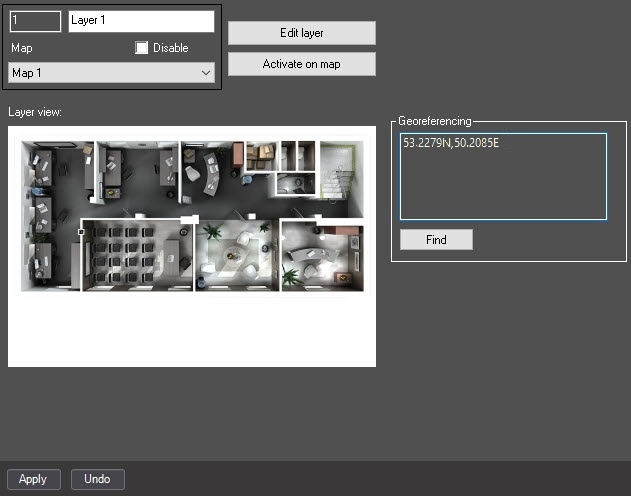
- Click the Find button to check the correctness of the settings. As a result, the Google map by the specified coordinates is opened in the default browser.
Binding the map to the coordinate grid is complete.
Overview
Content Tools