
Go to documentation repository

Documentation for Axxon PSIM 2.0. Documentation for other versions of Axxon PSIM is available too.
Previous page Next page

On the page:
Purpose
The video surveillance monitor is used for displaying and managing the surveillance windows. Surveillance windows display video from the specified cameras.
Functions
The video surveillance monitor implements the following functions:
- Display of images from the surveillance cameras.
- Control of the surveillance modes.
- Graphic processing of video images coming from cameras
- Management of video recording from the surveillance cameras.
- Work with video archives.
- Display of information about camera status.
Interface description
The figure shows the video surveillance monitor interface.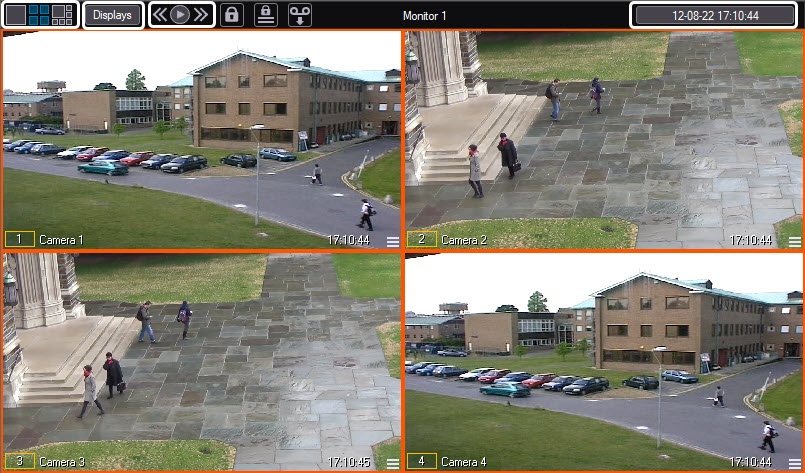
The video surveillance monitor window consists of a field for displaying the surveillance windows and the toolbar above it with the following items:
- The
 buttons are used to change the number of the displayed surveillance windows on the video surveillance monitor.
Note
You can determine the video image size after decompression in the video surveillance monitor using the parameter of the Decompressor.TrueResize key of the HKEY_LOCAL_MACHINE\SOFTWARE\AxxonSoft\Axxon PSIM\Video registry (see Registry keys reference guide).
- The
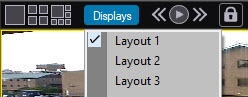
 button is used to manage the layouts.
 - The
 buttons are used to switch the surveillance windows.
 - The
 field displays the current time and date.
Note
You can change the format of the date and time display. To do this, go to the security zone object on the Date and time format tab (see The Settings panel of the Security zone object). After you select the required format, you must restart Axxon PSIM.
If the Debug mode is enabled in Axxon PSIM (see The Debug window), then information about the transmitted video stream is displayed instead of the date and time (see Frame rate settings).
Every surveillance window has a function menu to access such functions as arming and disarming the camera, image processing, management of video recording, frame exporting and printing, and so on. The surveillance window can also display the buttons for performing the specified actions when you click them:
Left-click the camera number in the surveillance window to display the function menu (see the figure below).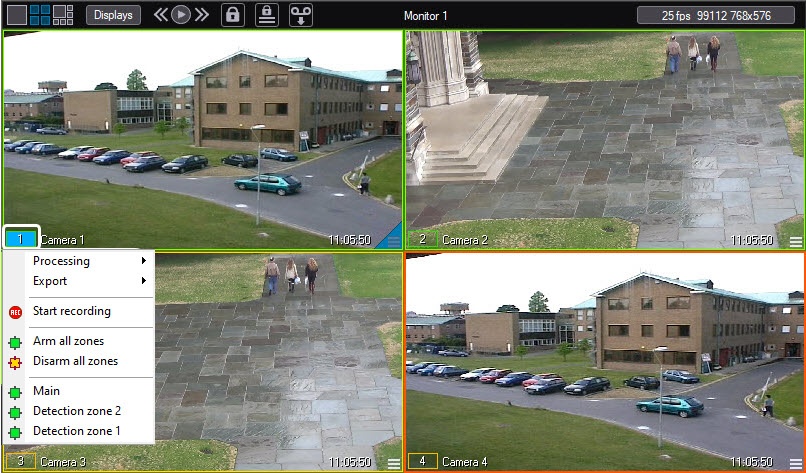
When you hover the mouse cursor over the control elements in the video surveillance monitor, the tooltips are displayed. The period of their display can be set using the parameters of the TT_INITIAL and TT_AUTOPOP keys of the HKEY_LOCAL_MACHINE\SOFTWARE\AxxonSoft\Axxon PSIM\Video registry (see Registry keys reference guide).
The key combinations for convenient operation of the video surveillance monitor and surveillance windows are listed in the table.
Key combinations | Function | Comments |
|---|---|---|
0 .. 9 Num (numeric keyboard) | Select an active surveillance window with the camera ID in the range from 0 to 9 | The sequence number of the surveillance window corresponds to the key digit |
| Ctrl + 0 .. 9 Num (numeric keyboard) | Select an active surveillance window with the camera ID in the range from 10 to 19 | To enable the cameras with the ID 10-19, press Ctrl and the key corresponding to the low-order digit. For example, CTRL+0 enables the camera 10, CTRL+9 enables the camera 19 |
| Ctrl + 10 or more on numeric keyboard | Select an active surveillance window with a sequence number from 10 | To enable the camera with the two-digit ID, press Ctrl and sequentially enter the digits. For example, CTRL+2+3 to enable the camera 23 |
F1 .. F6 | Select the number of the displayed surveillance windows | F1—1 window. F2—4 windows. F3—9 windows. F4—16 windows, and so on. Note. The documentation can also be opened by pressing the F1 key if Axxon PSIM is set up accordingly (see The Settings panel of the Security zone object section in Administrator's Guide) |
| F7 | Display all surveillance windows on the video surveillance monitor | This key can only be used if there are more than 36 surveillance windows in the video surveillance monitor |
| F8 | In the archive mode, select the date and time for searching records. Long press—display the Run menu of the main control panel In the video surveillance mode, display the Run menu of the main control panel | This key can be disabled using the DisableF8 registry key (see Registry keys reference guide) |
| F9 | Display the function menu of the Surveillance window | |
Ctrl + R | Manage video recording | Ctrl + R—start video recording Ctrl + T—stop video recording |
Shift + LeftClick/RightClick | Image scaling in the surveillance window | Shift + LeftClick—step-by-step zoom in Shift + RightClick—step-by-step zoom out |
Tab | Switch the active surveillance window into the archive mode and back | See Working with video archives. By default, when you press Tab, you are redirected to the main archive of the server. If you want to switch to the external archive, you must use the parameter of the EnterEdgeStorageDirect key of the HKEY_LOCAL_MACHINE\SOFTWARE\AxxonSoft\Axxon PSIM\Video registry (see Registry keys reference guide) |
Ctrl + / (on numeric keyboard NumPad) Left/Right arrow | Manage archive playback (playback control panel) | Ctrl + / (on numeric keyboard NumPad)—playback. Spacebar—stop. Ctrl + * (on numeric keyboard NumPad)—pause. Left/Right arrow—previous/next frame (in pause mode) |
Ctrl + A/D | Camera arming | Ctrl + A—arm camera. Ctrl + D—disarm camera |
Ctrl + E/P | Operations with individual frames | Ctrl + E—behavior depends on the state of the camera. If the camera is not in the archive or is in the archive but paused, the frame is exported. Otherwise, the video is exported. When the video is exported, the exported frames are played back. Ctrl + P—print frame |
Ctrl + W | Increase image contrast | Maximum contrast is set. To return to the previous value, press the key combination again |
Ctrl + S | Set camera mask | Ctrl + S—show camera mask Ctrl + H—hide camera mask |
| Ctrl + L | Enable/disable PTZ control using the mouse | See Control of PTZ devices using a mouse |
| Home | Switch to the first fragment of the video recordings list in the archive view mode | |
| End | Switch to the last fragment of the video recordings list in the archive view mode |
Overview
Content Tools