
Go to documentation repository
Documentation for Axxon One 3.0/3.1 version. Documentation for Axxon One 2.0 version is also available.

The surveillance window is used to display a video stream from the camera on the monitor of a computer.
The surveillance window is used for
- monitoring of the current situation at the facility;
- viewing videos from the archive;
- analysis of events using search in archive;
- generation and processing of alarm events.
The surveillance window has several display options (see User Interface):
- Controls are on top of the video image, buttons for selecting the video surveillance mode are inside the window.
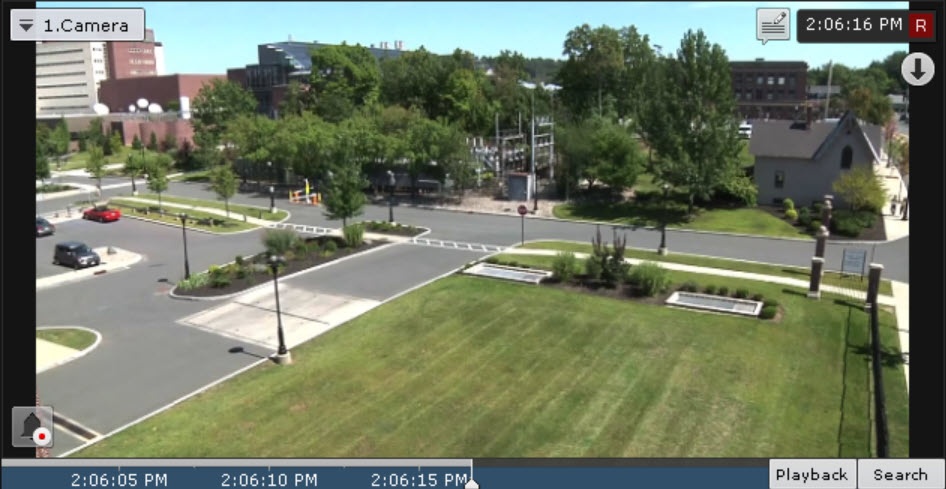
- Controls are on top of the video image, buttons for selecting the video surveillance mode are outside the window.
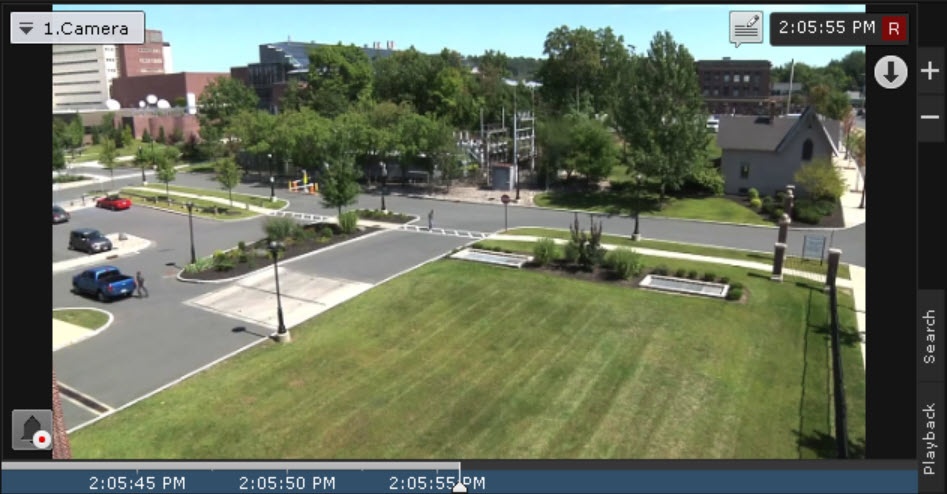
- Controls are outside the video image, buttons for selecting the video surveillance mode are inside the window.
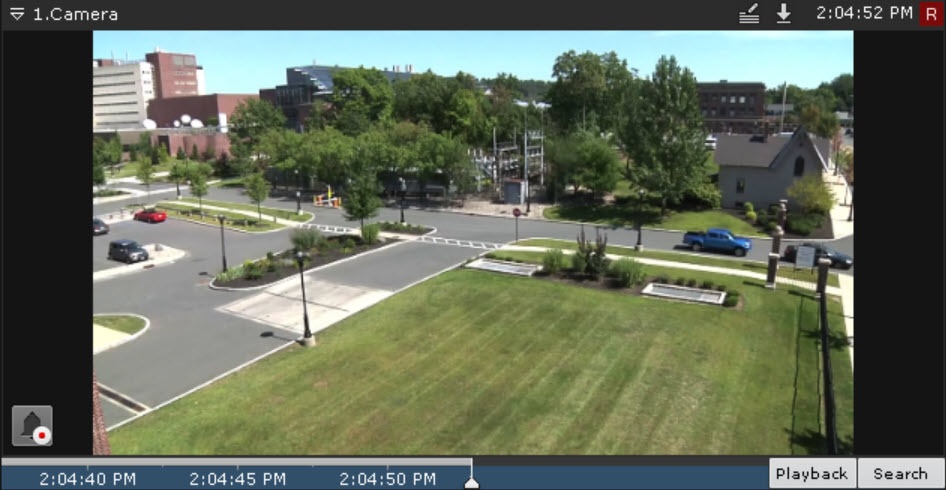
- Controls are outside the video image, buttons for selecting the video surveillance mode are outside the window.
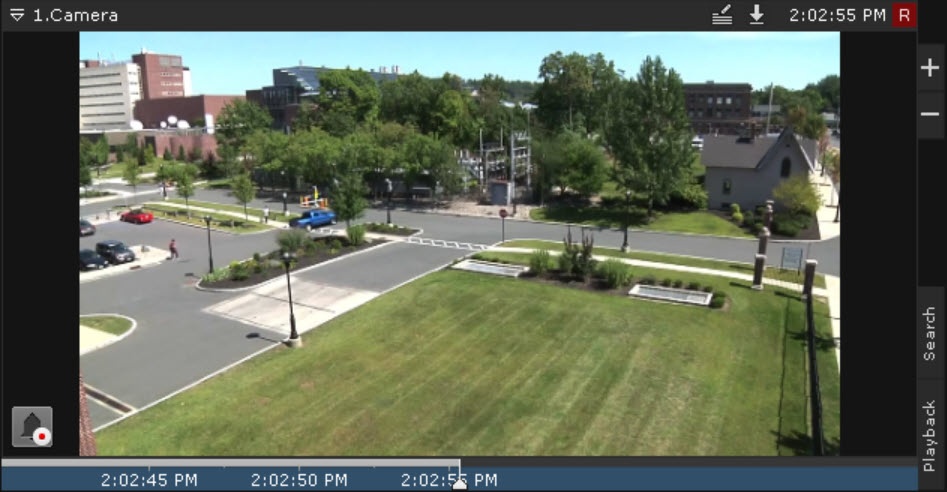
There are two states of the surveillance window on the layout:
- active;
- inactive.
When the surveillance window is in an active state, the following is available:
- the advanced archive navigation panel (see Advanced archive navigation panel);
- the tabs for selecting the video surveillance mode (see Video surveillance mode selection tabs).
To switch the surveillance window to an active state, click anywhere inside the window. To deselect, click again any area of the window or free space on the layout.
Depending on the settings, all controls of the surveillance window (see User Interface) can be hidden in an inactive state.
To copy the camera name to the clipboard, right-click it  . For a detailed description of the functions of the surveillance window, see Video surveillance.
When the connection with the camera is lost, the surveillance window is dimmed and displays the Disconnected caption.
Overview
Content Tools