
Go to documentation repository

Documentation for Axxon PSIM 2.0. Documentation for other versions of Axxon PSIM is available too.
Previous page Next page

Macros are used to automate the work of the operator. In Axxon PSIM, macros help to inform the operator/administrator about software and hardware failures, automate the backup archiving process, and much more.
Let’s consider an example of a macro that sends a message via a messenger bot. A message is sent if a condition is met—an error occurs when video from camera 1 is written to a disk.
To create a macro for sending a message, do the following:
- Create the Macro object in the objects tree of the Programming tab.
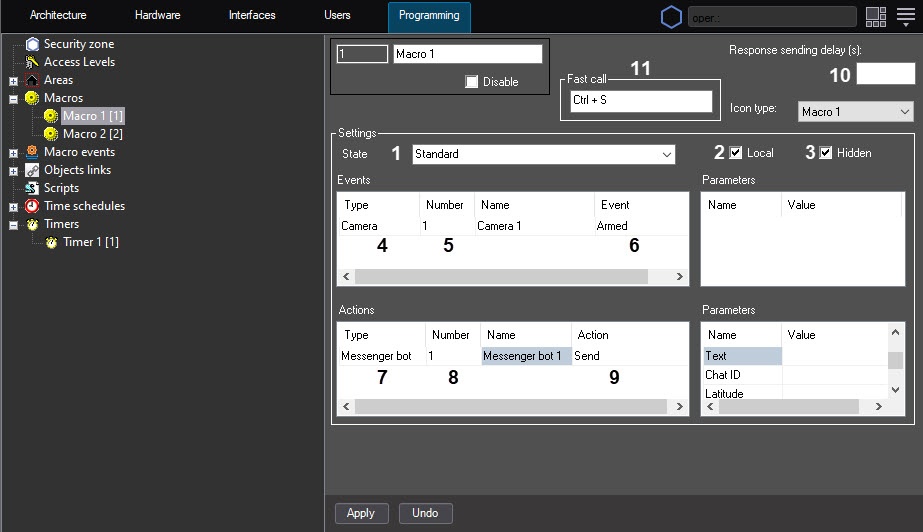
- Specify the State parameter (1).
- Set the Local checkbox (2) to send a message from the local computer only if necessary.
- Set the Hidden checkbox (3) to prevent a macro from being run manually from the main control panel of Axxon PSIM.
- Select an object whose event sends a message (4).
- Select the number of an object whose event sends a message (5).
- Select an event from a selected object that starts a macro to send a message (6).
- Select the Messenger bot object in the Type column (7).
- Select the number of the Messenger bot object that will be sent on a macro (8).
- Select the Send action (9).
- If you want the message to be sent after a certain period of time since the event occurred, specify the Response sending delay (s) parameter (10).
- If you want to be able to quickly run a macro using the keyboard, left-click in the Fast call field (11) and press the required key combination.
Note
If you assign the same key combinations to multiple macros, all such macros will be executed when you press the key combination.
- Click the Apply button.
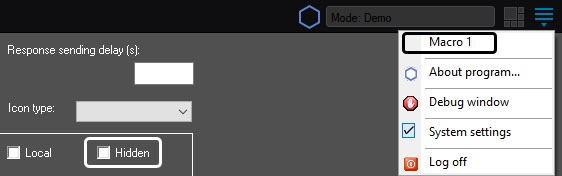
If you don't set the Hidden checkbox (3), you must start a macro manually. To do this, click the Run button in the main control menu and select a macro from the list (2).
Note
You can also open the menu by left-clicking the  icon in the Windows notification area (system tray) or by briefly pressing the F8 key.
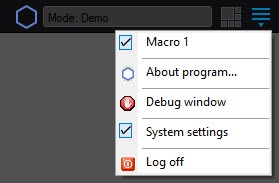
If a macro is force-run, there is a checkmark next to the macro name in the list of the Run menu on the main control panel.
Note
You can also run macros from the map or surveillance window (see Operations with macros and Run macros from surveillance window).
Overview
Content Tools