You are viewing an old version of this page. View the current version.
Compare with Current
View Page History
Version 1
Next »
To configure the Stopped object detector program module, use the settings panel of the Stopped object detector object that is created on the basis of the Camera object on the Hardware tab of the System settings window.
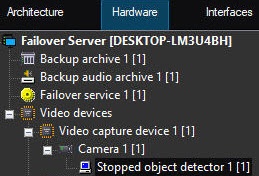
To configure the stopped object detector, do the following:
- Go to the settings panel of the Stopped object detector object.
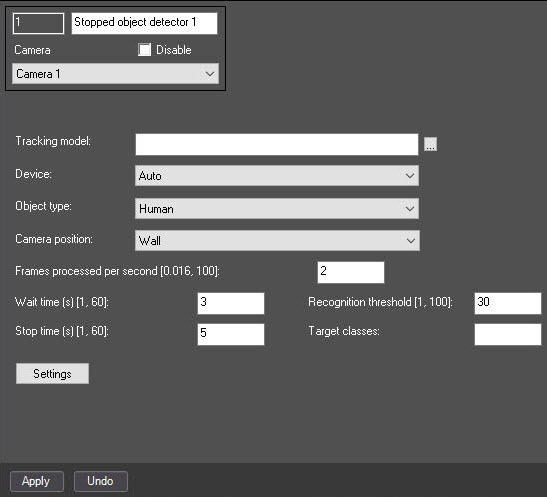
- By default, the standard neural network according to the selected object type and device is initialized. You must not select manually standard networks for different processor types since it is performed automatically. If you have the unique neural network for use, click the
 button to the right of the Tracking model field and specify its file in the standard Windows Explorer window that opens.
- From the Device drop-down list, select the one on which the neural network will operate: the CPU, one of the NVIDIA GPUs, or one of the Intel GPUs. Auto (default value)—device is selected automatically: The NVIDIA GPU takes the highest priority, then goes the Intel GPU, and then the CPU. Neural networks are selected by default depending on the selected device.
- From the Object type drop-down list, select the object type:
- Human—camera is pointed at the person at the angle of 100-160°;
- Human (top-down view)—camera is pointed at the person from above at a slight angle;
- People view from above (Nano)—camera is pointed at the person from above at a slight angle, small network size;
- People view from above (Medium)—camera is pointed at the person from above at a slight angle, average network size;
- People view from above (Large)—camera is pointed at the person from above at a slight angle, large network size;
- Vehicle—camera is pointed at the vehicle at the angle of 100-160°;
- Person and vehicle (Nano)—detects person and vehicle, small network size;
- Person and vehicle (Medium)—detects person and vehicle, average network size;
- Person and vehicle (Large)—detects person and vehicle, large network size.
- From the Camera position drop-down list, select:
- Wall—objects are detected only if their lower part is in the area of interest that is set in the detector settings.
- Ceiling—objects are detected even if their lower part isn't in the area of interest that is set in the detector settings.
- In the Wait time (s) [1, 60] field, specify the waiting time for the reappearance of the disappeared stopped object in seconds in the range [1, 60].
- In the Stop time (s) [1, 60] field, specify the time in seconds after which the object is considered stopped in the range [1, 60].
- In the Recognition threshold [1, 100] field, specify the minimal detection threshold in percent in the range [1, 100]. If the object recognition probability is lower than the specified one, the data is ignored. The higher the value, the higher the detection quality, but some events from the detector may not be considered.
- In the Target classes field, if necessary, specify the class of the detected object. If you want to display tracks of several classes, specify them separated by a comma with a space. For example, 1, 10.
The numerical values of classes for the embedded neural networks: 1—Human/Human (top-down view), 10—Vehicle.
- Click the Settings button to determine the area of interest and the ignore area.
- You can sequentially set the anchor points of the area of interest (highlighted by the red color) where the stopped objects are ignored.
- You can sequentially set the anchor points of the ignore area (highlighted by the yellow color) where the stopped objects are ignored.
- Click the OK button to save the specified areas, close the Detection settings window, and return to the detector settings panel.
- Click the Apply button to save the changes.
Configuring the Stopped object detector program module is complete.


