
Go to documentation repository

Documentation for Axxon PSIM 2.0. Documentation for other versions of Axxon PSIM is available too.
Previous page Next page

In Axxon PSIM, you can place several graphical plans of the protected facilities in one window of the interactive map. Each graphical plan is registered by the Layer object.
To create and configure the Layer object, do the following:
- Go to the Interfaces tab of the Axxon PSIM System settings dialog window (1).
- Create the Layer system object on the basis of the Map object or select the previously created object in the objects tree (2).
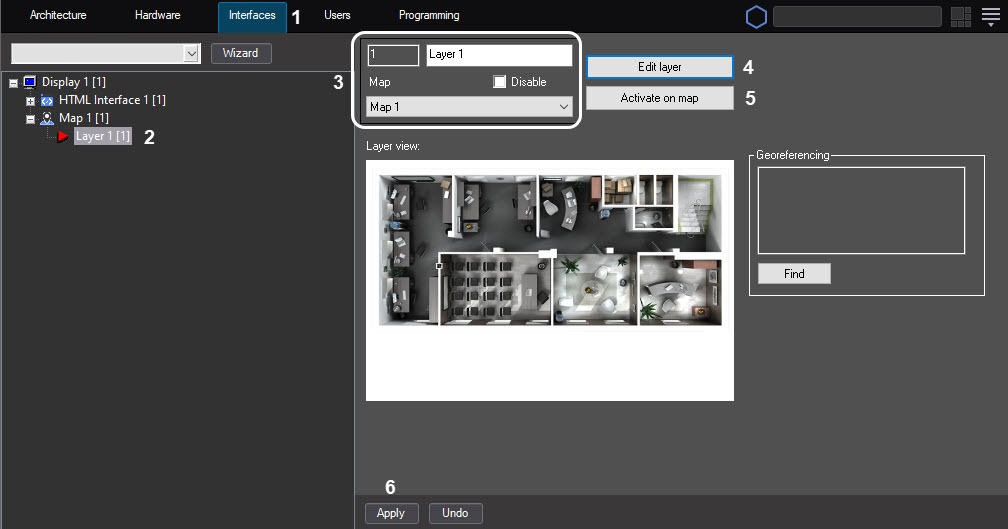
- Specify the ID and the object name when you create the Layer object and select the Map object on the basis of which you want to create the Layer object (3).
To edit the graphical plan of the protected facility, click the Edit layer button (4). As a result, the Map editor utility starts, designed to edit the graphical plan of the protected facility (layer).
Note
If you start the Map editor utility, you cannot interact with the System settings window. Close the Map editor utility to continue working with the System settings window.
You cannot start the Map editor utility for several layers at a time.- To display this layer on top of all other layers on the Map object, click the Activate on map button (5).
- To save all changes, click the Apply button (6).
After you create and configure the layer, you must attach the graphical plan of the protected facility to it, select the background color, or select the map server that can be used as a background for an external map. These types of backgrounds are mutually exclusive, that is, you can select only one of them. For example, if you select a file or an external map, the background color isn't applied.
To attach the graphical plan of the protected facility or select a background, do the following:
- Go to the settings panel of the Layer object.
Open the Map editor utility and click the Edit layer button.
Note
The Map editor utility allows you to select the plan of the protected facility, create the device icons, and place them on the protected facility, as well as other settings.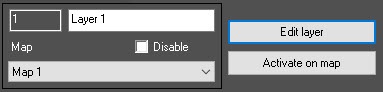
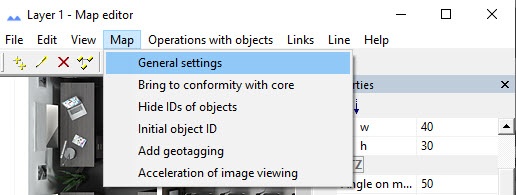
In the main menu of the Map editor utility, select Map → General settings.
As a result, the window in which you can select the graphical file as a plan of the protected facility opens.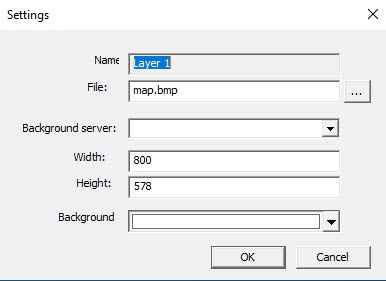
You can open the panel for attaching the graphical plan of the protected facility from the context menu of the map window field by selecting the Set background item.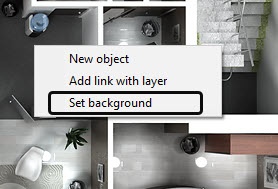
To select the graphical file of a background, do the following:
Click the
 button in the Settings selection window.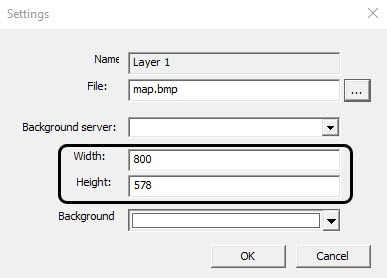
As a result, the standard window for selecting files opens: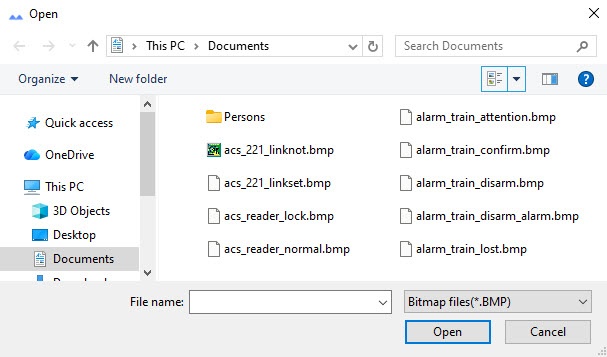
In that window, you must select the required file and click the Open button. You can use the bmp, gif, jpeg, jpg, png, tiff, emf, or svg file extension.After you select the background file, it is copied to the "Bmp" folder located in the Axxon PSIM installation directory.
Attention!
For the correct operation of the interactive map in the distributed configuration, you must synchronize the "Bmp" folders on all computers in the distributed system. The folders are synchronized automatically. For this, you must start the client as an administrator.In the Width and Height fields, specify the resolution of the selected file in pixels. This resolution must correspond to the real resolution of the used file.
To select the background color, do the following:
Clear the File field in the Settings window.
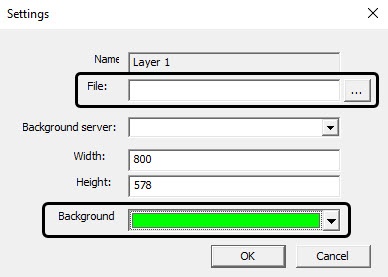
From the Background color drop-down list, select the layer background color.
Note
The background color is applied only after you close the Map editor window and reopen it again.
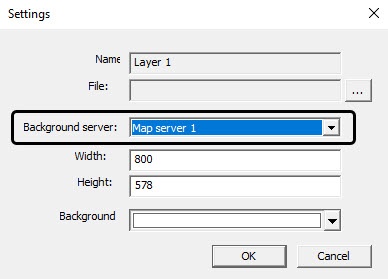
To select an external map as a background, select the previously created and configured Map server object from the Background server drop-down list (see Configuring the external Map server).
Note
If you select an external map as a background, it is automatically bound to the geographical coordinates (see Configuring map binding to coordinate grid).
To apply all changes, click the OK button in the Settings window.
After you complete all the above steps, the Map editor utility displays the new graphical plan of the protected facility.
Overview
Content Tools