
Go to documentation repository

Documentation for Axxon PSIM 2.0. Documentation for other versions of Axxon PSIM is available too.
Previous page Next page

On the page:
You can add the Video capture device object for capturing video from the application window via the FFMPEG driver by creating and configuring the Video capture device object or using the Camera discovery tool. The latter way is preferable.
Using the additional settings, you can set a specific application window as well as the window area and decompression. Currently, the driver supports the following codecs: video capture in the MJPEG (default) format and RGBA/BGRA formats, decompression to MJPEG, MPEG2, YUV422 formats.
Creating the Video capture device objects
To add the Video capture device object for capturing video from the application window via the FFMPEG driver, do the following:
- Open the Camera discovery tool.
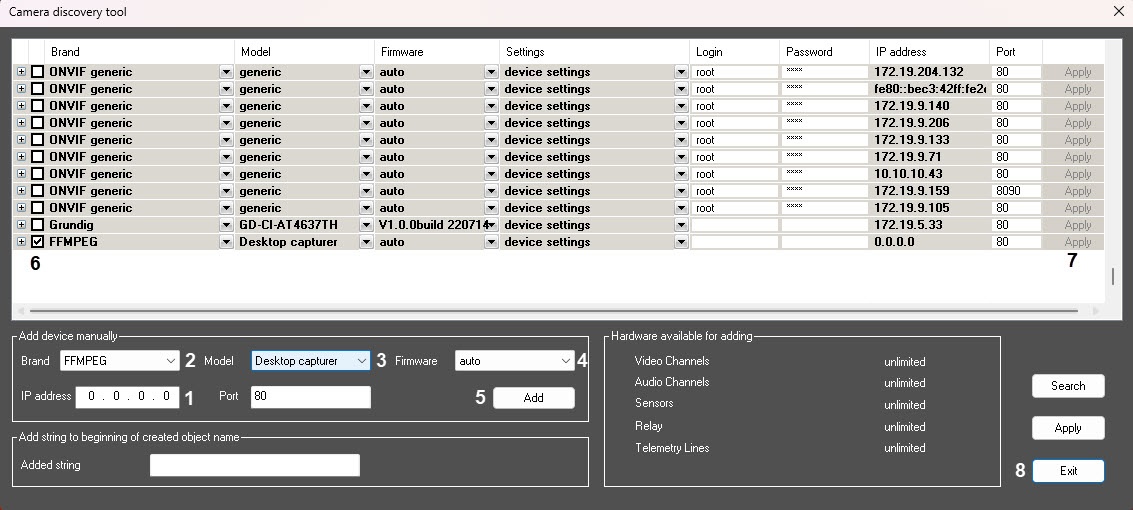
In the IP address field (1), enter any IP address. The driver automatically sets the required address for this model.
Note
When you add a device of this type by creating the Video capture device object, you must specify the address in the IP address field in the format described below (see Additional settings of the FFMPEG device).
- From the Brand drop-down list (2), select the FFMPEG value.
- From the Model drop-down list (3), select the Windows capturer model.
- From the Firmware drop-down list (4), select the auto firmware.
- Click the Add button (5). The device is added to the list.
- Set the checkbox next to the added device (6).
- Click the Apply button (7).
- Click the Exit button (8).
Additional settings of the FFMPEG device
You can manually set the address line by including the ffmpeg utility options to it in the IP address field on the settings panel of the Video capture device object. In this case, the address looks in the following way:
gdigrab://"App_name"[:-additionalOptions]
App_name is the name of the application that is displayed in the window title. The name can contain only the Latin characters and digits. If there are any other characters used in the window title, change it using the third-party utilities.
With additionalOptions, you can set a specific area and several other options.
The list of options supported by the ffmpeg library for the gdigrab mode:
- -draw_mouse <int> draw the mouse cursor (from 0 to 1) (1 by default);
- -show_region <int> draw borders across the capture line (from 0 to 1) (0 by default);
- -framerate <video_rate> set the frame rate ("ntsc" by default);
- -video_size <image_size> set the frame size;
- -offset_x <int> indent along the x axis of the capture area (from INT_MIN to INT_MAX) (0 by default);
- -offset_y <int> indent along the y axis of the capture area (from INT_MIN to INT_MAX) (0 by default).
Example of the IP address field value with the "additionalOptions" property:
gdigrab://"Calculator":-draw_mouse 1 -show_region 1 -framerate 25 -video_size 640x480 -offset_x 10 -offset_y 10
Overview
Content Tools