
Go to documentation repository

Documentation for Axxon PSIM 2.0. Documentation for other versions of Axxon PSIM is available too.
Previous page Next page

Universal drivers allow the AxxonSoft software to operate practically with all devices of the corresponding vendor.
There are two types of universal drivers:
- General device. The majority of device settings connected via the General Device driver are performed via the device web interface. For the detailed list of supported functions, refer to the Documentation Drivers Pack page
- generic. When you connect to the device operating via the generic driver, the configuration of the device is read and transferred to Axxon PSIM. Further, you can configure this device from Axxon PSIM.
Connection via the universal drivers is available for the following devices:
| Axis | Bosch | Panasonic | Samsung | Sony | ONVIF | |
| General Device | + | + | + | + | + | - |
| generic | + | + | - | - | - | + |
To add the General Device and generic devices in Axxon PSIM, do the following:
- Open the Camera discovery tool.
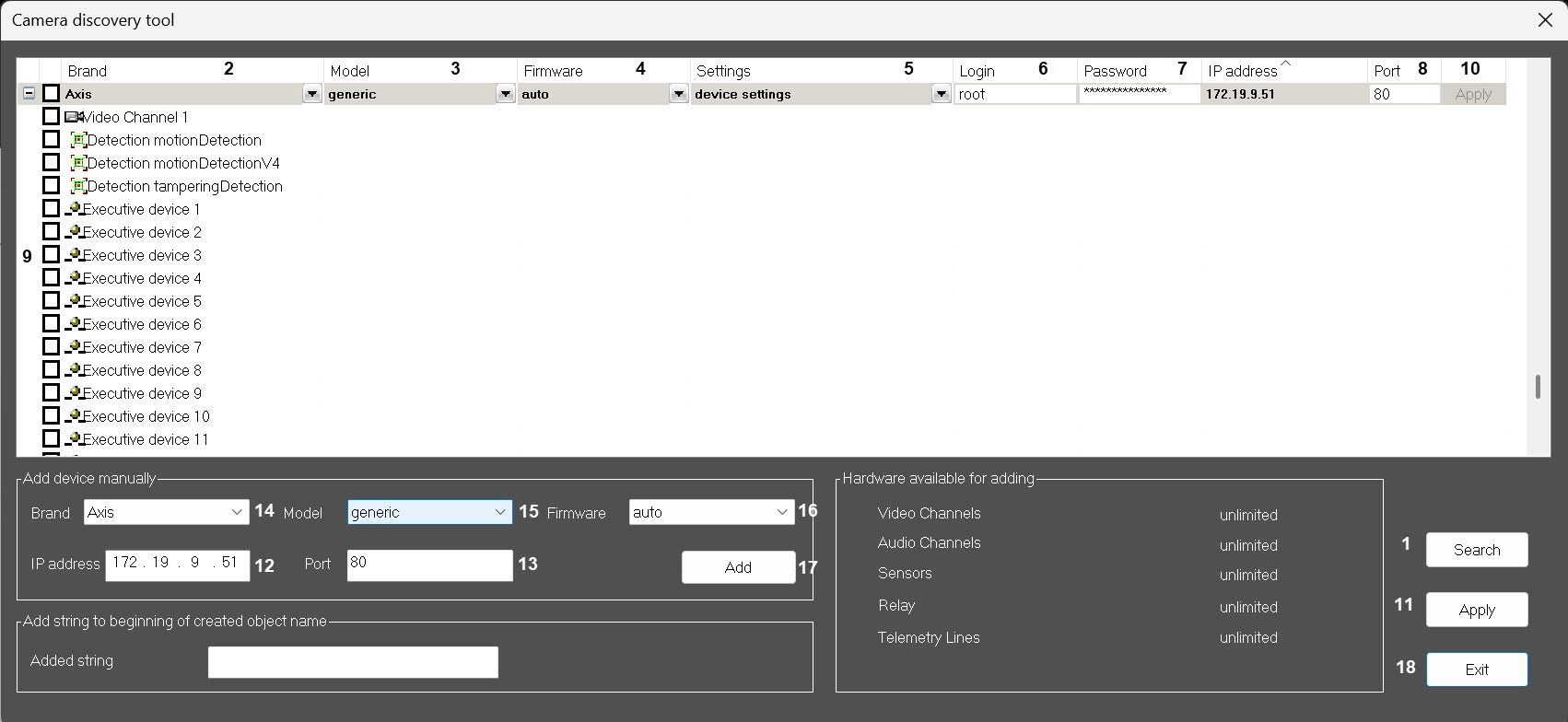
The found devices are displayed in the list. If the required device isn't displayed in the list, click the Search (1) button and wait until the research is complete. Check the correctness of brand detection (2) and make sure that General Device or generic is specified in the Model list (3) and auto in the Firmware list (4). Check the correctness of the channel number detection for the Axis and Bosch devices.
Note
Axis devices have the following restriction: if the login and password for device access aren't default, you cannot detect the number of channels for the device. Therefore, all non-integrated devices whose login and password aren't default are detected during the search as one-channel General Device.- From the Settings drop-down list (5), select videoserver settings if you want to transfer the settings specified in Axxon PSIM to the camera when you add it, or select device settings if you want to use the device settings.
Note that the majority of settings are performed via the device web interface. - Enter the login (6) and password (7) to connect the IP device. The login and password are specified in the documentation for the connected network device.
- Check if the TCP/IP port is correct (8). Enter the required value in the field if necessary.
- Select the objects that must be created on the basis of the IP device by setting the corresponding checkboxes (9, see the Camera discovery tool).
- Click the Apply button (10) for one device or (11) if you select several devices.
The selected objects are automatically created in the object tree of the Hardware tab. - If the IP device isn't found, add it manually.
- In the IP address field (12), enter the device IP address.
- In the Port field (13), enter the TCP/IP port number.
- From the Brand list (14), select the required brand.
- From the Model field (15), select General Device or generic. For the Axis and Bosch devices, select the number of device channels.
- From the Firmware drop-down list (16), select auto.
- Click the Add button (17).
As a result, the IP device with the specified parameters is displayed at the top of the window.
- To complete the creation of IP devices, do steps 2-6 as described above.
- Click the Exit button (18) to close the Camera discovery tool window.
Creating the General Device is complete.
Overview
Content Tools