
Go to documentation repository
Previous page Next page
Note
You can use templates when you create a report.
To add a new template, click Report templates → New template and fill in the Name and Description fields. The template will use the selected parameters of the current report.
Templates work the same way as templates in the scheduler and can be used interchangeably.
When you create a response using a template, click Report templates at the top of the page and select the required template from the list of saved templates (the required template is highlighted). As a result, the parameters of the current report are updated according to the selected template.
The Employees absent for too long report is represented in the form of a table that contains the information about the last entries by the employees' cards that were not used for a long time. The cards that were not used for a long time are cards that were not used for access for a specified number of days.
To create the Employees absent for too long report:
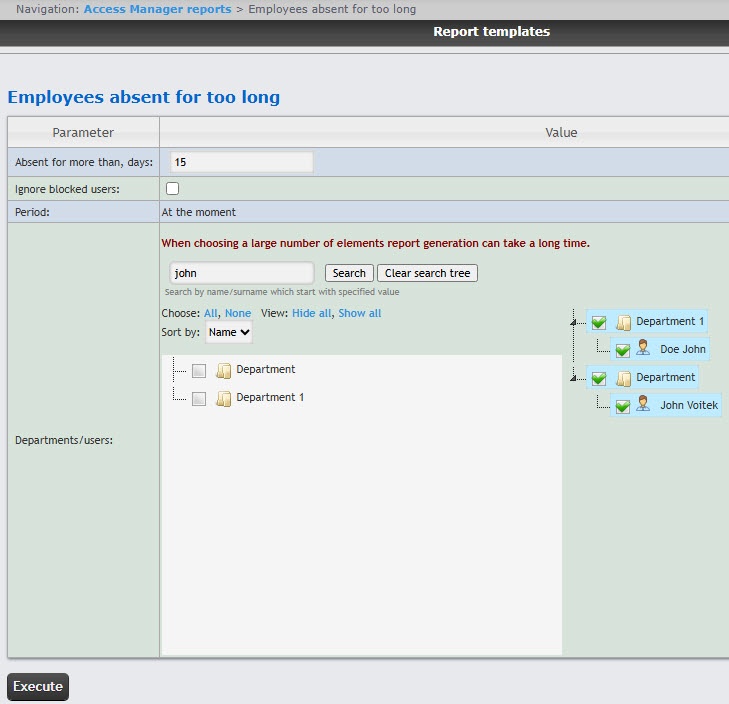
Click the Execute button to create the report.
Example of an Employees absent for too long report: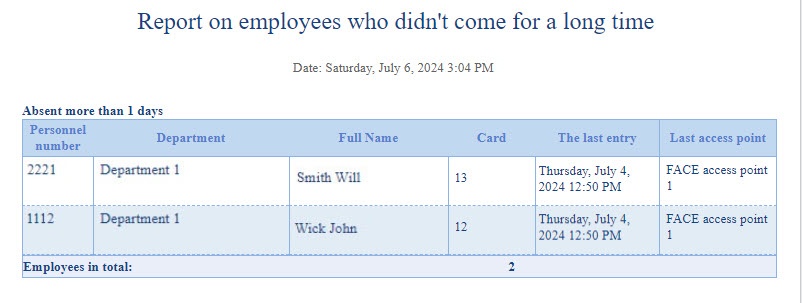
The report fields are described in the table:
| Field | Description |
|---|---|
| Personnel number | Employee's personnel number |
| Department | Employee's department |
| Full Name | Employee's full name |
| Card | Employee's card number |
| The last entry | Date of the employee's last entry through the access point |
| Last access point | Access point through which employee entered last using the card |
| The Employees in total line displays the number of employees included in the report | |
You can save the report in the following formats:
The Employees absent for too long report is created.

