
Go to documentation repository
| Note | ||
|---|---|---|
| ||
The Sweethearting report is generated automatically based on the data from the Sweethearting at checkout detectionmodule, which is part of the DetectorPack PSIM (see Configuring the Sweethearting at checkout detection module). Also the the POS terminal and the Shop objects objects should be set up and configured in in POS PSIM (see see The POS terminal object setup). |
| Info | ||
|---|---|---|
| ||
You can use templates when you create a report. To add a new template, click Report templates→New template and fill in the Name and Description fields. The template will use the selected parameters of the current report. Templates work the same way as templates in the scheduler and can be used interchangeably. When you create a response using a template, click Report templates at the top of the page and select the required template from the list of saved templates (the required template is highlighted). As a result, the parameters of the current report are updated according to the selected template. |
The Sweethearting detailed report enables real-time monitoring of goods scanning events by cashiers in order to prevent intentional theft by carrying goods past the barcode scanner (so-called sweethearting).
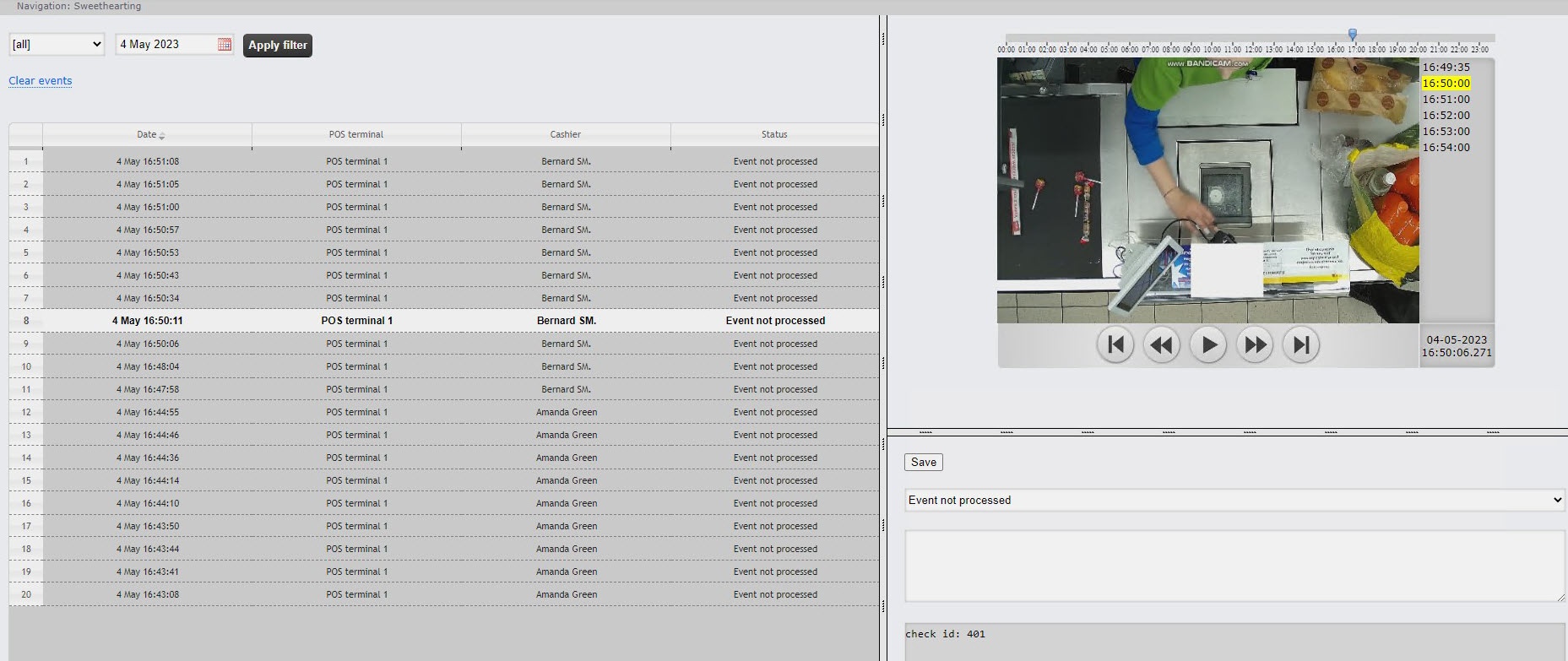
Open the Sweethearting report (see Selecting a Select the type of general POS report). The interface of the Sweethearting monitor is shown in the picture below.
| Note | ||
|---|---|---|
| ||
Events appear in the report only if there is no Add goods event at the same second as the event from the Sweethearting at checkout detection object of DetectorPack PSIM (see Set up time periods for event generation and between check of receipts in the Sweethearting report). |
| Info | ||
|---|---|---|
| ||
It is possible to enable sound notification about new events (see Setting up the Sweethearting report). |
The goods scanning events are loaded into the table (4), ranging from the newest to the oldest. Each of the events is provided with the following summary information:
...
Using the Calendar tool (2), set the day for which it is necessary to build the report. Click the  button near the corresponding field to use the Calendar tool.
...
The video of the event with the indication of the time when the event was recorded and the possibility of viewing in the archive mode (6).
| Info | ||
|---|---|---|
| ||
Working with video surveillance window in the archive mode is given in details in Axxon PSIM software package. Operator's Guide. |
...

