Search by temperature is used to search for events based on the analysis of the temperature field of a video image and to detect changes in temperature in the detection area. For correct operation of the search by temperature, the following is required:
- Access permissions to search in the archive (see Role).
- A camera that is configured and connected and has an embedded temperature detector
- detector that is configured and connected to the camera (see Embedded temperature detector).
To search by temperature:
- Open the required layout (see Configuration of layouts).
- Select the required camera.
- Click the Search button in the lower right corner of the surveillance window (see Search in archive).
- Set a search interval (see Setting a search interval).
- Click the
 button.
 - Select Search by temperature.
- Specify the search criteria listed in the table:
- Click the Search
 button.
You can stop the search at any time. To do this, click the Stop  button that replaces the Search button. button that replaces the Search button. |
The search results panel displays frames that meet the specified search criteria:
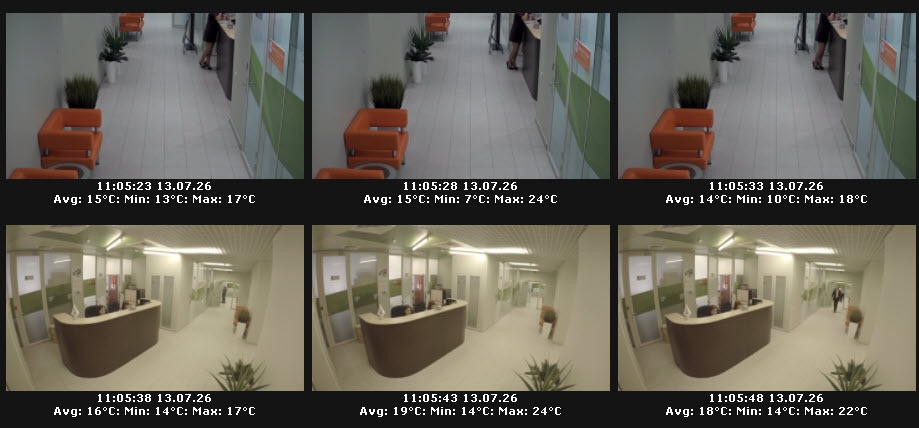
If the moment you're looking for isn't found, perform the search again: double-click a found moment, and a search will be performed in the interval from that moment to the next. Continue searching until the required moment is found.
 to decrease the numerical value.
 to increase the numerical value