
Go to documentation repository
Documentation for Axxon One 3.0/3.1 version. Documentation for Axxon One 2.0 version is also available.

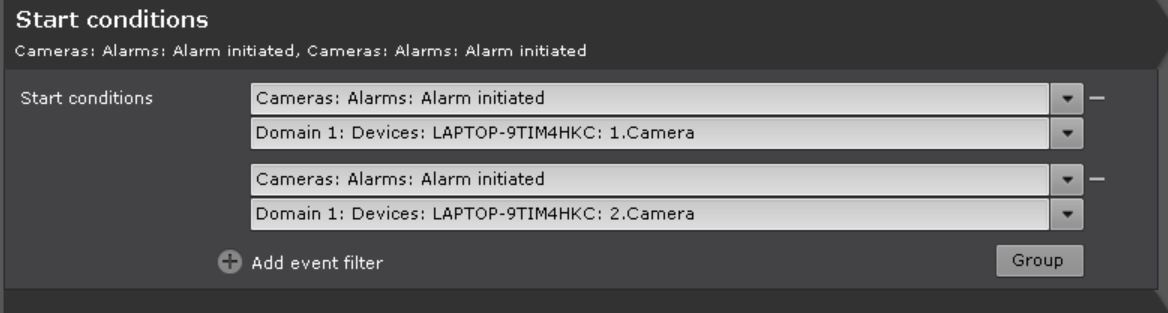
Start conditions are events in the system that start a macro. When you create event macros, you can select one or more start conditions. If you specify several conditions, a macro can start when any of the specified conditions are met.

The table shows the examples of start conditions to run a macro:
| Object | Event | Description |
|---|---|---|
| Cameras | ||
| Alarms | Alarm initiated | Macro starts when the selected event is received from the camera
|
Alarm being processed by user | ||
Alarm skipped | ||
Alarm processed | ||
Alarm processed—Confirmed alarm | ||
| Alarm processed—Suspicious situation | ||
| Alarm processed—False alarm | ||
| Statuses | Armed | |
Armed in private mode | ||
Disarmed | ||
| ACFA | ||
| Inputs | Input: Triggering start | Macro starts when the selected event is received from the input
|
| Input: Triggering end | ||
| Outputs | Output: Triggering start | Macro starts when the selected event is received from the output
|
| Output: Triggering end | ||
| Events |
| Macro starts when the selected event is received |
| Detectors |
|
|
| Motion detector | Triggering start | Macro starts when the selected event is received from the Motion detector
|
| Triggering end | ||
| Neural tracker | Triggering | Macro starts when the selected event is received from the Neural tracker
|
| Similitude search: Triggering | ||
| Abandoned object detector VI | Abandoned object detected: Triggering | Macro starts when the selected event is received from the Abandoned object detector VI |
| Abandoned object detector VI (Street) | Macro starts when the selected event is received from the Abandoned object detector VI (Street) | |
| Line crossing VI | Object crossing dividing line detected: Triggering | Macro starts when the selected event is received from the Line crossing VI detector |
| Movement in prohibited direction VI | Object moving in area detected: Triggering | Macro starts when the selected event is received from the Movement in prohibited direction VI detector |
| Motion in area detector VI | Macro starts when the selected event is received from the Motion in area detector VI | |
| Detector of atypical changes in the scene VI | Atypical scene changes: Triggering | Macro starts when the selected event is received from the Detector of atypical changes in the scene VI |
| Audio loss detector | Audio loss detected: Triggering start | Macro starts when the selected event is received from the Audio loss detector |
| Audio loss detected: Triggering end | ||
| Noise detector | Noise detected: Triggering start | Macro starts when the selected event is received from the Noise detector
|
| Noise detected: Triggering end | ||
| Signal detector | Audio signal detected: Triggering start | Macro starts when the selected event is received from the Signal detector
|
| Audio signal detected: Triggering end | ||
| Video clarity detector | Tampering detected: Triggering | Macro starts when the selected event is received from the Video clarity detector |
| Crowd estimation VA | Multiple objects detected: Triggering | Macro starts when the selected event is received from the Crowd estimation VA detector |
| Face detector TV | Face detected: Triggering | Macro starts when the selected event is received from the Face detector TV
|
| Face detected: Specified detection | ||
| Face recognition | ||
| Face detector VA | Face detected: Triggering | Macro starts when the selected event is received from the Face detector VA
|
| Face detected: Specified detection | ||
| Face recognition | ||
| Face detector VL | Face detected: Triggering | Macro starts when the selected event is received from the Face detector VL |
| Face detected: Specified detection | ||
| Face recognition | ||
| Face detector TV: Mask detector | Face recogniton evasion detected: Triggering start | Macro starts when the selected event is received from the Mask detector TV
|
| Face recogniton evasion detected: Triggering end | ||
| Face detector VA: Mask detector | Face recogniton evasion detected: Triggering start | Macro starts when the selected event is received from the Mask detector VA
|
| Face recogniton evasion detected: Triggering end | ||
| Face detector VL: Mask detector | Face recogniton evasion detected: Triggering start | Macro starts when the selected event is received from the Mask detector VL
|
| Face recogniton evasion detected: Triggering end | ||
| License plate recognition BRS | Recognized LP: Triggering | Macro starts when the selected event is received from the License plate recognition BRS detector |
| License plate recognition IV | Macro starts when the selected event is received from the License plate recognition IV detector | |
| License plate recognition VT | Macro starts when the selected event is received from the License plate recognition VT detector | |
| License plate recognition RR | Recognized LP: Triggering | Macro starts when the selected event is received from the License plate recognition RR detector
|
| Unrecognized LP: Triggering | ||
| License plate recognition | ||
| License plate recognition RR—Search in archive | Recognized LP: Triggering | Macro starts when the selected event is received from the License plate recognition RR—Search in archive detector |
| License plate recognition RR—Parking | Recognized LP: Triggering | Macro starts when the selected event is received from the License plate recognition RR—Parking detector
|
| Unrecognized LP: Triggering | ||
| Vehicle recognition RR | Recognized vehicle: Triggering | Macro starts when the selected event is received from the Vehicle recognition RR detector |
| License plate recognition XR | Recognized LP: Triggering | Macro starts when the selected event is received from the License plate recognition XR detector |
| Audio classification IV | Aggression: Triggering | Macro starts when the selected event is received from the Audio classification IV detector
|
| Baby cry: Triggering | ||
| Dog bark: Triggering | ||
| Glass break: Triggering | ||
| Gunshot: Triggering | ||
| Siren: Triggering | ||
| Smoke alarm: Triggering | ||
| Fire detector | Fire detected: Triggering start | Macro starts when the selected event is received from the Fire detector
|
| Fire detected: Triggering end | ||
| Glow detector | Light source status changed: Triggering | Macro starts when the selected event is received from the Glow detector |
| Neural classifier | Object presence detected: Triggering start | Macro starts when the selected event is received from the Neural classifier detector
|
| Object presence detected: Triggering end | ||
| Smoke detector | Smoke detected: Triggering start | Macro starts when the selected event is received from the Smoke detector
|
| Smoke detected: Triggering end | ||
| Water level detector | Water level overrun detetcted: Triggering start | Macro starts when the selected event is received from the Water level detector
|
| Water level overrun detetcted: Triggering end | ||
| Equipment detector (PPE) | PPE absence detected: Triggering | Macro starts when the selected event is received from the Equipment detector
|
| No body PPE: Triggering | ||
| No feet PPE: Triggering | ||
| No hands PPE: Triggering | ||
| No head PPE: Triggering | ||
| No legs PPE: Triggering | ||
| No other PPE: Triggering | ||
| Equipment detector VL | PPE absence detected: Triggering | Macro starts when the selected event is received from the Equipment detector VL |
| Barcode detector | Decoded barcode: Triggering | Macro starts when the selected event is received from the Barcode detector |
| Neural counter | Multiple objects detected: Triggering | Macro starts when the selected event is received from the Neural counter detector |
| Meta-detector | Match by text query: Triggering start | Macro starts when the selected event is received from the Meta-detector
|
| Match by text query: Triggering end | ||
| Fight detector VL | Fight detected: Triggering | Macro starts when the selected event is received from the Fight detector VL |
| Queue detector | Queue detected: Triggering | Macro starts when the selected event is received from the Queue detector |
| Visitors сounter | Visitors counter: Triggering start | Macro starts when the selected event is received from the Visitors сounter detector
|
| Visitors counter: Triggering end | ||
| Visitor access in the direction of Entrance: Triggering | ||
| Visitor access in the direction of Exit: Triggering | ||
| Human pose detector | ||
| Sitting person detector | Sitting person detected: Triggering start | Macro starts when the selected event is received from the Sitting person detector
|
| Sitting person detected: Triggering end | ||
| Person down detector | Person down detected: Triggering start | Macro starts when the selected event is received from the Person down detector
|
| Person down detected: Triggering end | ||
| Hands up detector | Hands up detected: Triggering start | Macro starts when the selected event is received from the Hands up detector
|
| Hands up detected: Triggering end | ||
| Shooter detector | Shooter detected: Triggering start | Macro starts when the selected event is received from the Shooter detector
|
| Shooter detected: Triggering end | ||
| Handrail holding detector | Handrail holding violation: Triggering start | Macro starts when the selected event is received from the Handrail holding detector
|
| Handrail holding violation: Triggering end | ||
| People counter | Multiple objects detected: Triggering | Macro starts when the selected event is received from the People counter detector |
| Close-standing people detector | Close-standing people detected: Triggering start | Macro starts when the selected event is received from the Close-standing people detector
|
| Close-standing people detected: Triggering end | ||
| Object tracker | ||
| Line crossing | Object crossing line detected: Triggering start | Macro starts when the selected event is received from the Line crossing detector
|
| Object crossing line detected: Triggering end | ||
| Loitering in area | Object loitering in area detected (specified time): Triggering | Macro starts when the selected event is received from the Loitering in area detector
|
| Group of objects loitering in area detected (specified time): Triggering start | ||
| Group of objects loitering in area detected (specified time): Triggering end | ||
| Object loitering in area detected (shorter than specified time): Triggering | ||
| Group of objects loitering in area detected (shorter than specified time): Triggering start | ||
| Group of objects loitering in area detected (shorter than specified time): Triggering end | ||
| Object loitering in area detected (longer than specified time): Triggering start | ||
| Object loitering in area detected (longer than specified time): Triggering end | ||
| Group of objects loitering in area detected (longer than specified time): Triggering start | ||
| Group of objects loitering in area detected (longer than specified time): Triggering end | ||
| Stop in area | Object stopping in area detected: Triggering | Macro starts when the selected event is received from the Stop in area detector
|
| Group of objects stopping in area detected: Triggering start | ||
| Group of objects stopping in area detected: Triggering end | ||
| Abandoned object | Abandoned object detected: Triggering | Macro starts when the selected event is received from the Abandoned object detector |
| Motion in area | Object moving in area detected: Triggering start | Macro starts when the selected event is received from the Motion in area detector
|
| Object moving in area detected: Triggering end | ||
| Group of objects moving in area detected: Triggering start | ||
| Group of objects moving in area detected: Triggering end | ||
| Entrance in area | Object entering area detected: Triggering | Macro starts when the selected event is received from the Entrance in area detector
|
| Group of objects entering area detected: Triggering start | ||
| Group of objects entering area detected: Triggering end | ||
| Exit from area | Object exiting area detected: Triggering | Macro starts when the selected event is received from the Exit from area detector
|
| Group of objects exiting area detected: Triggering start | ||
| Group of objects exiting area detected: Triggering end | ||
| Multiple objects | Multiple objects detected: Triggering start | Macro starts when the selected event is received from the Multiple objects detector
|
| Multiple objects detected: Triggering end | ||
| Move from area to area | Object moving from area to area detected: Triggering | Macro starts when the selected event is received from the Move from area to area detector
|
| Group of objects moving from area to area detected: Triggering start | ||
| Group of objects moving from area to area detected: Triggering end | ||
| Archives | ||
| Archives | Recording started | Macro starts when the selected event is received from a specific archive
|
Recording stopped | ||
| Time zones | ||
| Time zones | Beginning | Macro starts when the selected event is received from the time zone
|
End | ||
| Event sources | ||
| Event source | Event contains text | Macro starts when the selected event is received from the event source. You must specify a word or phrase. When it comes up in the captions, the macro starts. If you want a macro to start when several words or values come up at once, use curly braces for logical "AND". For example, {Water} {Pepper} {Salt} |
| PTZ | ||
| PTZ | Move to preset | Macro starts when the selected event is received from the PTZ camera
|
Camera moved manually | ||
Move to preset failed | ||
| Technical state | ||
| Archives | Archive partition error | Macro starts when the selected event is received from any archive or a specific archive
|
| Archive partition restored | ||
| Cameras | IP device enabled in settings | Macro starts when the selected event is received from the device. For the IP device connection lost and IP device connection restored events, you must set a trigger threshold—the time in seconds (from 0 to 3600) between switching from the Signal lost to the Signal restored state. For example, if you set a 10-second threshold for the Signal lost condition, then at least 10 seconds must pass between the last Signal restored event and the new Signal lost event to start the macro |
| IP device disabled in settings | ||
| IP device connection lost | ||
| IP device connection restored | ||
Authorization failed | ||
| Servers | No recording to archive | Macro starts when the selected event is received from a specific server. When you select this event, select one of the options:
|
Archive usage | Macro starts when the selected event is received from the server. When you select the event:
| |
Disk usage | Macro starts when the selected event is received from the server. When you select the event:
| |
Memory usage | Macro starts when the selected event is received from the server. When you select the event:
| |
Network usage | Macro starts when the selected event is received from the server. When you select the event:
| |
CPU usage | Macro starts when the selected event is received from the server. When you select the event:
Attention! The macro starts only when events that meet the trigger conditions occur in the future. For example, if the CPU load is 85% at the time you create a macro, and the conditions specify that the macro starts when the threshold of 80% is exceeded, the macro only starts the next time the threshold of 80% is exceeded. | |
| Server connections | Connection to license server broken | Macro starts when the selected event is received from the license server |
Connection to license server restored | ||
Server disconnected | Macro starts when the selected event is received from a specific server | |
Server connected | ||
After you select start conditions, in the drop-down list below, set the checkboxes next to devices or groups of devices. The macro starts when the selected start conditions are met for the specified devices.

To display start conditions in a compact manner, you can group similar events and types of devices using the Group  button.
Overview
Content Tools