
Go to documentation repository
Documentation for Axxon One 3.0/3.1 version. Documentation for Axxon One 2.0 version is also available.

General information
This action stops a slideshow of specific layouts (see Configuration of layouts) on the selected operator monitor for the specified role.
Configuring an action
To configure the Stop slideshow action, do the following:
- Go to the Programming tab.
- In the Event rules or Cycle rules list, click Create... (see Configuration of macros).
- Select a start condition that triggers a macro (see Configuration of start conditions).
- Click the
 button below start conditions.
 - From the drop-down list, select Monitor: Stop slideshow.
- In the Specify monitor number parameter, select the number of the monitor on which you want to stop a slideshow. If you select a dash (−) when selecting a monitor, a slideshow stops on the active monitor.
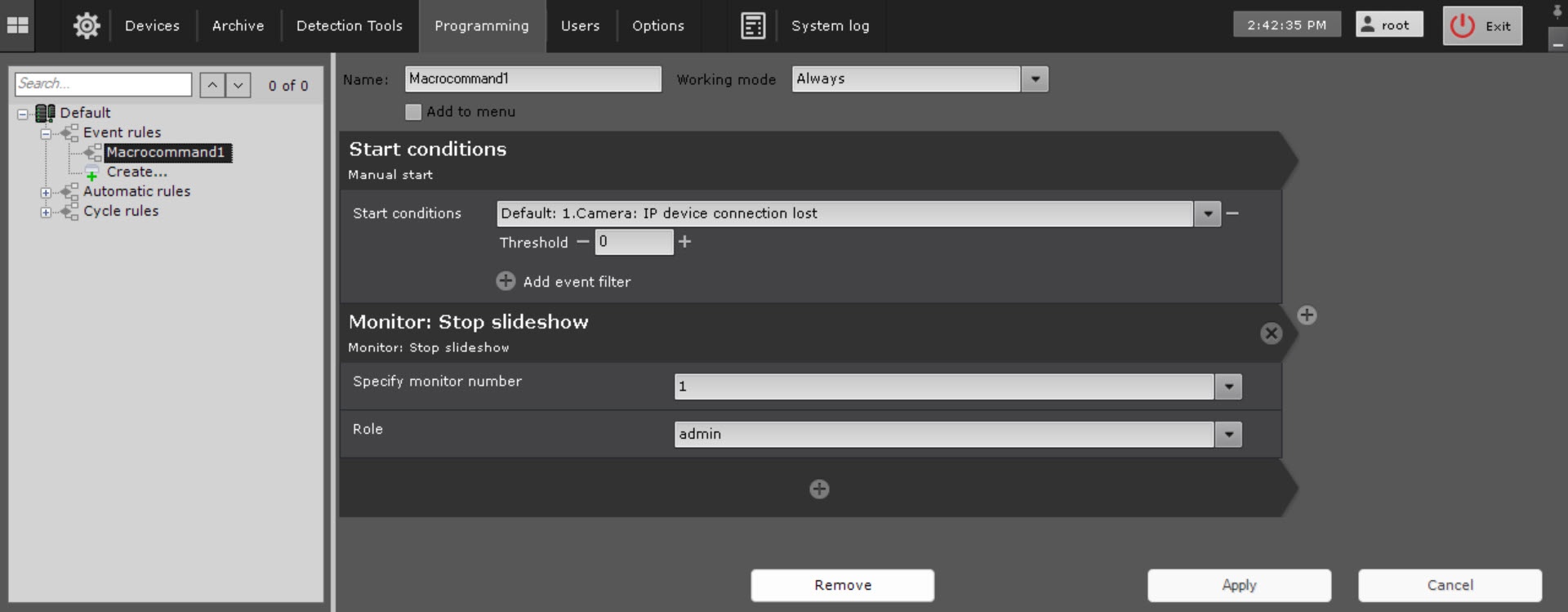
- In the Role parameter, select a role for which the macro will be executed. If you leave the Role field blank, the macro is executed for all roles that have access to this rule.
- Click the Apply
 button.
Configuration of the Stop slideshow action is complete. To stop a slideshow, you can also left-click any surveillance window. After you restart the client, a slideshow resumes.
Overview
Content Tools