
Go to documentation repository
Documentation for Axxon One 3.0/3.1 version. Documentation for Axxon One 2.0 version is also available.

Search by barcode allows you to find text in the archive that was detected when detecting barcode (see Barcode detector). To search by barcode, do the following:
Open the required layout (see Configuration of layouts).
- Select the required camera.
- Click the Search button located in the lower right corner of the surveillance window (see Search in archive).
- Set the search interval (see Setting a search interval).
- Click the
 button.
 - Select Seach by barcode.
- Set the search criteria specified in the table.
Criterion Value Description Search by barcode Enter text Enter the text that you want to find.
- To search by all detected barcodes, enter * (asterisk).
- The minimum number of characters in the search text is three
- Click the Search
 button.
Note
You can stop the search process at any time. To do this, click the Stop
 button that replaces the Search button.
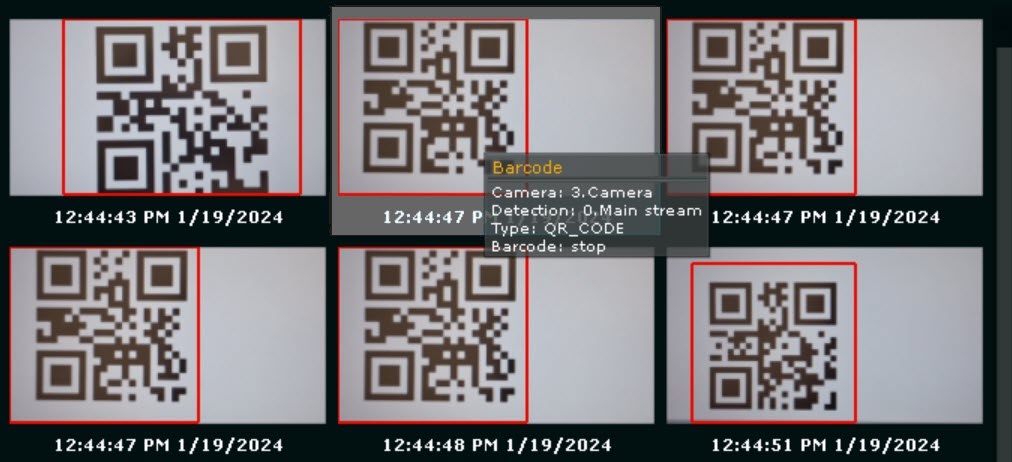
The search results panel displays the frames that match the specified search criteria. When you hover over the search result, the text recognized in the barcode is displayed.
Overview
Content Tools