
Go to documentation repository

Documentation for Axxon PSIM 2.0. Documentation for other versions of Axxon PSIM is available too.
Previous page Next page

A bookmark is several protected or unprotected videos for the specified period. The maximum number of bookmarks is 5000. To create a bookmark, that is, to protect videos recorded over a specified period, click the  button. The Create bookmark window opens.
Note
The  button is not displayed if you don't select a disk for recording (see Select disks for video archive storage).
button is not displayed if you don't select a disk for recording (see Select disks for video archive storage).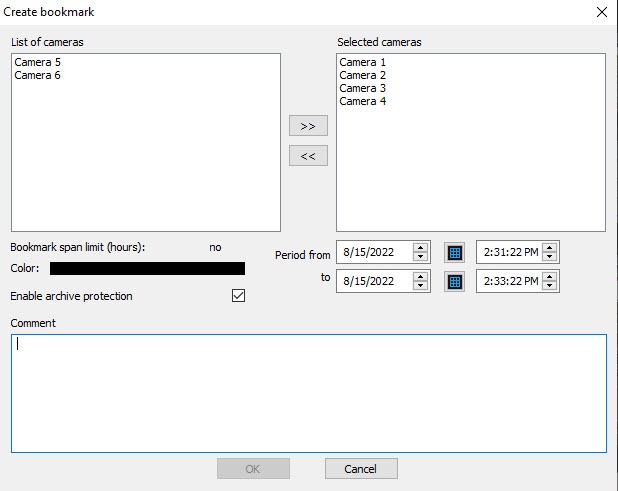
The list of cameras added to the video surveillance monitor is displayed in the left part of the window. Move cameras whose videos you want to protect to the Selected cameras list using the >> button.
Note
You can use the << button to move selected cameras from the Selected cameras list to the List of cameras.
In the Period from and to fields, specify the time period for which a bookmark must be created for the selected cameras.
In the Comment field, enter a comment, for example, the reason for a bookmark creation.
Attention!
Entering a comment is mandatory. If you don't enter a comment, a bookmark cannot be created.
You can set the Bookmark span limit (hours) using the BookmarkMaxLen registry key (see Registry keys reference guide). If the selected period is longer than the bookmark span limit, then the OK button is disabled and the warning on the limit is highlighted in red. To create a bookmark, shorten the period so that it doesn't go over the limit.
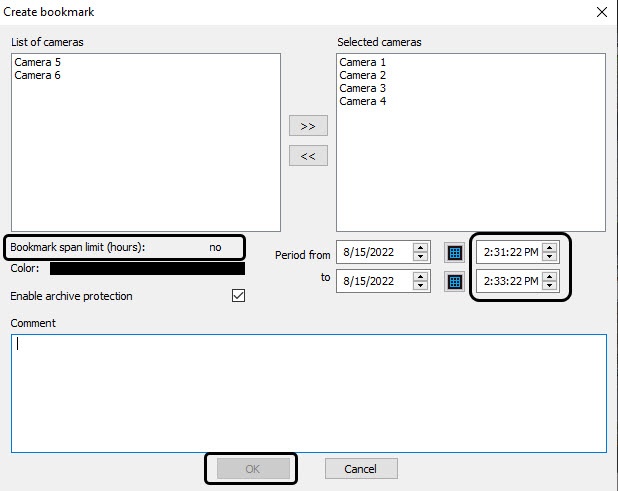
The Color field is used to select the color in which the created bookmark is highlighted in the video surveillance monitor (in the list of videos and on the timeline)—see Archive navigation using the timeline and Navigation in the list of videos.
The Enable archive protection checkbox allows you to protect archived videos when you create a bookmark. Changing the value of this parameter can be unavailable if you created the BookmarkProtectArchive key in the registry (see Registry keys reference guide).
After you fill out all required fields, click the OK button to create a bookmark for the specified period.
If the Enable archive protection checkbox is set, the protected videos are marked in red in the list in the video surveillance monitor, and the protected videos are moved to the PROTECTED folder in the VIDEO folder on the disk with the archive. If this checkbox is clear, then files are not protected, and they can be subsequently deleted during loop overwriting.
Overview
Content Tools