
Go to documentation repository

Documentation for Axxon PSIM 2.0. Documentation for other versions of Axxon PSIM is available too.
Previous page Next page

On the page:
Start a call
You can make a call on the Call tab of the SIP panel.
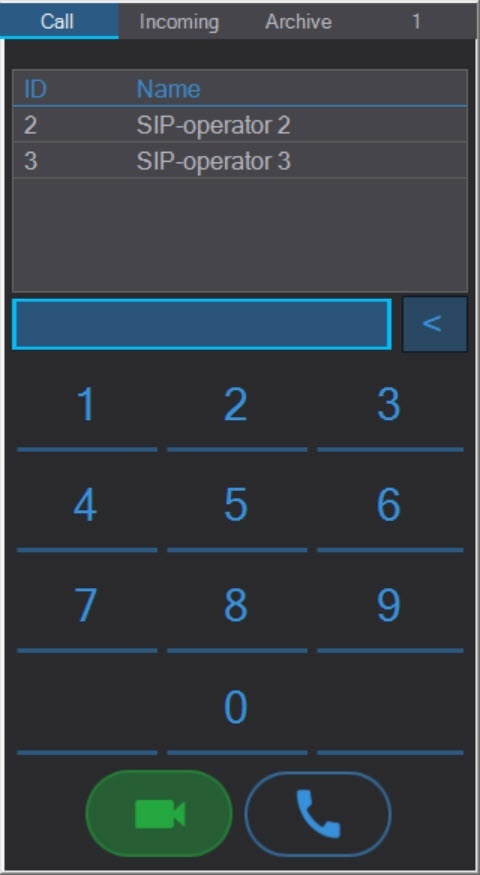
To make a call from the panel, select a number in the address book or dial the number manually, and then click one of the following buttons:
 —to start a call with video and audio. If you select a camera, a microphone, and an operator speaker at the system configuration stage and the SIP device supports the corresponding function, video and audio from the camera and audio from the operator microphone are transmitted to the device.
 —to start a call with audio only.
In both cases, both video and audio are transmitted from the SIP device, but when calling without video, the video stream from the operator camera is not transmitted to the device.
Note
If you don't select a microphone and a speaker at the system configuration stage, the call from the SIP device is transmitted to the device, but you are not able to transmit the audio message or hear it.
Note
You can also make calls using macros (see Macros for working with SIP terminal).
Display of the SIP panel during a call
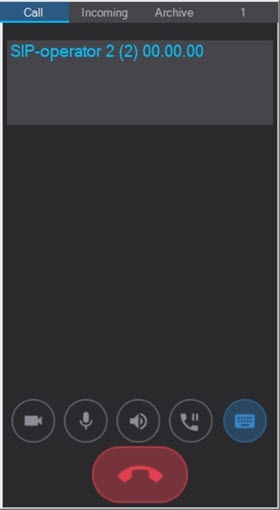
During a call, the SIP panel window is displayed on top of all windows and looks like this:
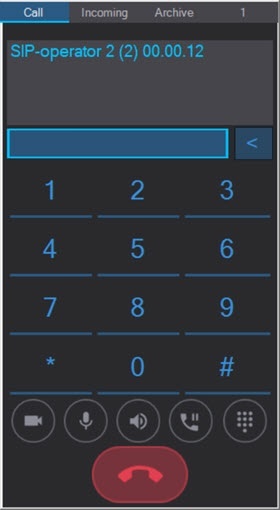
The information field at the top of the window displays the number and duration of the call.
If the option to call unknown subscribers is enabled, then when you call an unknown number, it is displayed as "Unknown number + #number".
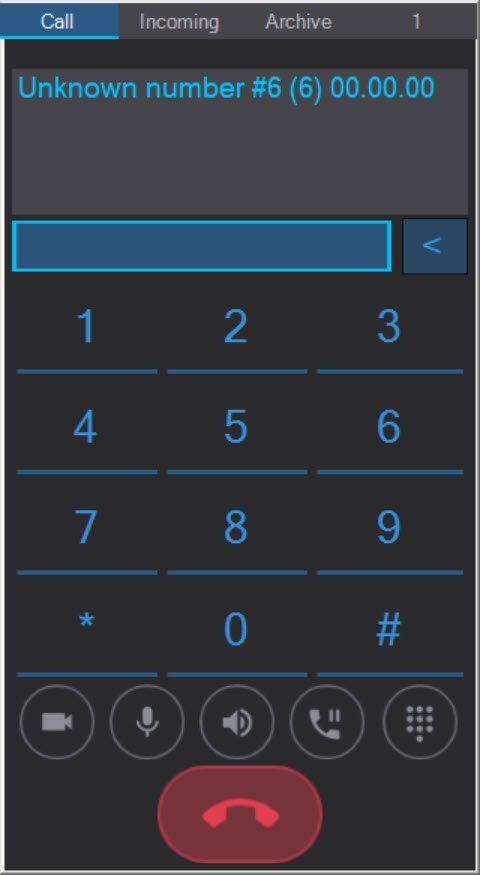
If an unknown number exists, the call is successful; if not, the call will be ended.
Manage a call
The buttons at the bottom of the panel manage the call:
 —Enable/disable the operator camera.
 —Enable/disable the operator microphone.
 —Enable/disable the operator speaker.
 —Hold the call. The Incoming tab opens with a list of all incoming calls that can be accepted/resumed using the buttons
  (with the video from the operator) and
  (without the video from the operator):
Note
When the call is on hold, the image and the audio of the SIP operators are not transmitted. The audio message "Call on hold" is played back on the SIP operator that was put on hold.
Note
By default, clicking the buttons on the SIP panel, macro dialing, and calls are accompanied by sound signals. You can turn off the sound of clicking the buttons at the stage of configuring the SIP panel interface object (see Advanced settings of the SIP panel interface object).
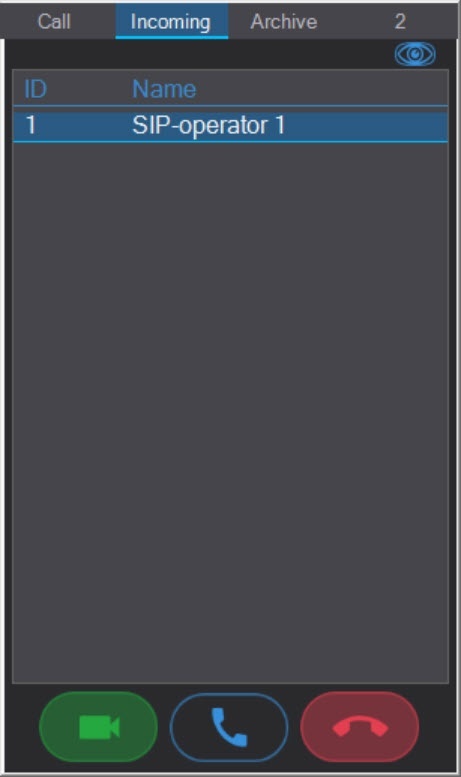
The calls in the list are sorted by the priority of SIP operators and SIP devices that was set at the system configuration stage. If several operators or devices have the same priority, the calls from them are sorted by the time they are received. By default, new calls are added to the top of the list, but you can change the sorting order during the system configuration so that the new calls are added to the end of the list regardless of the priority of operators and devices (see Advanced settings of the SIP panel interface object).
The window with the call list is displayed on top of all windows during a call and a call on hold.
Note
If you don't set the Switch to incoming checkbox at the SIP panel configuration stage (see Advanced settings of the SIP panel interface object), then the Incoming tab will not automatically open for incoming calls or calls on hold.
 —Display/hide the dialing panel in the tone mode. This panel displays the macros added while configuring the SIP device (see Configuring SIP device of the Axxon PSIM SIP server).
End a call
To end a call, click the  button.
If there is no answer, the call automatically ends in 30 seconds (this timeout is configurable by the CallTimeout registry key, see Registry keys reference guide).
Note
If you use a playback file after answering a call, the call ends automatically as soon as the file is played back. For example, a playback file lasts for 10 seconds. When you answer after 10 seconds, the call ends automatically.
If the file playback loop is set, the file will be played back until the manual end of the call (the playback file, as well as the playback file loop, can be set using macros, see Macros for working with SIP terminal).
Overview
Content Tools