
Go to documentation repository

Documentation for Axxon PSIM 2.0. Documentation for other versions of Axxon PSIM is available too.
Previous page Next page

Note
The list of OSs supported by the YUAN PD652 video capture card is given on the official website.
To configure the YUAN PD652 video capture card, do the following:
- Install the card drivers, but first disable the checkup of the driver's digital signature in the system.
Remove Axxon PSIM and IP DriverPack add-ons.
Note
For the information on how to remove Axxon PSIM, see the Removing Axxon PSIM™ software section of Administrator's Guide.
The IP DriverPack is removed from the OS Windows control panel.- Install the IP DriverPack. The installation file of the driver add-on is in the ipint.driverpack folder of the Axxon PSIM distributive package.
Install Axxon PSIM.
Attention!
First of all, install the IP DriverPack add-on and then install Axxon PSIM.- Connect cameras to YUAN PD652 and connect YUAN PD652 to the computer.
- Start Axxon PSIM.
- Start the Camera discovery tool.
Select AxxonSoft in the list of available devices.

Note
Also, the capturedevice device can be available in the list. You must disable it.- Click the Apply button.
- Corresponding devices are added to the Axxon PSIM object tree.
- Go to the settings panel of the created Video capture device object.
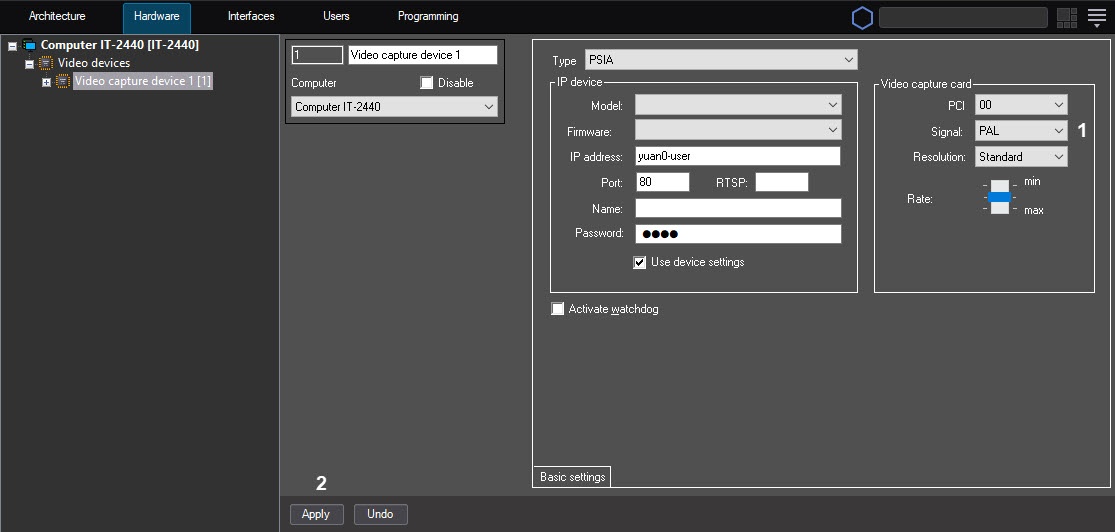
- In the Signal drop-down list, select the type of signal supported by the device: PAL or NTSC (1).
- Click the Apply button (2).
Configuring the YUAN PD652 video capture card is complete.
Overview
Content Tools