
Go to documentation repository

Documentation for Axxon PSIM 2.0. Documentation for other versions of Axxon PSIM is available too.
Previous page Next page

On the page:
To work with the fps.exe utility, do the following:
- Run the fps.exe utility (see Starting and shutting down the fps.exe utility).
- Select the video source.
- Set the checkup parameters.
- Run the checkup and read its results.
Selecting the video source
The archive file or directly the video server archive by the set cameras can be the video source for the performance checkup.
Note
To emulate the template set of frames, don't fill in the Path field.
To select the video source file, do the following:
- Click the Path button.
- Select the File value from the drop-down list.
- In the Open Windows standard dialog window that appears, use the double mouse click to select the required file.

The full name of the file is displayed in the Path field.
If the video server archive is the video source, then you must start Axxon PSIM on this server and create the required cameras.
To select the video archive source, do the following:
- Click the Path button (1).
- Select the Server value from the drop-down list.
As a result, the Cameras window opens.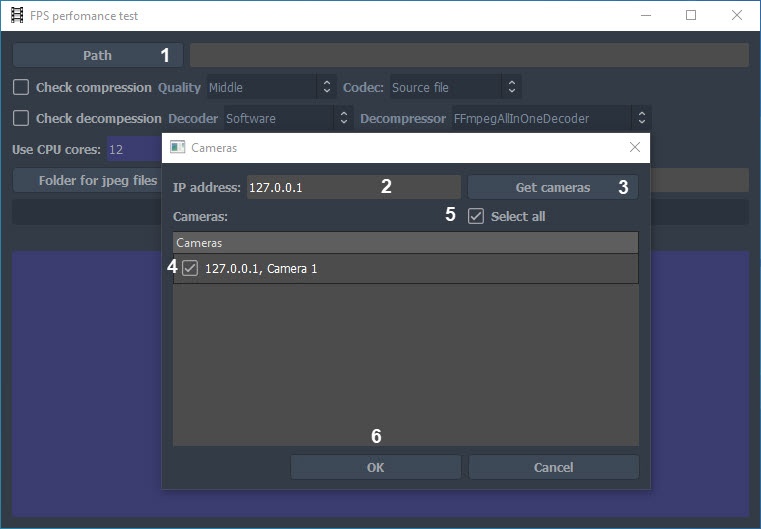
- In the IP address field (2), enter the IP address of the Axxon PSIM video server.
- Click the Get cameras button (3). If you establish the connection to the video server, the Cameras field displays the list of cameras.
- Set the checkboxes next to the cameras, the archive of which you want to use for the performance analysis (4).
- To select all cameras, set the Select all checkbox (5).
- Click the OK button (6).
- The selected cameras are added to the Path field.
Setting the checkup parameters
To set the parameters of the performance checkup, do the following:
- To check how many frames per time unit can be compressed by the given computer, set the Check compression (1) checkbox.
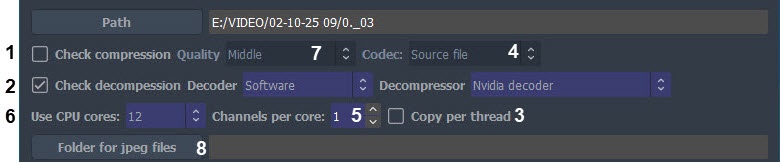
- To check how many frames per time unit can be decompressed by the given computer, set the Check decompression (2) checkbox.
- As a result, you can select a decoder from the Decoder drop-down list: Hardware, Software.
- For the hardware decoder, select the destination from the Destination drop-down list: System memory (CPU), Video memory (GPU).

- For the software decoder, select a decompressor from the Decompressor drop-down list.
- For the hardware decoder, select the destination from the Destination drop-down list: System memory (CPU), Video memory (GPU).
- If you need to create the separate file copy for each thread in the RAM to avoid errors during the checkup, set the Copy per thread (3) checkbox. This option increases the memory usage when you work with the fps.exe utility.
- From the Codec (4) drop-down list, select the required compressor version.
- In the Channels per core (5) field, enter the required number of the emulated cameras.
Note
This setting is relevant only when you emulate the template set of frames.
- In the Use CPU cores (6) field, enter the number of the CPU cores that you want to use at the performance test.
- From the Quality (7) drop-down list, select the required number of frames compression (inversely proportional to the compression level).
- If necessary, open the Select folder window by using the Folder for jpeg files (8) button, or in the Folder for jpeg files field, specify the directory to which the extracted video frames from the video fragment are unpacked.
Running the checkup and reading results
To start testing the performance of the video processing, click the Start button.
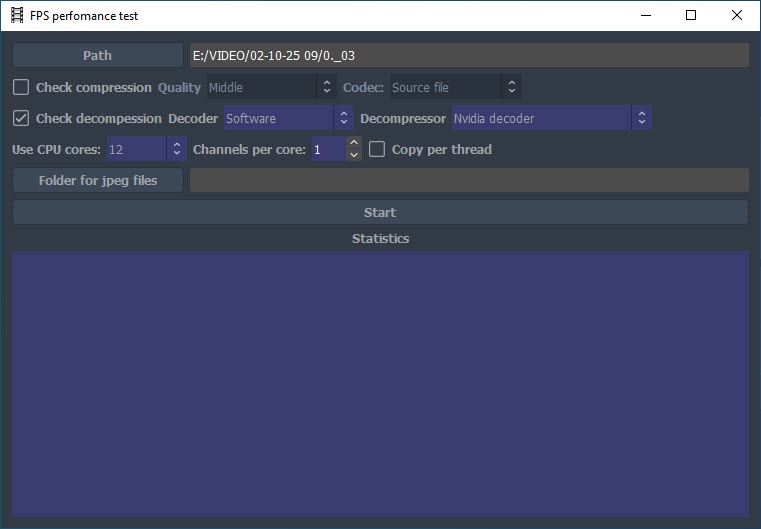
As a result, the Statistics field displays the parameters of the video processing performance.
Performance parameter | Description of parameter |
Compression | The total number of frames that can be compressed in one second |
Decompression | The total number of frames that can be decompressed in one second |
Ratio | Compression ratio |
Version | The selected compressor version |
Width | Frame width |
Height | Frame height |
Color | The presence of color |
CPU | The number of used CPU cores |
| Compressors $ decompressors per thread | The number of compressor samples per one CPU core |
If you select Folder for jpeg files, the frames used for the performance testing are recorded to the folder for jpeg files.
The example of the emulated frame is given in the figure.
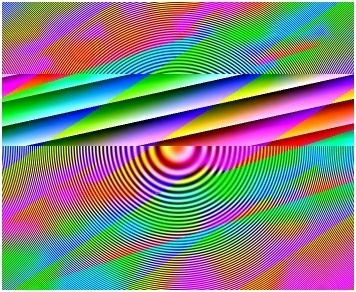
To stop the testing process, click the Stop button.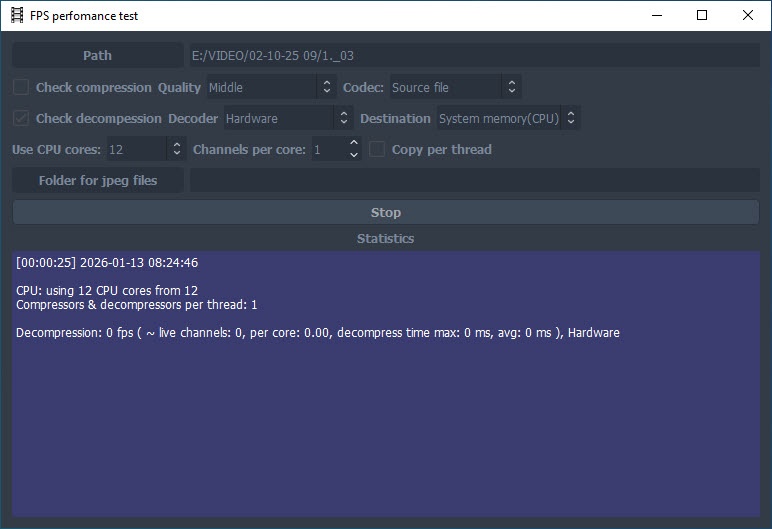
Overview
Content Tools