
Go to documentation repository

Documentation for Axxon PSIM 2.0. Documentation for other versions of Axxon PSIM is available too.
Previous page Next page

The MS SQL database backup copy is created using the idb.exe utility. To create the backup copy, do the following:
- Open the idb.exe utility (see Starting and shutting down the idb.exe utility).
From the Select data source: drop-down list, select the MS SQL database—Basic data.
Note
To create the backup copy of the vertical solution database, you must select the vertical solution database, for example, the Monitorsstv data source for Monitoring PSIM.
- In case you don't want to include the event viewer in the database backup copy, set the Clear protocols checkbox. This checkbox is unavailable if you select the vertical solution database.
- Click the Create backup copy button.
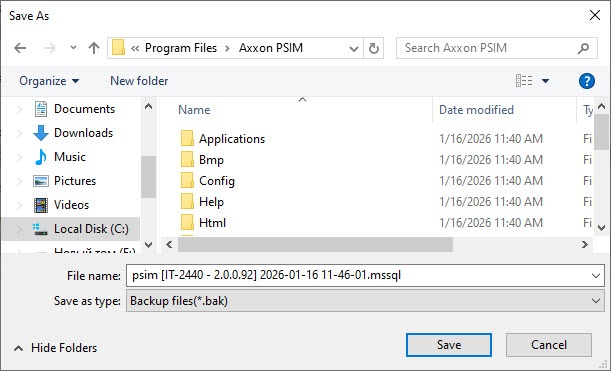
As a result, the Save as window opens. Select the address and enter the name of the saved backup copy.
Note
If Axxon PSIM and the database server are on different computers connected via the network, then when you create the backup copy of the MS SQL database, the created copy is saved by default on the computer where the database server is installed. To save the created copy on the computer where Axxon PSIM is installed, do the following:
- Create the folder available through the network on the computer where Axxon PSIM is installed. Provide access to the created folder from the computer where the database server is installed.
- Specify the path to the created folder in the Save as window.
As a result, the process of creating the backup copy starts. Information on this process is displayed in the Protocol information table.
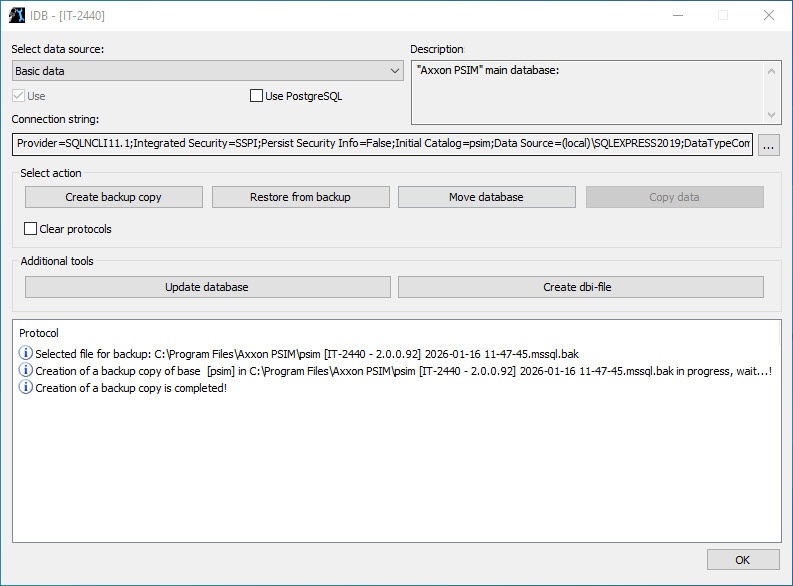
The backup copy is created when the corresponding Creation of a backup copy is completed! message appears in the Protocol table.
Note
Also, you can create the backup copy using a macro.- Click the OK button to shut down the operation. The window closes automatically.
Creating the MS SQL database backup copy is complete.
By default the database backup copy is created at: C:\Documents and Settings\<user name>\My documents\AxxonSoft\Axxon PSIM\Data\psim.sql.bak.
In case you cannot change the folder for storing the database backup copy during the backup copy creation, do the following:
- Call the Run function (Start → Run). In the window that opens, enter regedit.
- Click the OK button. As a result, the Registry Editor window opens.
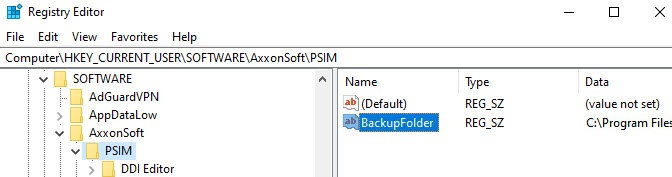
- Create the string parameter with the BackupFolder name in the HKLM\SOFTWARE\AxxonSoft\PSIM registry branch (see Adding string parameters to the registry).
- Set the value of the BackupFolder parameter: enter the folder address for storing the database backup copy (for example, C:\Documents and Settings\AVP\Desctop\Backup).
If you want to store the database copy on the network disk, you must specify the UNC path to the network folder to which the access for storing in the \\ServerName\ShareName format is opened. Take into account that all network resources that require the additional authentication must be connected using the same username as for running the SQL Server service. To find out and/or change the user that runs the SQL Server service, do one of the following:
- Using the SQL Server Configuration Manager utility.
- Run Start – Control panel – Administrative tools – Services, then right-click the SQL Server service and select the Properties item in the functional menu. In the opened SQL Server service properties window, go to the Log On tab.
- As a result, the string parameter of the key with the specified value is created.
- Call the Run function (Start → Run). Enter the "C:\Program Files\Axxon PSIM\idb.exe" /backup key in the opened window.
- Click the OK button.
As a result, the psim.sq.l.bak database backup copy is created in the folder specified as the value of the BackupFolder parameter (C:\Documents and Settings\AVP\Desctop\Backup).
Overview
Content Tools