
Go to documentation repository
Documentation for Axxon One 2.0 version. Documentation for Axxon One 3.0 version is also available.

Attention!
- We recommend using the PosXml driver for proper operation. If necessary, you can use the MixForward utility with the corresponding plugin to integrate the existing POS systems.
- If you don't use PosXml, the event source operation in Linux OS as well as the use of Axxon One reports is unavailable.
To configure the POS device, do the following:
- Create the Event source object; the manufacturer is POSLegasy (see Event source object).
Select the Event source object in the hardware tree on the Hardware tab.
- Select the POS device connection type (1).
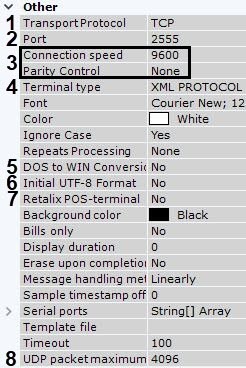
- Set the POS device connection port (2).
- To connect via the RS-232 interface, select the post speed and parity control (3).
- Select the type of the used POS device (4).
Select Yes in the DOS to WIN Conversion field if the data from the POS device is DOS-encoded (5).
If the data is UTF-8 encoded from the POS device, select Yes in the Initial UTF-8 Format field to enable the correct display of captions (6).
- If you use the Retalix POS-terminal, select Yes in the corresponding field (7).
Set the maximum size of the UDP packages in bytes (8). The packages whose size is greater than the set one are ignored.
- Click the Apply button.
Connecting the POS device is complete.
Overview
Content Tools