
Go to documentation repository
Previous page Next page
Note
You can use templates when you create a report.
To add a new template, click Report templates → New template and fill in the Name and Description fields. The template will use the selected parameters of the current report.
Templates work the same way as templates in the scheduler and can be used interchangeably.
When you create a response using a template, click Report templates at the top of the page and select the required template from the list of saved templates (the required template is highlighted). As a result, the parameters of the current report are updated according to the selected template.
The Report by employee passes with photo displays all interactions of the selected employee with the selected readers and displays a photo from the video archive at the time an employee passed the reader. The report allows you to track the movement of the selected employee within the specified area.
Note
To create the Report by employee passes with photo, first you need to create and configure the following objects in Axxon PSIM:
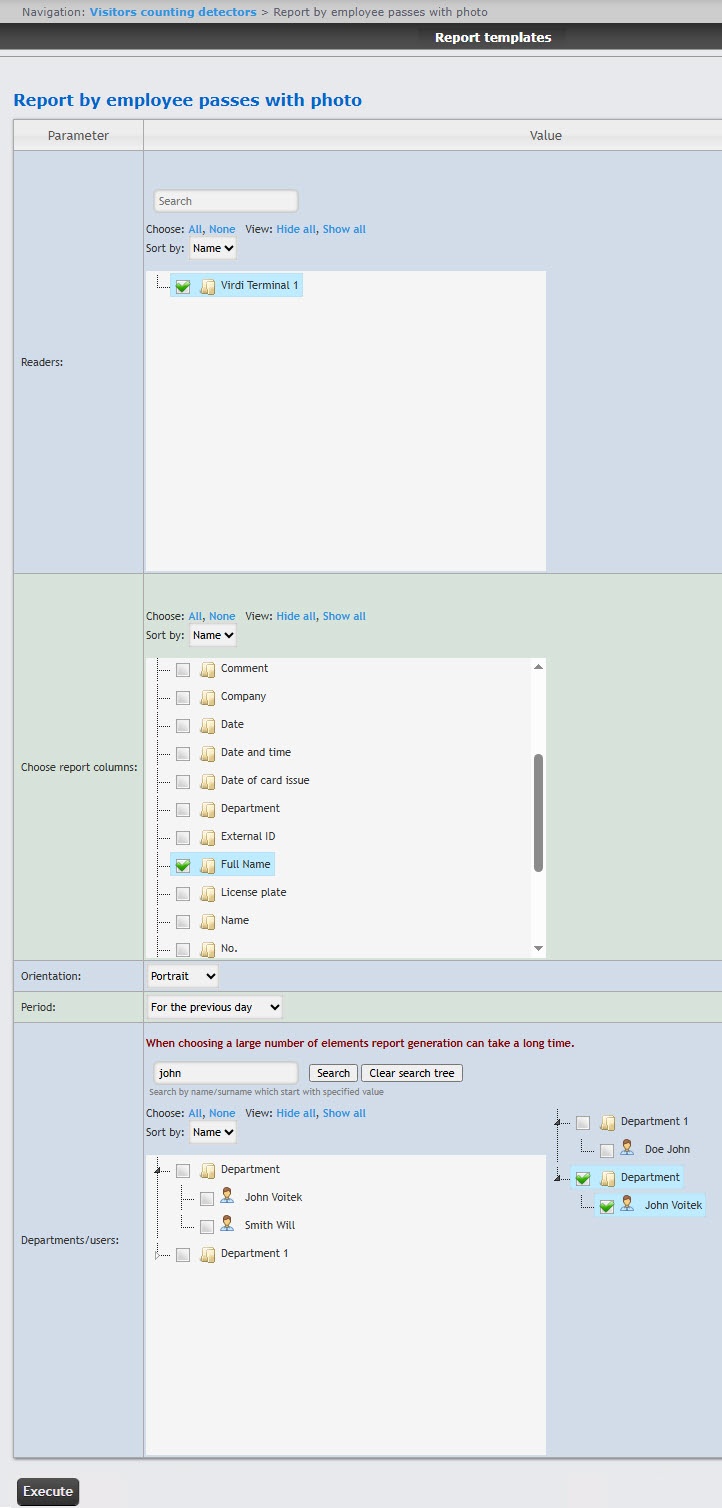
To create the Report by employee passes with photo:
Attention!
This field displays only those access points that have been added to any access level in the Access Manager module (see Creating access levels).
To use the search when selecting readers, in the search field, start entering the reader name. The search works starting from the first character. The results are highlighted in a different color.
From the Orientation drop-down list, select the report orientation: Portrait (vertical) or Landscape (horizontal).
Attention!
In the Period field, select the time period for which you want to create the report.
If you select the Custom period, enter the dates of the start and end periods for which the report must be created in the from and to fields using the Calendar tool.
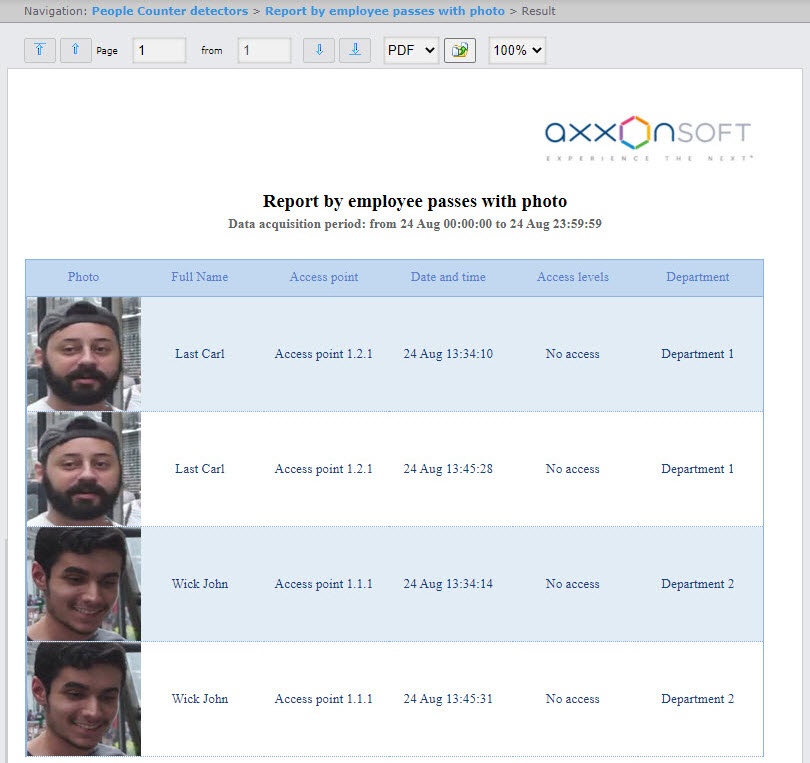
All possible fields of the report are described in the table.
| Field name | Description |
|---|---|
| No. | Line number |
| Photo | Photo from the camera |
| Full Name | Employee's full name |
| Name | Employee's first name |
| Surname | Employee's last name |
| Position | Employee's position |
| External ID | Employee's external ID |
| Patronymic | Employee's patronymic |
| License plate | License plate of employee's car |
| Car | Brand of employee's car |
| Card number | Number of employee's access card |
| Card code | Code of employee's access card |
| Date of card issue | Issue date of employee's access card |
| Access point | Access point through which the employee has passed |
| Date | Date of the passage |
| Date and time | Date and time of the passage |
| Time | Time of the passage |
| Access levels | Employee's access levels |
| Phone | Employee's phone number |
| Company | The name of the parent department, if the employee's department is a subsidiary |
| Department | Department where employee works |
| Comment | Commentary |
| Card expiration date | Expiration date of employee's access card |
| Pin code | PIN code of employee's access card |

