
Go to documentation repository

Documentation for Axxon PSIM 2.0. Documentation for other versions of Axxon PSIM is available too.
Previous page Next page

On the page:
Purpose
SIP panel is designed for making calls to numbers from the address book and/or to dialed numbers within the distributed system configuration.
Functions
SIP panel has the following functions:
- Making single and group calls between operators and/or SIP devices.
- Viewing the log of calls received or made using the SIP panel.
- Viewing and/or listening to the archived calls received or made using the SIP panel.
Interface description
By default, all elements are displayed in the SIP panel interface. If necessary, you can disable some interface elements (see Advanced settings of the SIP-panel interface object). Below there is an example when all interface elements are displayed.
The SIP panel interface consists of three tabs. The Call tab allows receiving and making calls. The Incoming tab displays the list of incoming calls and the calls on hold. The Archive tab lists the incoming and outgoing calls that can be listened to and/or viewed using the corresponding controls.
Depending on the operator Default settings, you may need to log into the SIP operator authorization window when you first log into the SIP panel.
Note
The Call, Incoming, and Archive tabs aren't available until the SIP operator is authorized.
SIP operator authorization window
The SIP operator authorization window contains a list of available SIP operators (see Operator settings of the SIP-panel interface object). For authorization, you need to double-click the SIP operator as who you will be logged in. The number of the current SIP operator is displayed in the upper right corner of the SIP panel.
If the SIP operator is already authorized in any SIP panel, then this operator is highlighted in red in other SIP panels. You cannot log in as an already authorized SIP operator.
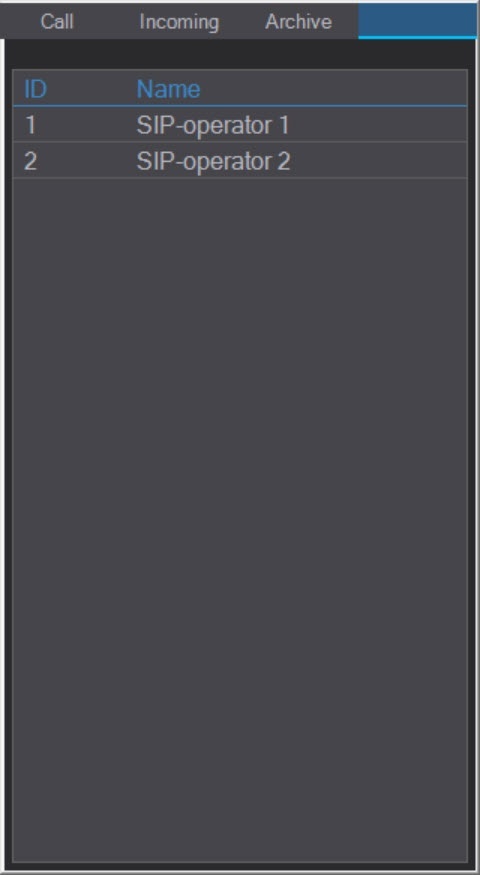
After the server/remote client reboot, the previously authorized SIP operator is logged in automatically. If you log off the current user in Axxon PSIM and log in again as the same user, you will need to be authorized again.
Note
The authorization window can also open in the following cases:
- If, during the server/remote client reboot, the same SIP operator was logged in on another server/remote client.
- If the User rights mode is selected and the current registered Axxon PSIM user does not correspond to this mode (see Operator settings of the SIP-panel interface object).
If, while working with the SIP panel, you need to log out of the current SIP operator without stopping the server/remote client, click the operator number in the upper right corner.
The Call tab
The interface of the Call tab of the SIP panel is shown in the figure:
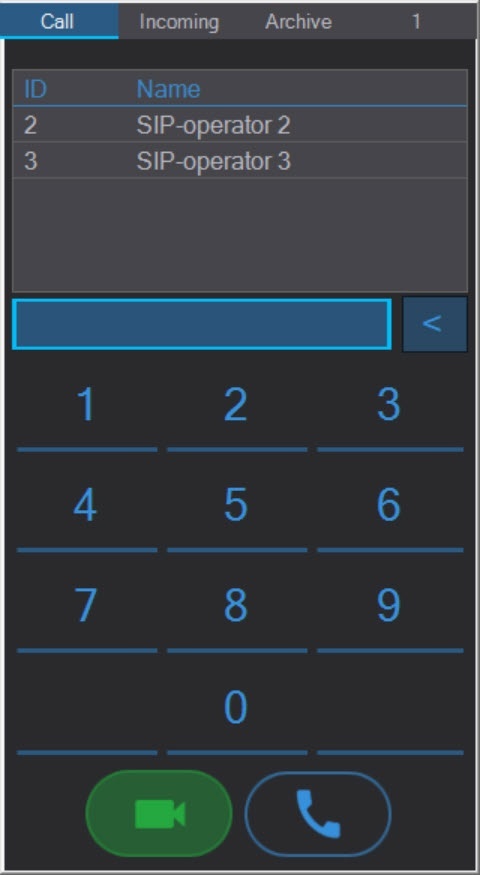
The top of the Call tab displays the subscriber numbers from the address books added to the current SIP operator during the SIP terminal configuration stage. If the same subscriber number is added to several address books, then only one is displayed on the SIP panel.
Note
If the SIP terminal was not specified at the SIP panel configuration stage (see Basic settings of the SIP-panel interface object), then the subscriber numbers from the address books aren't displayed.
A dial pad is available in the middle of the window. For more information on dialing and making a call, see Making calls using SIP panel.
The Incoming tab
The interface of the Incoming tab of the SIP panel is shown in the figure:
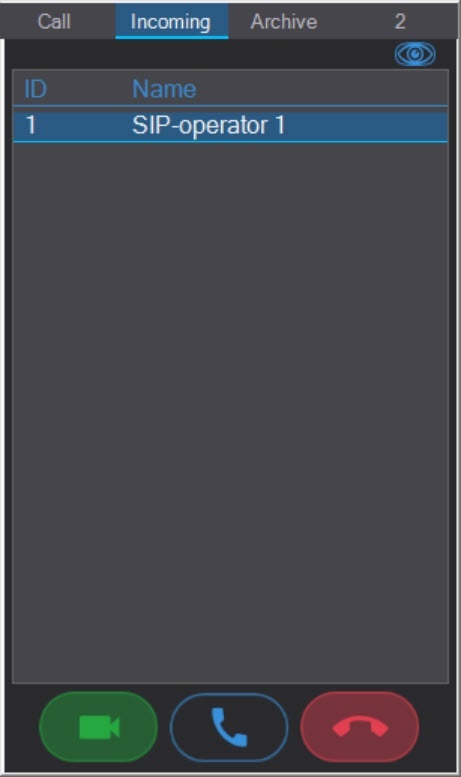
The Incoming tab displays a list of incoming calls or calls on hold. The Incoming tab opens automatically for incoming calls or calls on hold.
Note
If the Switch to incoming checkbox was not set at the SIP panel configuration stage (see Advanced settings of the SIP-panel interface object), then the Incoming tab will not automatically open for incoming calls or calls on hold.
The calls in the list are sorted by the SIP operator and SIP device priority that was set at the system configuration stage. If several operators or devices have the same priority, the calls from them are sorted by the receiving time. By default, the new calls are added to the top of the list, but the sorting order can be changed during the system configuration so that the new calls are added to the end of the list regardless of the operator and device priority (see Advanced settings of the SIP-panel interface object).
The window with the call list is displayed on top of all windows during a call and a call on hold.
To enable the alternative mode of displaying the calls, click the  icon at the top of the panel. After that, the Incoming tab interface looks as follows:
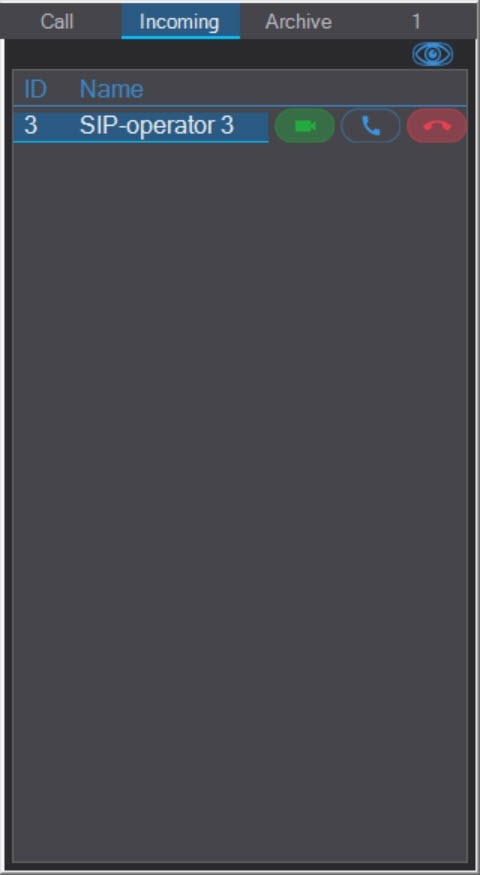
To disable the alternative mode of displaying the calls, click the  icon.
icon.
The buttons at the bottom of the panel manage the call:
 —Call with video and audio. If the camera, the microphone, and the operator speaker were selected at the system configuration stage and the SIP device supports the corresponding function, video and audio from the camera and audio from the operator's microphone are transmitted to the device.
 —Call with audio only.
 —End of call.
If the incoming call is declined and there are no other calls in the list, the Call tab opens.
The Archive tab
The interface of the Archive tab of the SIP panel is shown in the figure:
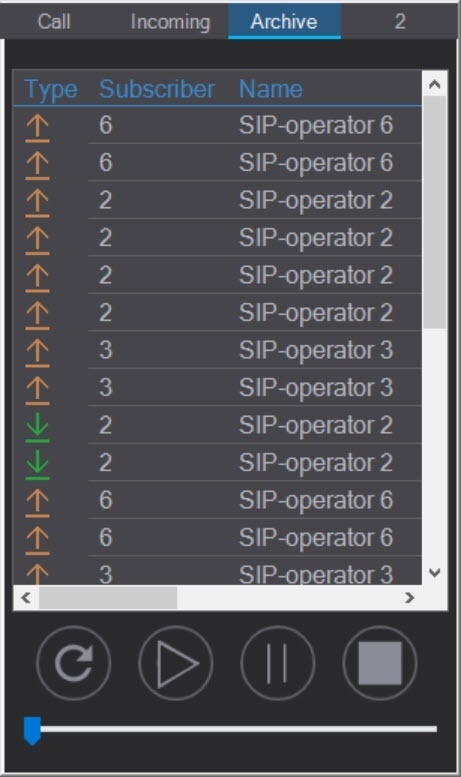
To ensure the correct playback of the archived calls, it is necessary to configure the audio and video archiving (see Configuring video archiving and Configuring audio signals recording).
The table includes the following information:
| Column | Description |
|---|---|
| Type | Call type: incoming |
| Subscriber | The subscriber number |
| Name | The subscriber name |
| Date and time | The call start and end time Note. The group calls are displayed as several calls to different numbers at the same time (see Configuring numbers of the Axxon PSIM SIP-terminal for details on group calls configuration) |
| Duration | The call duration |


Note
Left-click a column name to sort the information in ascending/descending order of the values of the corresponding column.
Video and/or audio are played back when playing back the archived call depending on whether the subscriber (SIP operator or SIP device) has a camera and/or microphone configured. The operator speaker (see Selecting speaker, microphone, and camera for SIP-operator) is used for audio playback, and the Monitor selected when configuring the SIP panel (see Configuring the SIP panel interface object) is used to play back video.
Controls for playing back the archived calls are under the table:
 —Update the call list.
 —Play back the call selected from the list.
 —Pause the playback.
 —Stop the playback.
 —Slider that displays the playback and rewind process.
Overview
Content Tools