General information
Search in archive is used to search for moments by the required search types:
- Thumbnail search.
- Events search.
- Line crossing.
- Motion in area.
- Loitering.
- Multiple objects.
- Move from area to area.
- Bookmarks search.
- Titles search.
- Search by temperature.
- Search by LPs.
- Vehicle search.
- Face search.
- Face contacts search.
- Similitude search.
- Search by barcode.
- Person appearance search.
- Search by tampering type.
- Meta search.
- In the current version of Axxon One, the search is possible only by one type at a time.
- In the embedded camera storage (see Selecting an archive), the thumbnail search is only available.
|
Requirements for Search in archive
To search in the archive, you must have the following:
- Activated license key with the Search in archive feature (see Axxon One license types).
- Access permissions (see Roles):
- In the Access to Search in archive mode parameter, the Yes value is set.
- In the Camera access parameter, one of the following values is set: Live/Archive, Live/Archive/Control, Live/Archive/Control/Configure.
- Configured archive recording (see Configuring recording to an archive).
- Followed the requirements for the video stream and scene for the operation of the used detector (see Detectors, Metadata database).
- Depending on the detector used, you must set the Yes value in its settings for the following parameters: Record objects tracking, Check in lists, or Record mask to archive.
Switching to Search in archive
You can switch to Search in archive using:
- Surveillance windows:
- Select the required layout on the layouts panel (see Configuring layouts).
- Select the required camera.
- Click the Search button located in the lower right corner of the surveillance window. By default, when you switch to the Search in archive mode from the surveillance window, one camera is selected.
- The Search in archive
 button that is located at the top panel. When you switch to Search in archive using the Search in archive button, all cameras of the layout are selected.
To change the number of cameras, do the following:
- Click the Selected cameras button.
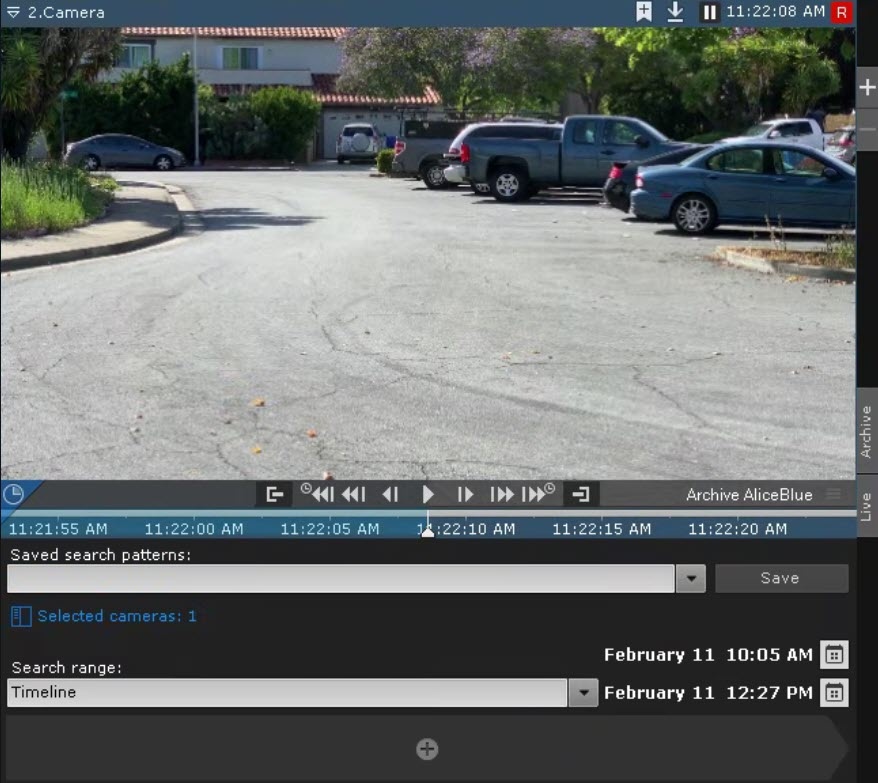
- In the Object panel window that opens (see Objects panel), set the checkboxes next to the required cameras. To search for all domain cameras, you must set the checkbox next to the domain name.
- By default, the checkbox is set next to the camera that is switched to the Archive mode. You cannot clear the checkbox next to this camera.
- If you want to change the active camera, you must switch again to the Archive mode.
- When you search in the archive, several cameras simultaneously support the timeline (see The Timeline) to specify the beginning and end of the viewed fragments. This can affect the search result: the closer the timeline is set, the smaller the fragments used for the search.
- One timeline is displayed for all selected cameras in the archive mode.
|
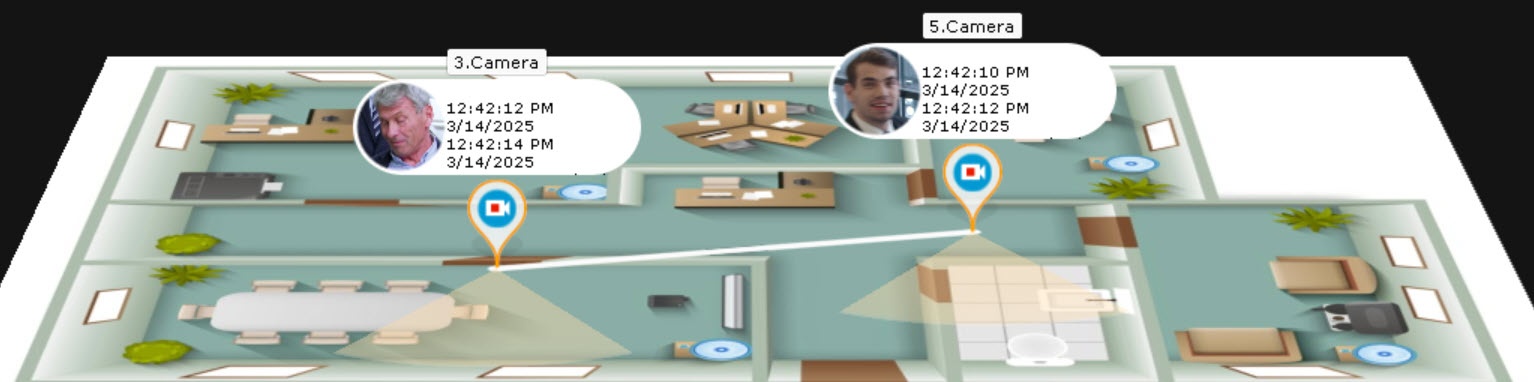
If you perform the face search (see Search for similar face) or the license plate search (see Search by LPs) in the archive of several cameras at a time, the map (see Opening and closing the map) marks the approximate graph of the detected objects' movement. The date and time of detection are specified next to the icon of each camera.