
Go to documentation repository
Documentation for Axxon One 3.0/3.1 version. Documentation for Axxon One 2.0 version is also available.

On the page:
General information
The search by loitering is used to search for events when an object stays for a long time in a specified area. For the search to work correctly, the following is required:
- Access permissions to search in the archive (see Role).
- A detector that is configured and connected to the camera (see Detectors).
- In the detector settings, the Yes value is selected in the Record objects trajectories parameter (see Object tracking).
Configuration of the minimum and maximum object size
The algorithms for setting the maximum and minimum sizes of a moving object are identical. You can set the maximum (minimum) size of a moving object using any of the following methods:
- Place the cursor over the node point Change node
 and move it by dragging.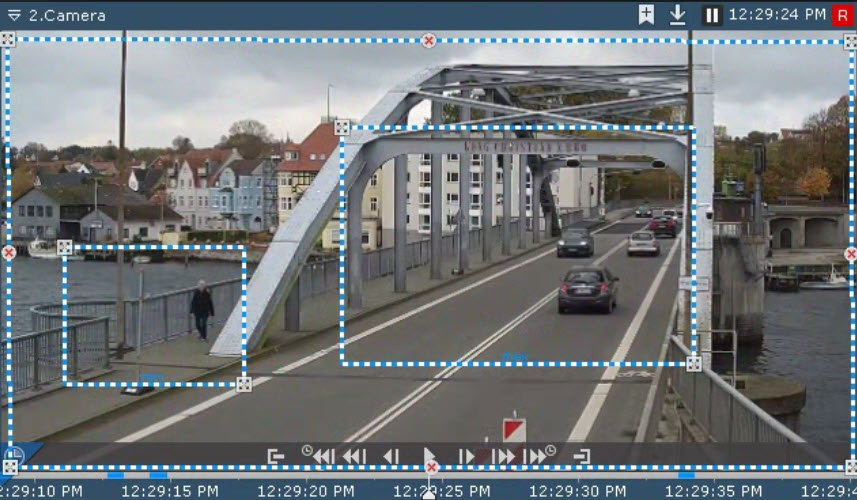
- Use the buttons
 /
/ to set the width and height of the maximum (minimum) object size in the upper and lower fields, respectively. The dimensions of the visual element in the surveillance window will change accordingly.
The maximum (minimum) object size is configured.
Search by loitering
To search by loitering:
- Open the required layout (see Configuration of layouts).
- Select the required camera.
- Click the Search button located in the lower right corner of the surveillance window (see Search in archive).
- Set the search interval (see Setting a search interval).
- Click the
 button.
 - Select Loiteting.
- In the surveillance window, specify the area that needs to be analyzed during the search according to the selected criterion.
The nodes of the area are connected by a two-color dashed line. By default, the area is specified by four node points with the coordinates (30, 30), (70, 30), (70, 70), and (30, 70), where the first value is the coordinate along the X axis and the second value is the coordinate along the Y axis (0,0 is the upper left corner of the frame; 100,100 is the lower right corner of the frame).
To edit the area, you can use the following actions listed in the table:Action
Result
Right-click a line
Create a new node of the area
Right-click a created node
Delete a node of the area
Place the cursor over a node and move it by dragging
Move a node of the area
- Click the button to add search criteria specified in the table:
Сriterion Value Description Line crossing Source From the drop-down list, select a metadata source (see Metadata database). You can search by one detector only Show HeatMap 
By default, the heat map isn't displayed (the checkbox is clear). If you want to view the heat map, set the checkbox. The heat map allows you to evaluate movement activity in the frame and identify areas where the main flows of moving objects occur.
Note
The colors on the heat map change from blue to red depending on activity:

where blue is low activity and red is high activity (see Working with search results).
If, in the Color criterion, you select colors, the accuracy of selecting areas containing moving objects of the corresponding color increases

Duration of stay The default value is 1 second. The value must be in the range:
- Minutes [2, 59]
- Seconds [1, 59]
Max size W The default value for width is 80. The value must be in the range [1, 100] H The default value for height is 80. The value must be in the range [1, 100] Min size W The default value for width is 10. The value must be in the range [1, 100] H The default value for height is 10. The value must be in the range [1, 100] Color Brown Select one or more required colors
Attention!
- Axxon One uses a logic that treats all objects as monochromatic. An object color in Axxon One is the average of all colors in the video image. All objects of the specified colors are displayed in the search results.
- You cannot search by color when you use metadata from the Motion detector (see Motion detector).
Red Orange Yellow Green Light blue Blue Purple Pink White Grey Black Select all By default, the checkbox is clear. If you want to find all colors, set the checkbox Object type Select the required object types. You can search by one or more types
Attention!
- The Person or Vehicle object type is correctly identified only from the Neural tracker. When you search by the metadata from other detectors (see Metadata database), results can be displayed conditionally based on an analysis of the object's appearance. If:
- The height is greater than the width—Person.
- The height is less than the width—Vehicle.
- An object is considered abandoned if it has been motionless for some time, such as a parked car.
- You cannot search by object type when you use metadata from the Motion detector.
Person By default, the search is performed by the Person object (the checkbox is set). If this object type isn't required, clear the checkbox Group By default, the search isn't performed by the Group object (the checkbox is clear). If this object type is required, set the checkbox
Note
- To correctly search by the Group type, set the checkbox in the Person and/or Vehicle type.
- The Group criterion isn't available when you use metadata from the Neural tracker.
Vehicle By default, the search isn't performed by the Vehicle object (the checkbox is clear). If this object type is required, set the checkbox Note
To delete a criterion, click the
 button.
 - Click the Search
 button.
Note
You can stop the search at any moment. To do this, click the Stop
 button, which appears instead of the Search button.
The search results panel displays frames that match the specified search criteria.
Overview
Content Tools