General information about layouts
Layout—is the set order of positioning videos from cameras and information boards in the client interface. You can configure layouts after you connect to the domain server. The options for creating, editing, copying, and removing layouts are determined by the access level settings in the Layouts editing parameter (see Roles).
Сreated layouts are available when you connect to any server within the domain. Changes made by one user (selecting or editing a layout) don't affect the interface of other users. To provide access to the layout, use the share function (see Sharing layouts).
The layouts panel
The layouts panel is located in the upper part of the interface. It automatically displays all available user layouts. When the client connects to several domains, the layouts of the main domain are available for selection.

Creating a layout
To create the new layout, do the following:
- Click the Open layout control menu
 button in the upper left corner of the panel.
 - In the window that opens, select one of the available templates:
| Template | Description |
|---|
| Standard layouts |
| 1 cell |
| 4 cells |
| 9 cells |
| 16 cells |
| 25 cells |
| 36 cells |
| 49 cells |
| 64 cells |
| Special layouts |
| All marked cameras: automatically displays all cameras marked by the user |
| All alarm cameras: automatically displays cameras that detect an alarm event |
| Dynamic layout: allows adding cameras from the object panel directly in the live video mode |
After you select a template, the system automatically switches to the layout editing mode. - Click the Save
 button. If you leave without saving the settings, it cancels the creation of the layout. To cancel the action, click the Cancel
  button.
The new layout is created and placed at the beginning of the list on the layouts panel. The system automatically generates the layout name, which you can change (see Changing the layout name).
Also, the new layout is created automatically when you select the camera that isn't present in any of the existing layouts (see Object panel). In this case the system doesn't switch to the editing mode, and the layout isn't saved in the system. |
Editing layouts
To switch to the layouts editing mode, you must have the appropriate access level rights (see Roles). In this mode, the following actions are available:
Switching to the layout editing mode
You can switch to the layout editing mode in one of the following ways:
- When you create the new layout (see Creating a layout). After you select a template, the system automatically switches to the editing mode.
- From the layouts panel. To do this, do the following:
- Select the required layout on the layouts panel.
- Click the Open layout control menu button in the upper left corner of the panel.
- Select the Edit layout/map item in the menu.
Interface of the editing mode
In the editing mode, the workspace is divided by the even grid of cells. Across the layout perimeter, the fragments of empty cells designed for adding new display areas are displayed.
To save all changes, click the Save button. To cancel the action, click the Cancel button. If you leave without saving the settings, it cancels all the actions executed in the current editing session.
Managing the list of layouts
Moving layouts
To move (change the order of) layouts on the panel, do the following:
- Click the Open layout control menu button in the upper left corner of the panel.
- Select the Delete/Move layouts item in the menu.
- In the opened interface, change the layout's order using the drag-and-drop method.
- Click the Save button. To cancel the action, click the Cancel button.
Moving layouts on the panel is complete.
Changing the layout name
To change the layout name, do the following:
- Select the required layout on the panel.
- Double-left-click its current name.
- Enter the new name.
- Click any interface point to complete editing.
The layout name is changed.
In the managing the list of layouts mode, you can also change a name when working with a layout. |
Configuring the layout identifier
To assign the ID to the layout (for example, to open using the hot keys, see Hot keys), do the following:
- Select the required layout on the panel.
- Double-left-click the layout image format.
- Enter the ID in the opened field.
- Click any interface point to save.
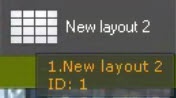
The assigned ID is added and displayed before the layout name on the panel. When you hover the mouse cursor on the layout, the ID and name in the tooltip are specified separately.
Grouping layouts on the object panel
To group layouts on the object panel (see Object panel), do the following:
- Select the required layout on the panel.
- Double-left-click its current name.
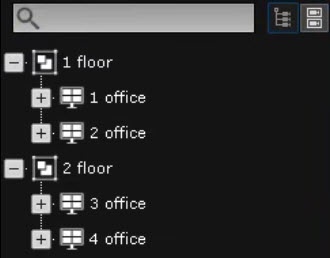
- Use the reverse \ slash character in the layout name to indicate the hierarchy (for example, floor 1\corridor).

- Click any interface point to save.
Layouts on the object panel are grouped in accordance with the set hierarchy.
Assigning the default layout
To set the layout for the automatic display when the client is running, do the following:
- Select the required layout from the list.
- Click the Open layout control menu button in the upper left corner of the panel.
- Select the Use by default item in the menu.
The default layout 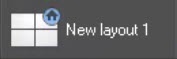 is assigned. To change the default layout, repeat the same actions for another layout.
To remove the default layout, do the following:
- Select the current default layout.
- Click the Open layout control menu button in the upper left corner of the panel.
- Select the Do not use by default item in the menu.
The default layout is removed. When Axxon One starts, the first layout in the list is displayed.
Duplicating a layout
To duplicate the current layout, do the following:
- Select the layout that you want to duplicate.
- Click the Open layout control menu button in the upper left corner of the panel.
- Select the Duplicate layout item in the menu.
The duplicated layout is created. The new layout with the name of the following serial number is added to the list. You can rename and edit it.
Deleting a layout
Managing the list of layouts (deleting and moving) is unavailable while you are in the editing mode. To delete a layout, do the following:
- Click the Open layout control menu button in the upper left corner of the panel.
- Select the Delete/Move layouts item in the menu.
- Find the required layout in the list and click the
 button next to its name.
 - Click the Save button to confirm the removal and quit the managing mode. The system quits the managing mode with the settings saved. Click the Cancel button to cancel all performed actions, including the removal.
Deleting a layout is complete.
Adding new cells to the layout
You can add new cells to the layout in the following way:
- Move the existing cell into the fragment of the empty cell across the perimeter (see Moving cells).
- Left-click the fragment of the empty cell, subsequently changing its size (see Changing cell size).
- Left-click the fragment of the empty cell and select a camera or the information board for its filling (see Adding cameras to cells, Adding information boards to cells).
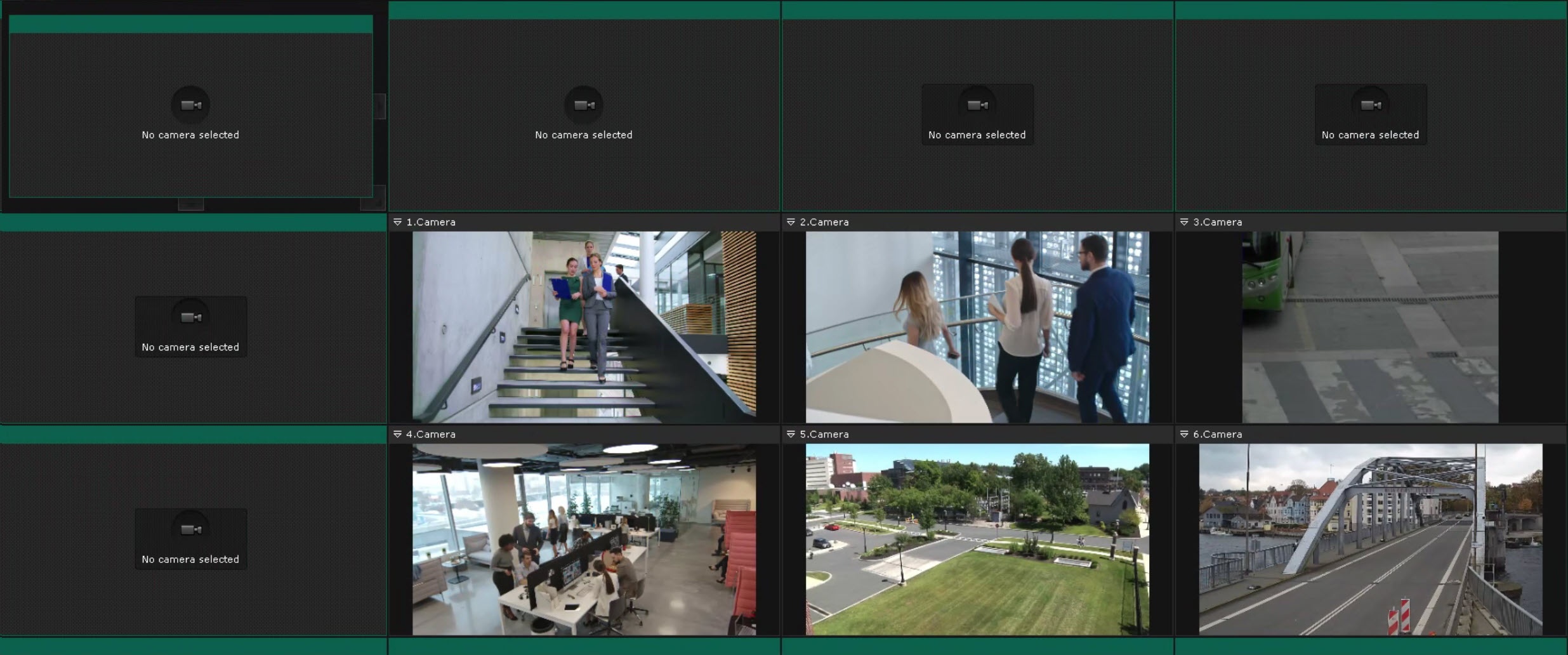
New cells are added as whole rows or columns in accordance with the current layout structure. For example, when you edit the 3x2 layout:
- Selecting the fragment from the left or right adds the new column of two cells.
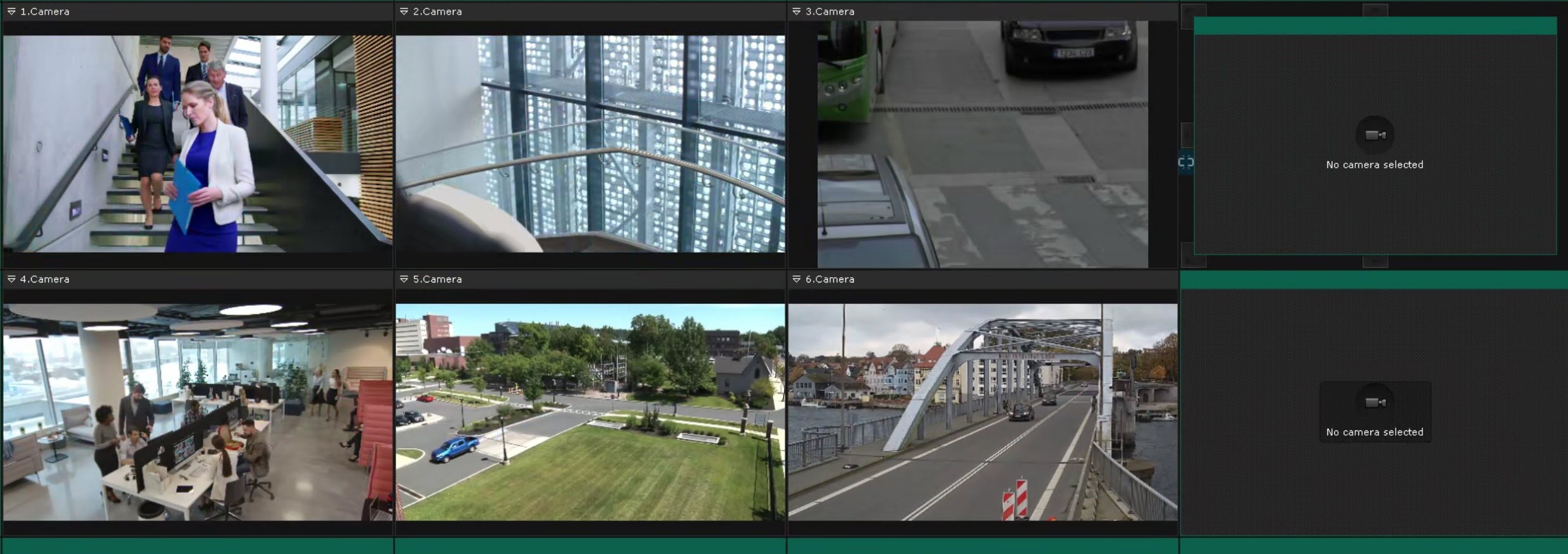
- Selecting the fragment from the top or bottom adds the new line of three cells.
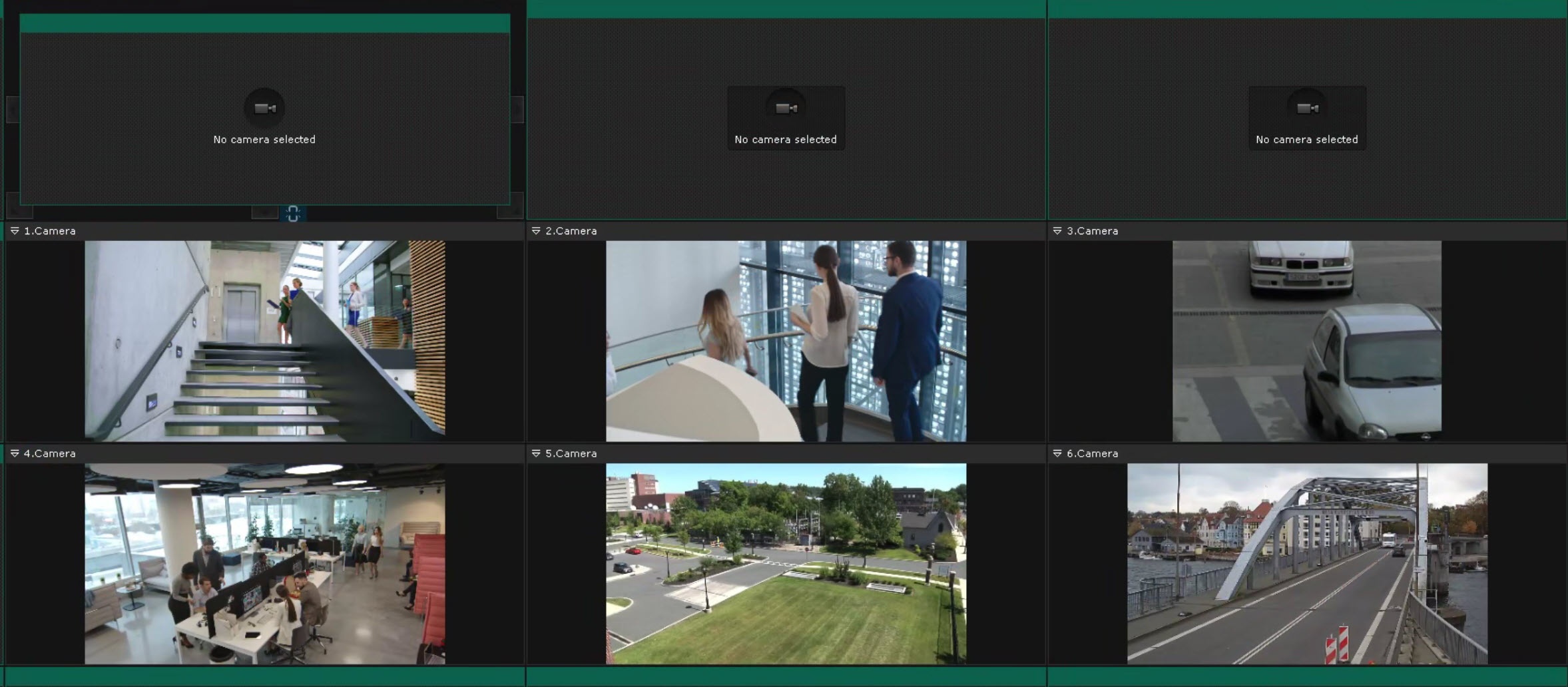
- Selecting the corner fragment adds both a line and a column at a time.
Changing cell size
You can change the cell size using the buttons on its border. The following options are available:
| Button | Action | Button | Action |
|---|
| Increase a cell by a column to the left and a row to the top | | Increase a cell by a column to the right and a row to the top |
| Increase a cell by a column to the left | | Increase a cell by a column to the right |
| Increase a cell by a column to the left and a row to the bottom | | Increase a cell by a column to the right and a row to the bottom |
| Increase a cell by a row to the bottom | | Increase a cell by a row to the top |
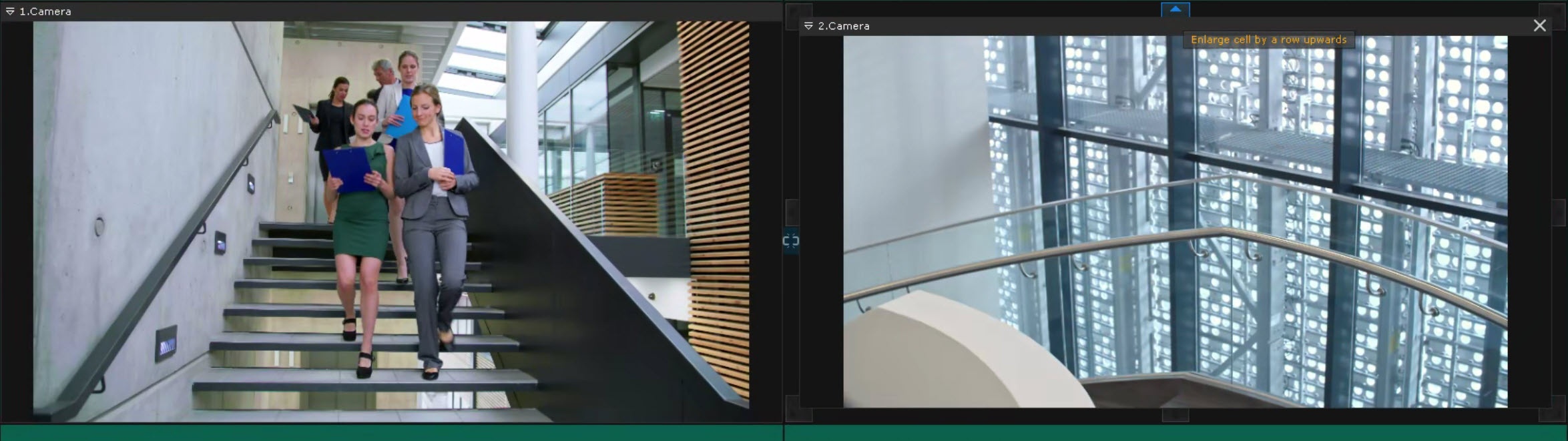
The arbitrary size change: For the smooth change, you must click the button on the cell border and, by holding down the left mouse button, move the border to the required size.
- You can change the cell size only in one direction for one action. You cannot simultaneously stretch a cell horizontally and vertically using the corner buttons.
- If you increase or decrease one cell, it leads to the proportional size change of neighboring cells.
- If you increase the cell that completely overlaps the neighbor one, the overlapped cell is removed from the layout.
- To change the size of the cell located at the edge of the layout, you must first add the new cell to this row or column towards the edge.
|
Moving cells
To move the cell content to another position, do the following:
- Go to the editing mode of the required layout (see Switching to the layout editing mode).
- Select the cell that you want to move.
- Point the cursor on the frame of the selected cell
 .
. - Using the drag-and-drop method, move a cell to the new position. If you move a cell to the occupied one, their content is swapped. If you move a cell to the fragment of the empty cell across the perimeter, new cells are added to the layout.
- Click the Save button. To cancel the action, click the Cancel button.
Moving the cell content to another position is complete.
Adding cameras to cells
You can add a camera to the cell using:
- The object panel (see Adding a camera using the object panel).
- Maps (see Adding a camera using the map).
General rules:
- You can add cameras from any available user domain. At the multi-domain connection, the cameras of the main domain are displayed by default. To display cameras of another domain, select it from the corresponding list on the object panel.
- You can add the same camera to several cells of one layout.
- If you add a camera to the cell that already contains a camera or the information board, its content is swapped.
- You cannot add disabled cameras on the layout.
- If the selected camera is on the current layout, the corresponding surveillance window switches to the active mode.
- You can search for cameras in the objects tree on additional monitors.
Adding a camera using the object panel
You can add a camera from the object panel in several ways:
- Using the Tree button:
- Click the Object panel
 button in the upper left corner of the panel.
 - Click the Tree
 button.
 - Select the required camera in the objects tree.
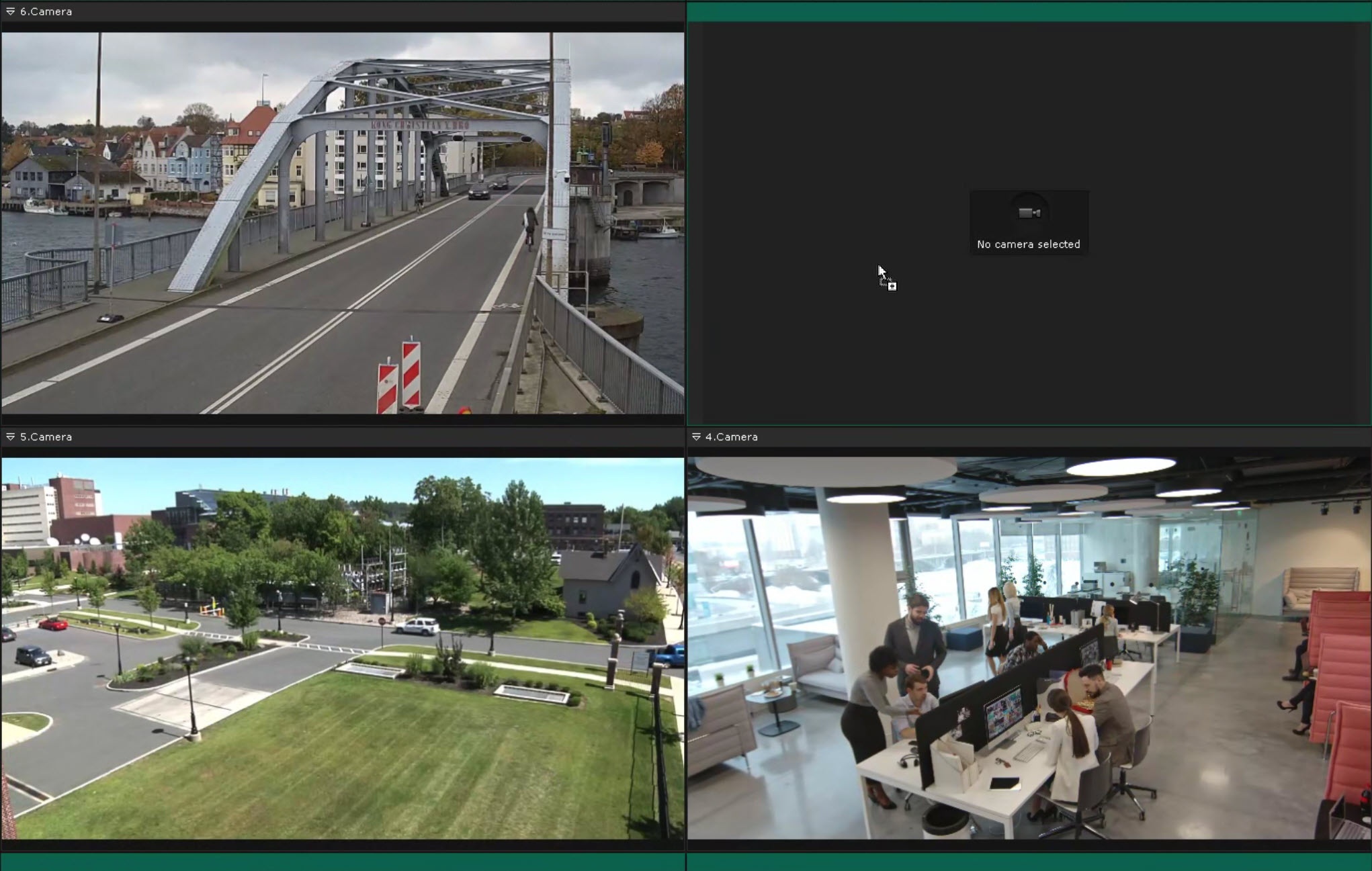
- Using the drag-and-drop method, move a camera to the target layout cell.
- Using the Thumbnails button:
- Click the Object panel button in the upper left corner of the panel.
- Click the Thumbnails
 button.
 - Select the required camera from the thumbnails list.
- Using the drag-and-drop method, move a camera to the target layout cell.
- Using the search line:
- Left-click the search line
 .
. - Enter the camera name in the search line (fully or partially).
- Using the drag-and-drop method from the search results, move a camera to the target layout cell.
A camera is added.
Additional features:
- Adding several cameras: Select several cameras on the object panel using the Ctrl and Shift buttons and add them to the layout using the drag-and-drop method.
- Adding the group of cameras or domain cameras: Left-click the name of the group or a domain on the object panel and add it to the layout using the drag-and-drop method. As a result, all cameras of the selected element are added.
- Adding cameras in the editing mode: When you are in the layout editing mode, you can click the target cell and then select a camera on the object panel. A camera is added automatically.
Adding a camera using the map
To add a camera from the map in the live video mode, do the following:
- Select the icon of the required camera on the map (see Adding cameras).
- Using the drag-and-drop method, add it to the target layout cell.
Or:
- Right-click the camera icon on the map.
- Select the Copy (Ctrl+C) item in the menu or press the Ctrl+C key combination.
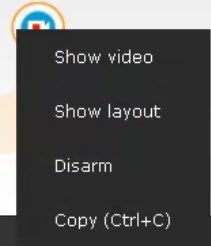
- Left-click the target cell on the layout. The changes that you made using the interactive map in the live video mode are temporary and aren't saved in the system.
Adding a camera from the map in the live video mode is complete.
The original layout configuration is restored if you select it again or after restarting the client.
Adding information boards to cells
The following information board types are available for adding to the cell:
- Alert panel (see Alert panel).
- Event Board (see Configuring an Event Board).
- Health Board (see Configuring a Health Board).
- Statistics Board (see Configuring a Statistics Board).
- Dialog Board (see Configuring a Dialog Board).
- Web Board (see Configuring a Web Board).
- ACFA (see ACFA).
To add information boards to the cell, do the following:
- Go to the editing mode of the required layout (see Switching to the layout editing mode).
- Left-click the cell that you want to fill.
- Select the required type of information board. You can use the drag-and-drop method.
- Click the Save button. To cancel the action, click the Cancel button.
The information board is added to the cell.
- If you add the information board to the cell, its current content is changed.
- After you add each information board, you must configure them individually (see Configuring information boards).
|
Clearing cells
To remove the content (of a camera or the information board) from a cell, do the following:
- Go to the editing mode of the required layout (see Switching to the layout editing mode).
- Left-click the cell that you want to clear.
- Click the
 button in the upper right corner of the layout.
A cell is cleared. If there are no filled cells in the line or a column after the process of clearing, the entire empty line or column is automatically removed from the layout.
Links between cells
Links are used to configure the interaction between the layout elements. To create them, do the following:
- Go to the editing mode of the required layout (see Switching to the layout editing mode).
- Left-click the cell that you want to link.
- Click the
 button on the border with the neighboring cell. To remove the link, click the
  button.
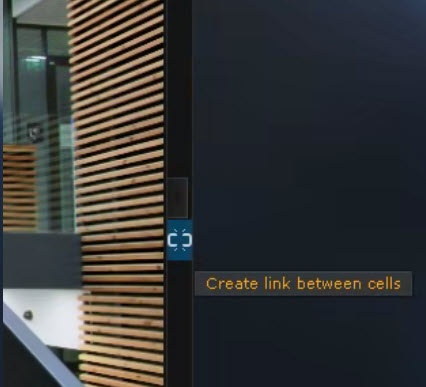
The link between cells is set. The presence of the link between cells changes the scaling logic of their content (see Scaling the Surveillance window). Types of links and their purpose:
- Surveillance window ↔ Surveillance window: used for the FrameMerge technology (see Merging neighboring images (FrameMerge)).
- Information board ↔ Surveillance window: ensures the interaction, for example, switching to the archive by event (see Configuring an Event Board). You can link one board with several neighboring cells both horizontally and vertically.
- Information board ↔ Empty cell ↔ Information board: is the special link type used when you configure layouts with active alarms (see Alarm cameras).
Merging neighboring images (FrameMerge)
The FrameMerge technology allows uniting videos from several neighboring cameras into one panorama.
Purpose and features
The united video is available for:
- Viewing in the live video mode.
- Working with the archive.
- Exporting a video (the maximum horizontal resolution is 8184 pixels).
Requirements for hardware and settings
To implement this feature, the following requirements for cameras and a video must be met:
| Camera position | - Cameras must be set close to each other.
- No more than three horizontal cameras can take part in one merging.
- The recommended overlap of viewing areas between neighboring cameras must be 20–25% of the frame size
|
| Camera settings | - Minimum resolution: 640×480 pixels.
- The same frame aspect ratio for the main and additional streams.
- The same lens characteristics (focal length, viewing angle).
- The synchronized time (for example, via the NTP protocol).
- The stable fixation: the camera shake must not result in image offsets greater than 1% of the frame size
|
| Requirements for the scene and image | - Images must be aligned vertically.
- The common static objects must be in the overlapping area (merging is invalid with the monochrome background, for example, the sky).
- The setting must be performed in daylight sufficient to discern small details.
- Flashes, strong noises, and compression artifacts or moving objects that overlap each other aren't allowed
|
Set up merging
To configure the panoramic image, do the following:
- Place the cameras on the layout designed for merging in neighboring horizontal cells.
- Create links between these cells (see Links between cells).
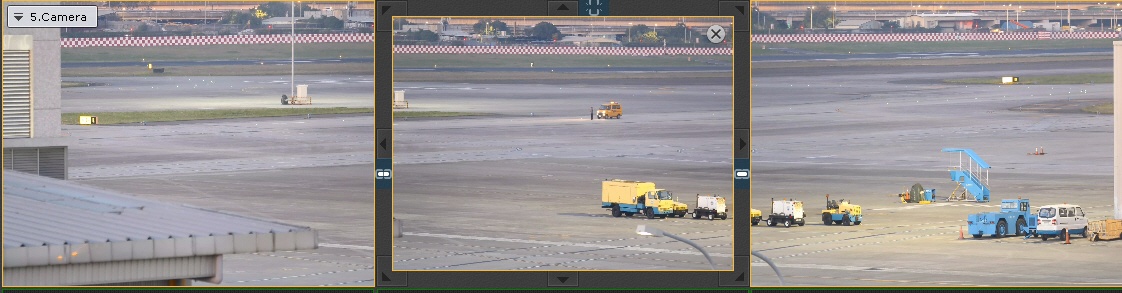
The system automatically finds the similar points on frames from neighboring cameras and creates the united image in one surveillance window. - If you want to display the selected area of the united image in the separate window, do the following:
- Add the dialog board on the layout (see Configuring a Dialog Board).
- Configure the panel to display a video.
- Create the link between the board and a cell with the united image.
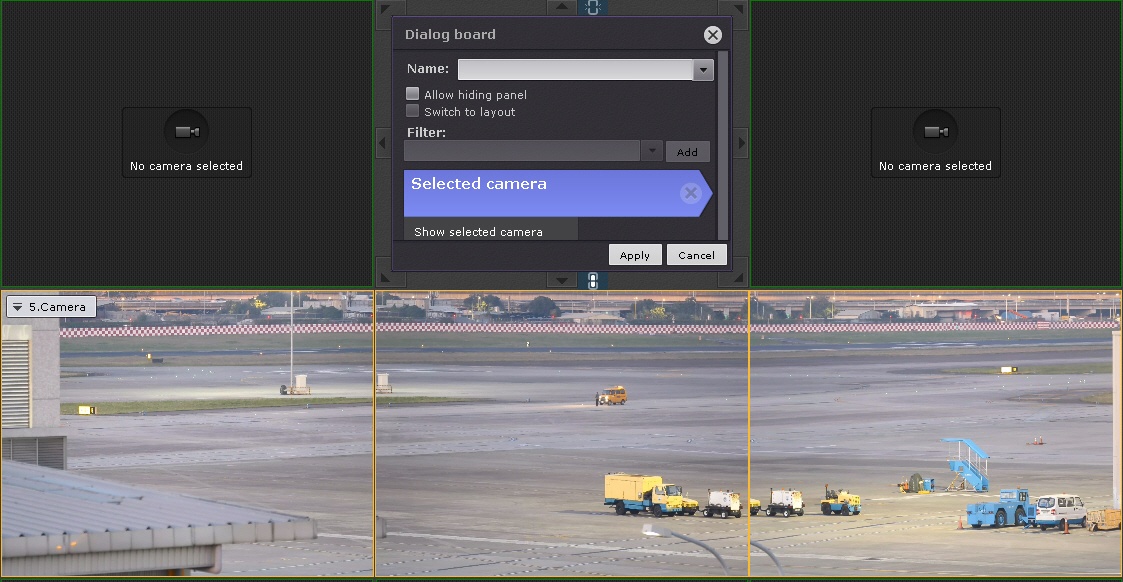
- Click the Save button. To cancel the action, click the Cancel button.
After it, when you select an area on the panorama (similar to the Areazoom function, see Control using Areazoom), this area is displayed on the panel.
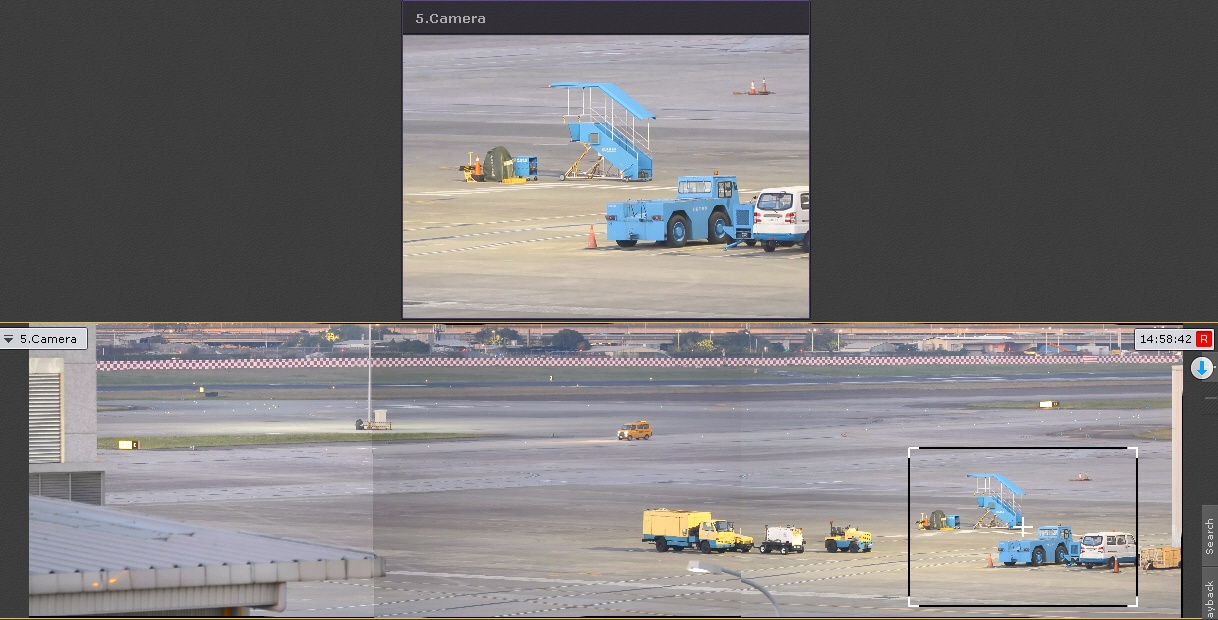
After you configure the merging, the position and orientation of cameras must not change. Any camera movement requires reconfiguration of the FrameMerge technology. |
Sharing layouts
This function allows providing access to the layouts created by other users in the system.
Rules and limitations
- You can provide access only to the layouts created by the user.
- You can select rights for the roles in the current domain. To switch the domain, use the object panel.
- Without setting the Allow editing checkbox, users can only view the layout.
The sharing procedure
To provide access to the layout, do the following:
- Go to the editing mode of the required layout (see Switching to the layout editing mode).
- Click again the Open layout control menu button.
- Click the Share layout item in the menu.
- In the window that opens, select one or several roles to which you want to provide access.
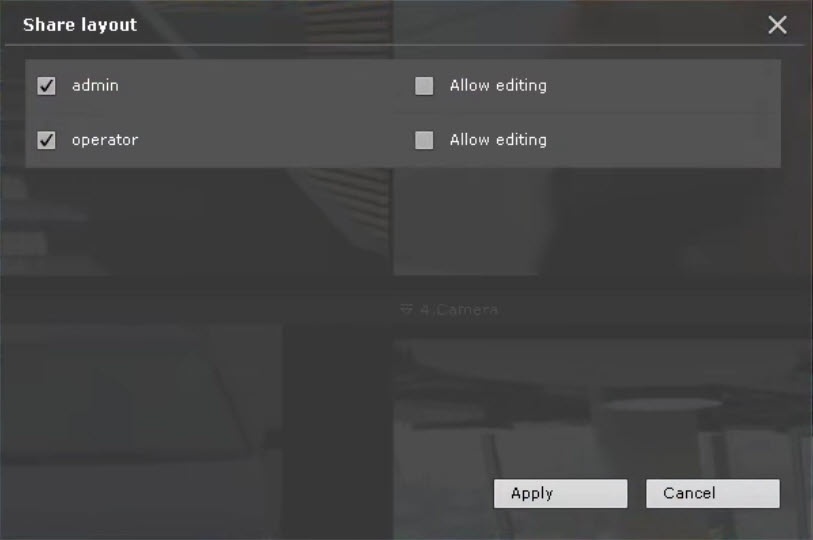
- If necessary, set the Allow editing checkbox for selected roles to provide rights for editing.
- Click the Apply
 button. To cancel the action, click the Cancel button.
 - Click the Save button. To cancel the action, click the Cancel button.
The layout is shared  by the other user.
Working with the shared layout
The layout received from another user is marked by the special icon. When you point the mouse cursor at it, the username is displayed. The users who gets the access can:
- Use this layout for editing and viewing (see The layouts panel). You can edit the layout only if the corresponding Allow editing right is granted.
- Delete it from your list (see Deleting a layout). Only the layout's owner can completely delete it from the system. This action makes the layout unavailable for all users. If any user has the opened layout during the moment of its removal, the system automatically switches to another layout.
- Duplicate this layout (see Duplicating a layout). The copy becomes the personal user layout.
Switching between domains on the layout
When you use the Cross-System client (see Cross-System client), you can switch between the available domains on the current layout by using the drop-down list that is located in the upper left corner next to the camera search field (see Camera Search Panel).
When you use the Cross-System client, the system supports creating and saving the layouts that contain cameras from different domains. To configure it, do the following:
- Switch to the required domain.
- Create the new layout and add cameras of the current domain on it.
- Switch to another domain and add the required cameras to the same layout.
- Save the layout.
The layout is saved on the domain that is selected at the moment of its creation regardless of whether there are cameras of this domain on the layout or not. When you connect to this domain for the next time without accessing other domains, the saved layout is displayed empty.
The Cross-System client is used to connect devices that are in one network. When you connect via the AxxonSoft Datacenter, you can use the technic domain. When you use the cloud connection, there are no network limitations. |
Special layouts
Special layouts automatically create their composition on the basis of system events or the user's actions. There are three available types:
| Layout | Descripton |
|---|
| Displays the cameras marked by the user during the working process (see Marked cameras) |
| Automatically displays cameras that detect unprocessed alarm events (see Alarm cameras) |
| Allows getting the custom set of cameras for analysis in the live video mode (Dynamic layout) |
Creating a special layout
To add the special layout to the common list, do the following:
- Click the Open layout control menu button in the upper left corner of the panel.
- Select the required type of special layout in the menu.
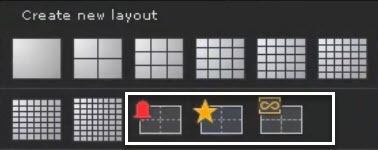
The layout is created and added at the beginning of the list on the panel.
Configuring the template for layouts with alarms and marked cameras
By default, these layouts use the 3x3 format. You can limit the number of the displayed cells by specifying the fixed template. To do this, do the following:
- Go to the editing mode of the required layout (see Switching to the layout editing mode).
- Click the Open layout control menu button in the upper left corner of the panel.
- Select one of the standard templates (1, 4, 9, 16, 25, 36, 49, 64 cells) in the menu.
To return to the automatic 3x3 format, you must reselect the installed template.
Turning the standard layout to the alarm layout
You can configure any existing standard layout to display active alarms. To do this, do the following:
- Go to the editing mode of the required standard layout (see Switching to the layout editing mode).
- Click again the Open layout control menu button.
- Click the Enable alarm monitor mode item in the menu. To cancel this action, select the Disable alarm monitor mode item.
The layout gets the appropriate 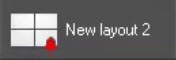 icon and starts displaying cameras with alarm events.
Alarm cameras
A layout automatically displays the cameras that currently detect alarm events.
The principle of operation:
- New alarms occupy free cells on the layout.
- During the first 10 seconds, the cell with the new alarm is highlighted by the red frame.
- A camera is removed from the layout after processing an event (see Assessing an alarm event) or after the set timeout expires (see Alarm processing).
- If there are no free cells, new alarms are transferred to the waiting order.
- An alarm doesn't disappear from the layout while the alarm assessing window is opened until the timeout expires. If you switch to another camera without assessment, the processing timer restarts the countdown.
Limiting alarm sources for the specific layout
You can configure the alarm display only from the cameras that are added to the certain standard layout:
- Go to the editing mode of the required standard layout (see Switching to the layout editing mode).
- Click again the Open layout control menu button.
- Select the Use in alarm layout item in the menu. To cancel this action, select the Disable in alarm layout item.
- Click the Save button. To cancel the action, click the Cancel button.
After it, the special layout with active alarms displays events only from the cameras included in the selected standard layout.
Marked cameras
A layout serves for the quick access to the cameras that the user marks during the working process.
Features:
- You can add cameras from any video wall to the layout (see Managing monitors on a local Client).
- When you exceed the cell limit (set by the template), only the last marked cameras are displayed.
- You can change camera positions on the layout using the drag-and-drop method.
- The layout's content isn't saved after you restart the client or server—you must mark cameras again.
To display marked cameras on the special layout, do the following:
- Click the Open layout control menu button in the upper left corner of the panel.
- In the window that opens, select the Marked cameras
 layout.
 - Mark the required cameras using the following ways:
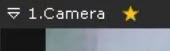
- Click the Mark/Unmark
 button in the upper left corner of the surveillance window.
To remove a mark, you must click again the Mark/Unmark button.
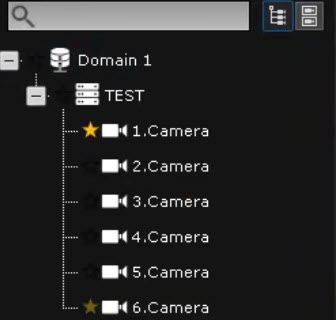
- Click the Mark/Unmark button on the object panel next to the name of a camera, server, or domain. The server or domain mark selects all included cameras. To remove a mark, you must click again the Mark/Unmark button.
Dynamic layout
This layout is designed for the flexible operation in the live video mode. All changes on it are temporary and aren't saved in the system. To add cameras to the dynamic layout, do the following:
- Click the Object panel button in the upper left corner of the panel.
- Using the drag-and-drop method, move to the dynamic layout:
- separate cameras;
- several cameras (using the Ctrl or Shift keys);
- the entire group of cameras or domain cameras.
When you use the drag-and-drop method, the grid is displayed on the layout while the cell under the cursor is highlighted.
Cameras are added to the layout.
Features
- Saving the mode: When you switch to another layout and back, the current mode for each camera is saved (the live video mode, the archive with position on the timeline).
- Temporary storage: After you shut down the client, the dynamic layout is cleared.
- Duplicating: You can create the permanent copy on the basis of the current dynamic layout (see Duplicating a layout), which you can later save and edit.
Slideshow
Slideshow—the automatic cycle switching between selected layouts with the set interval. There is one slideshow created in the system by default, which includes all standard layouts created by the user. Special layouts aren't included in the automatic slideshow. The switching interval is three seconds by default. To change the interval, you must go to the Options tab → the User interface item, and in the Slideshow period, sec parameter, set the required value (see Configuring the slideshow parameters).
To create the new set of layouts for the slideshow, do the following:
- Click the Open layout control menu button in the upper left corner of the panel.
- In the window that opens, click the Delete/Move layouts item.
- Click the Open layout control menu button again.
- Click the Create slideshow... item in the menu.
- Select the layouts that you want to include in the slideshow.
- Click the Save button.
Creating the slideshow is complete. To start the slideshow, click the Open layout control menu button in the upper left corner of the panel, and in the window that opens, click the Start slideshow item. To stop the slideshow, click the Stop slideshow item.
Autozoom
Autozoom—the automatic digital zoom function of the area with moving objects.
Autozoom is available for a camera if one of the following detectors with the tracking function is activated and configured for it:
The principle of operation:
- If the surveillance window is inactive and the autozoom option is enabled, the system specifies the minimal area containing all tracked objects and applies to it the maximum digital zoom.
- If there are no moving objects, an image is displayed in the original scale.
- If you enable the Fit screen function for the surveillance window, the set zoom step is used.
- Autozoom stops when the user enables the surveillance window (for example, by clicking it) and resumes after you disable it.
- When you switch to the layout editing mode, the autozoom option is automatically disabled for all cameras.
Managing the autozoom for a separate camera
To enable or disable the autozoom option for the specific surveillance window, do the following:
- Select the required layout on the layouts panel.
- Select the required camera.
- Click the Show context menu
 button in the surveillance window.
 - Select the Enable autozoom or Disable autozoom item in the menu.
Managing the autozoom for all cameras on the layout
To manage this option on the entire layout at a time, do the following:
- Click the Open layout control menu button in the upper left corner of the panel.
- Select the Enable autozoom for all or Disable autozoom for all item in the menu. If you enable autozoom at least for one camera on the layout, the Disable autozoom for all item is displayed in the menu by default.


